Skip to content

Photo to Coloring Page

Effect

Coloring PageMake a coloring sheet from a photo
0/1 max

Result

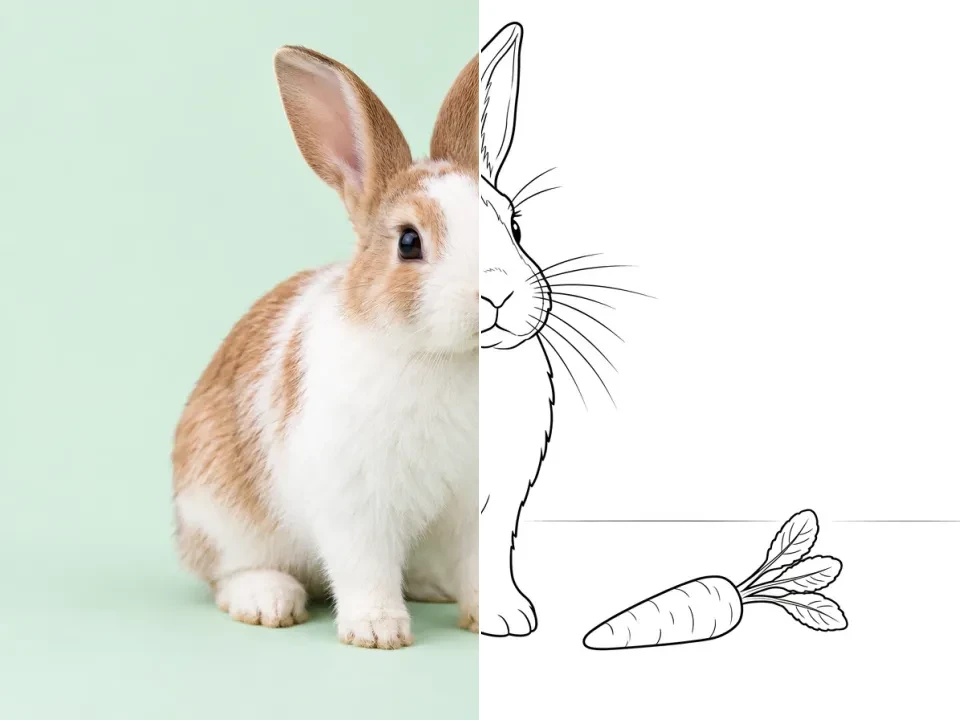
Original white-and-caramel rabbit beside a carrot against a simple pale mint background.
Black-outline coloring sheet of the same rabbit and carrot, with open white regions inside the body and ears.

Drag the divider or use the arrow keys to compare the same source photo with its generated result.

Photo to Coloring Page: Make It Personal

A familiar photograph can provide the subject for a more personal coloring activity. Instead of choosing an unrelated illustration, start with a pet, a favorite object, or a simple moment you want to remember. The preset asks for dark outlines and open white areas, turning the visual information in the upload into a drawing intended for coloring.

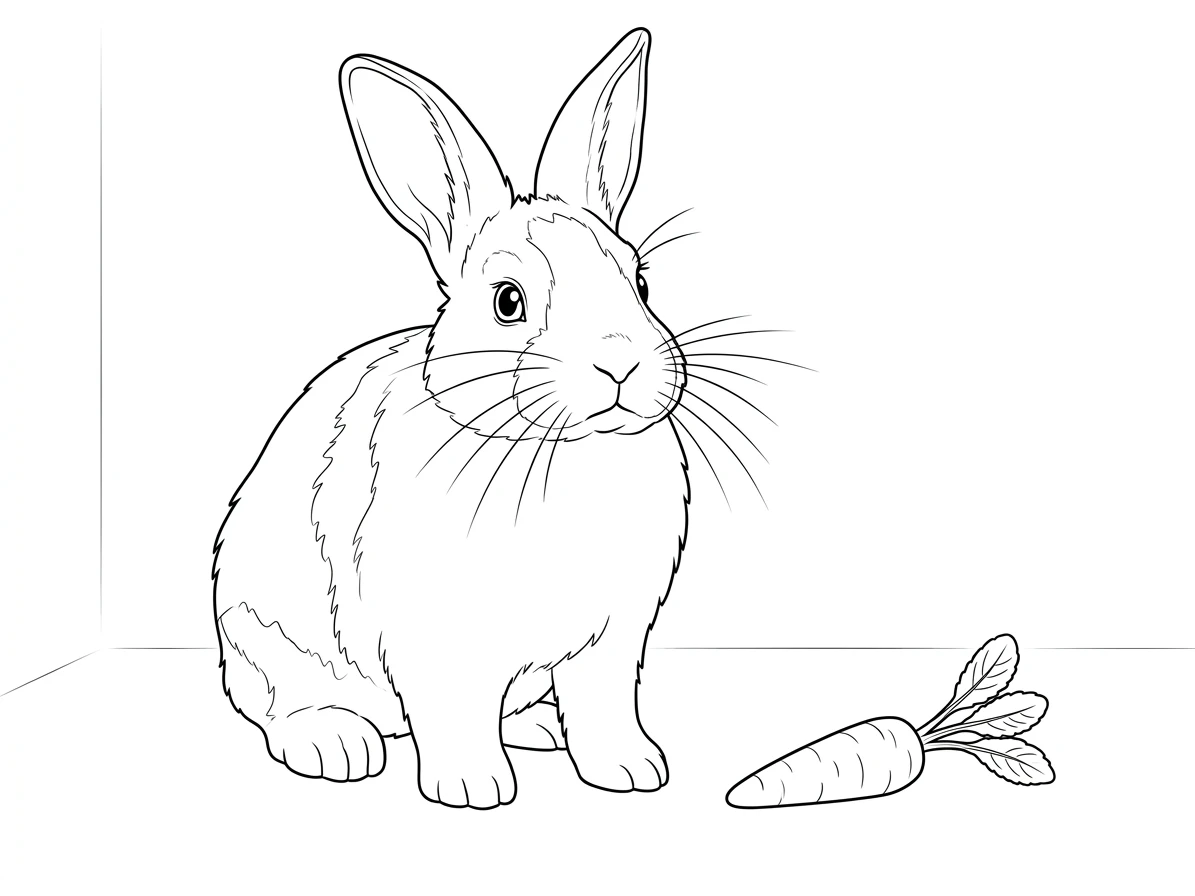
The rabbit reference shows how a recognizable subject can remain readable after color and much of the shading are removed. A quiet background makes it easier to separate the main outline from small details. For your own source, choose the subject first and crop out distractions before uploading. Review the generated lines at full size so you can spot gaps, unwanted dark patches, or shapes that became too crowded.
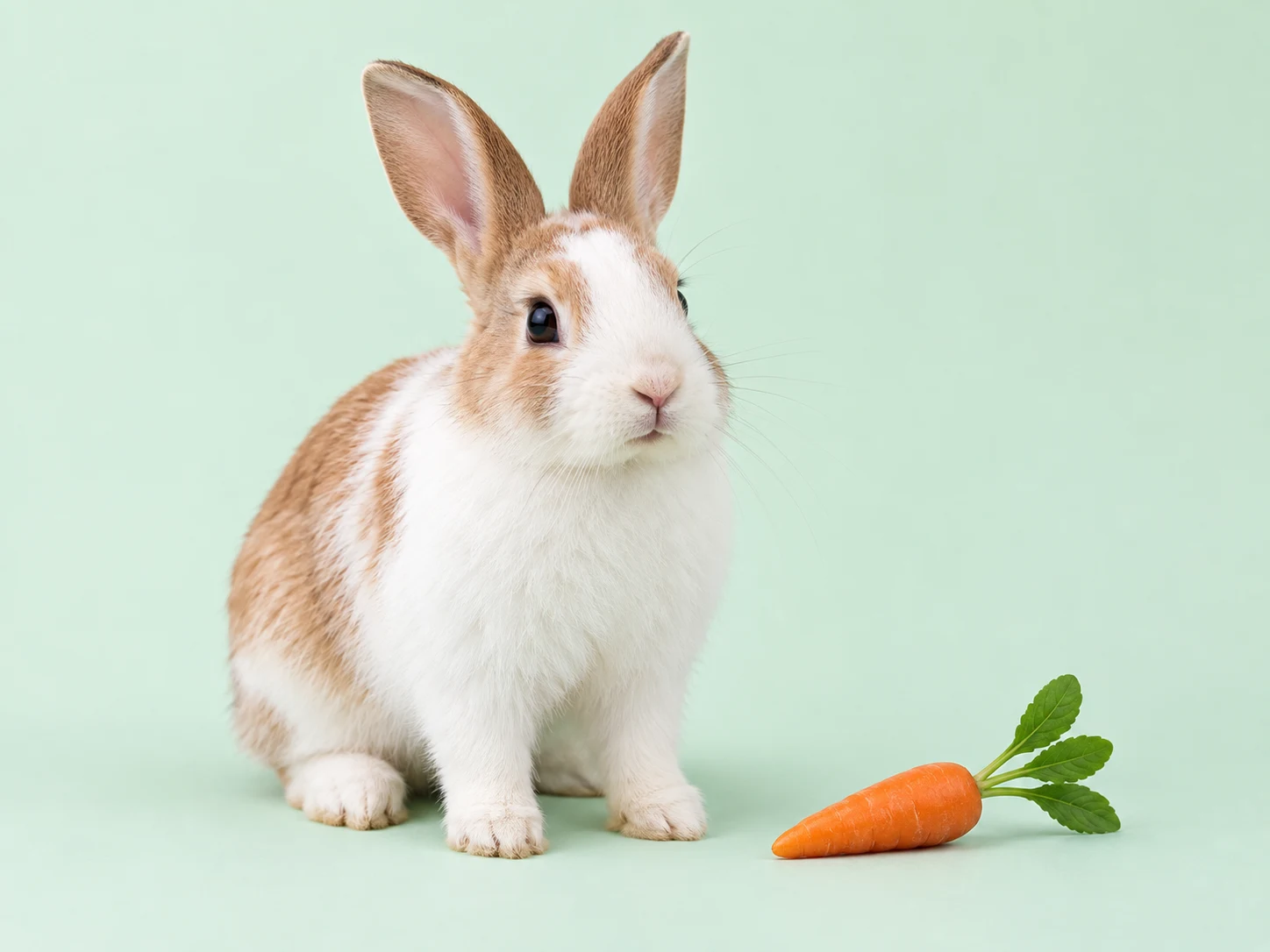
Original white-and-caramel rabbit beside a carrot against a simple pale mint background.
Black-outline coloring sheet of the same rabbit and carrot, with open white regions inside the body and ears.

Drag the divider or use the arrow keys to compare the same source photo with its generated result.

Your pet, ready to color

Check how the original subject becomes open coloring spaces separated by dark outlines, with less photographic surface detail.
Everyday Photos, Playful Coloring Sheets

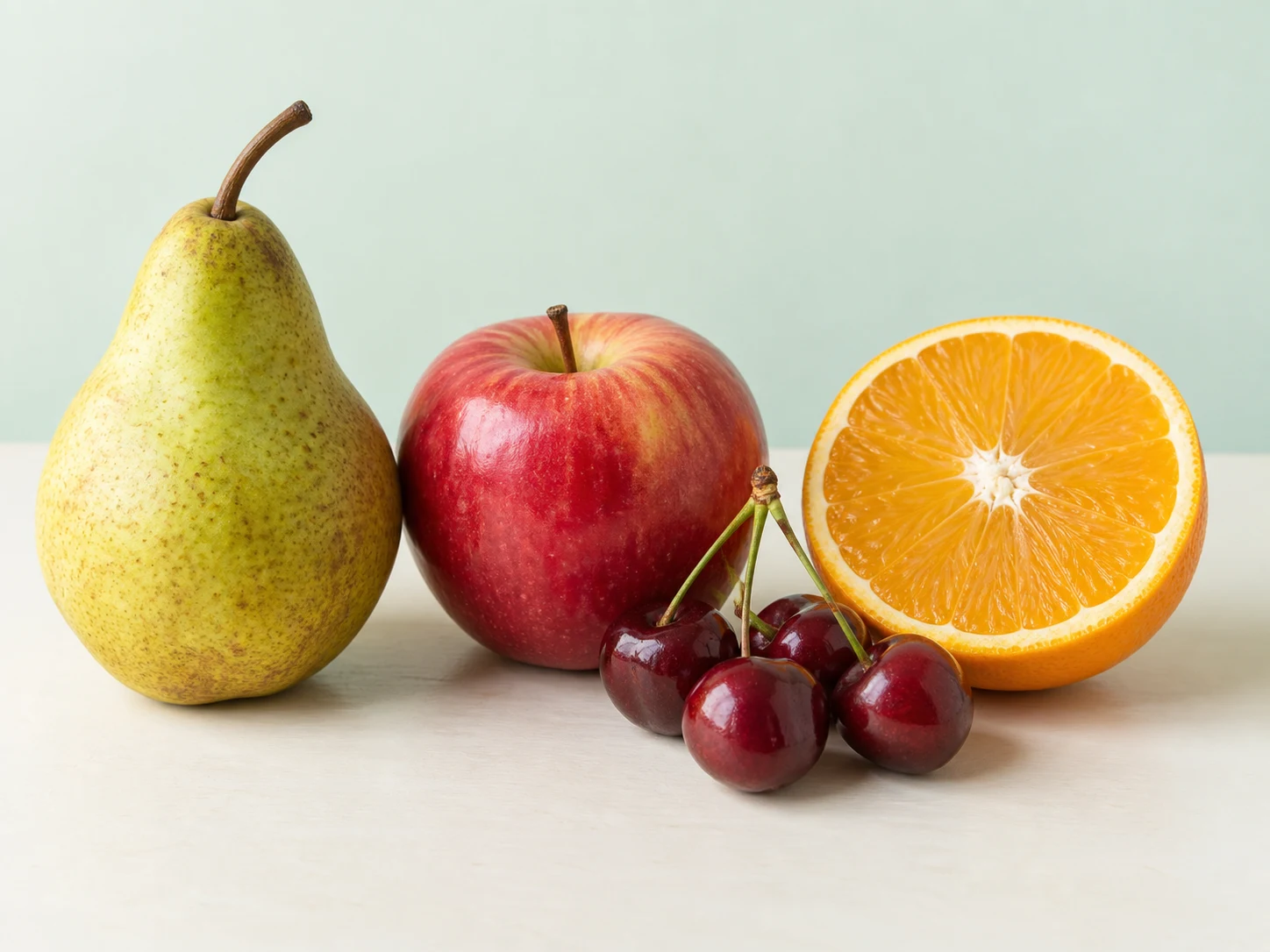
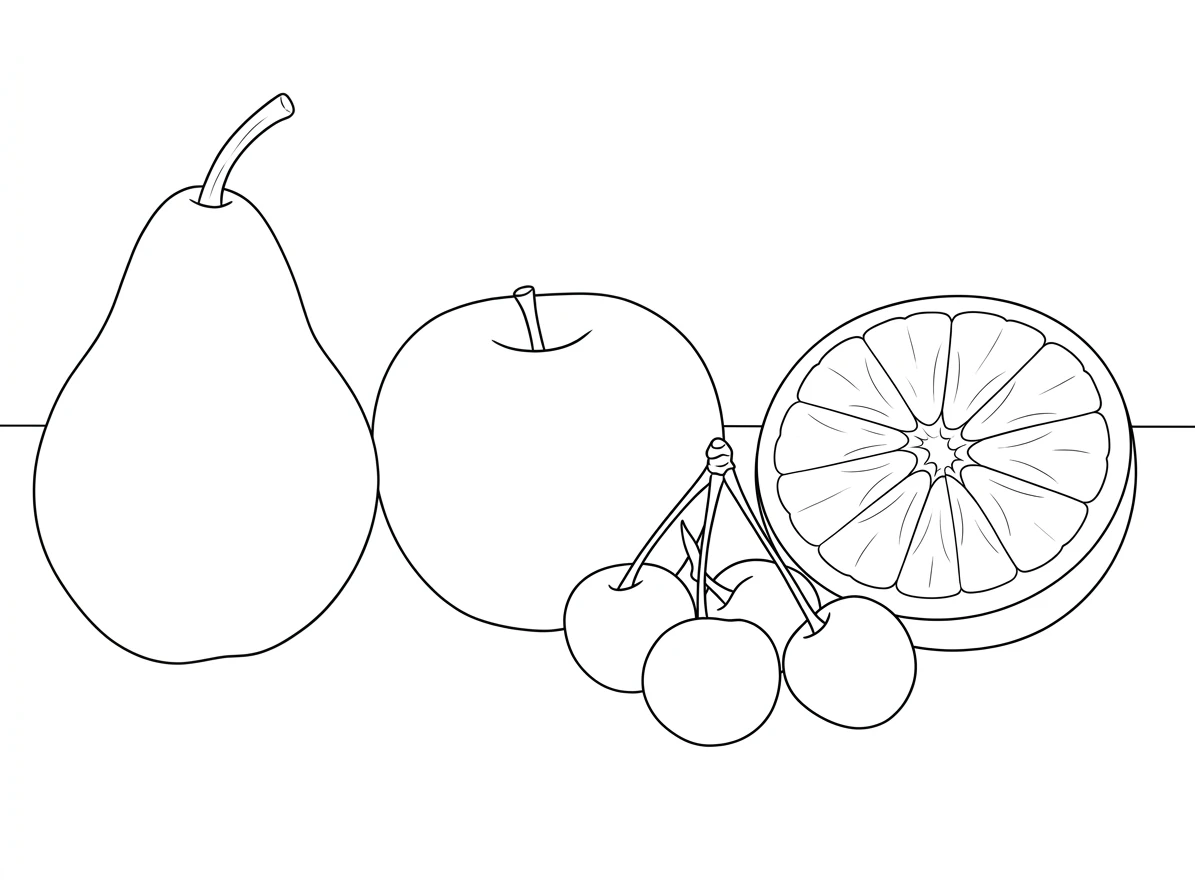
Everyday objects can become the starting point for a themed coloring sheet. A small group of toys, a breakfast arrangement, or a pet photograph already offers a set of shapes to organize. The conversion simplifies their surfaces, but the source still needs enough separation between objects for the resulting outlines to make sense.

Arrange related objects with a little space between them and photograph the group from a clear angle. Avoid filling the frame with overlapping detail. After generation, consider the intended activity: broader areas are easier to fill, while small shapes require more patience. The preview helps you judge that balance before you save the image and prepare it in the printing software you normally use.

Original still life of a pear, red apple, orange half, and cherries on a pale tabletop.
Coloring-page outlines of the same pear, apple, orange half, and cherries, simplified into empty shapes.

Drag the divider or use the arrow keys to compare the same source photo with its generated result.

Everyday shapes to color

Check how the original subject becomes open coloring spaces separated by dark outlines, with less photographic surface detail.
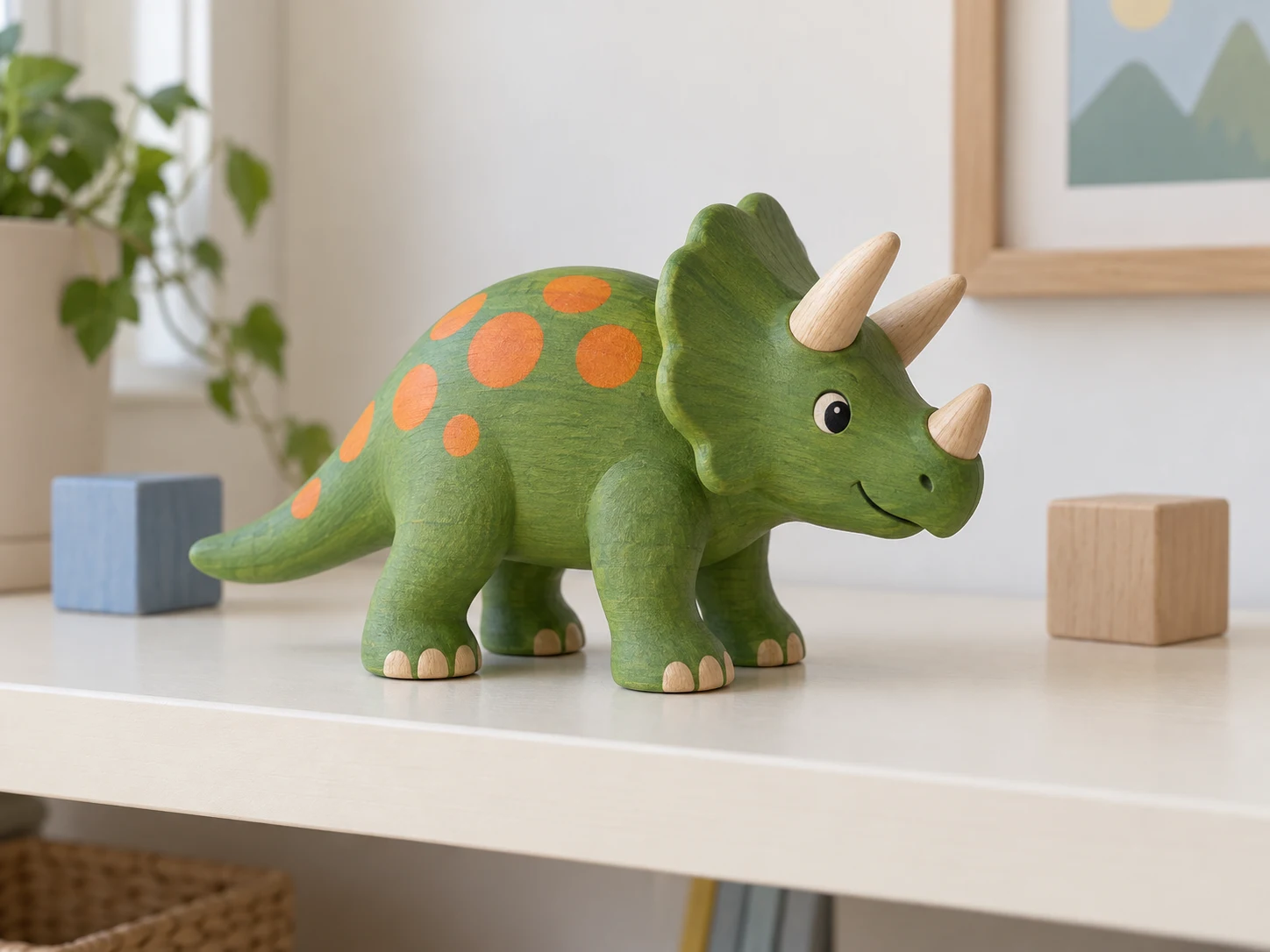
Original green wooden triceratops toy with orange spots and two blocks on a playroom shelf.
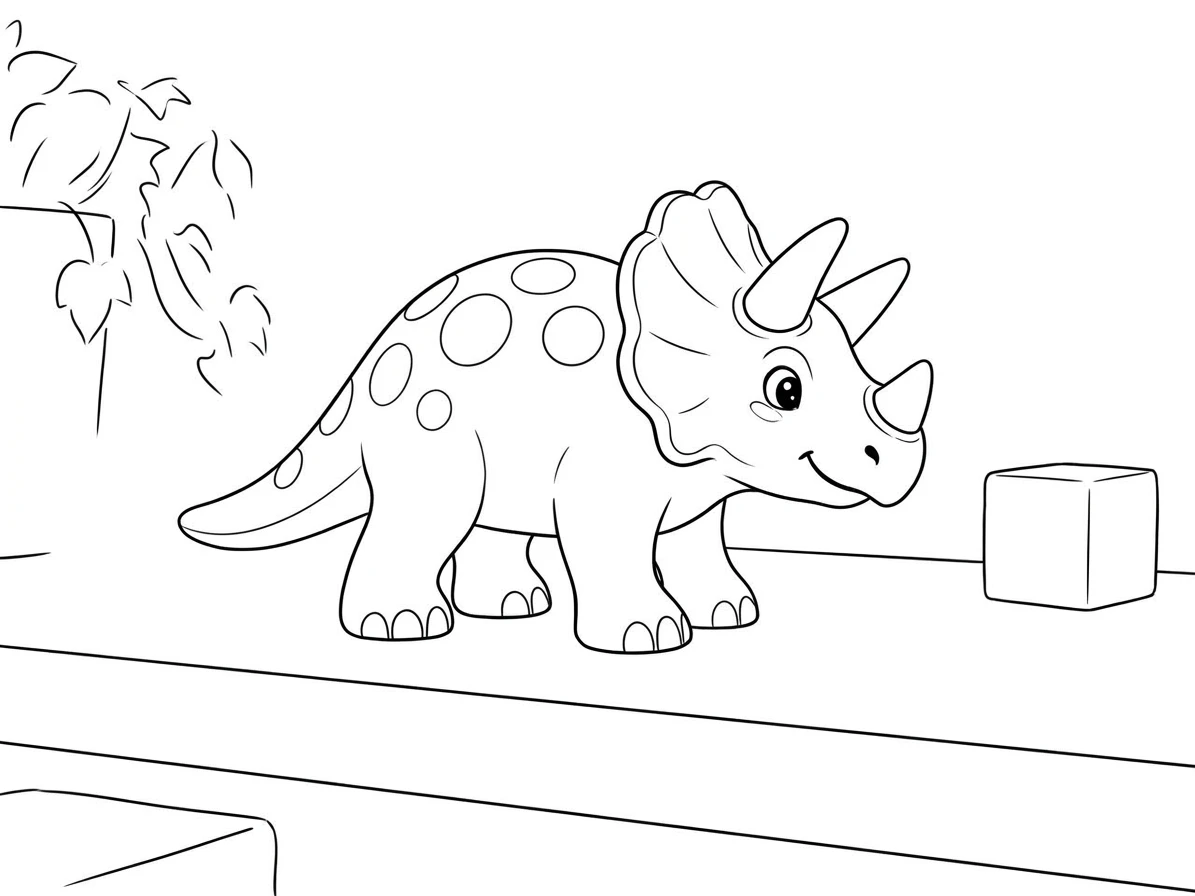
Black-and-white coloring sheet of the same triceratops toy, with outlined horns, spots, feet, and simple blocks.

Drag the divider or use the arrow keys to compare the same source photo with its generated result.

Favorite toys on paper

Check how the original subject becomes open coloring spaces separated by dark outlines, with less photographic surface detail.
Turn a Shared Photo into a Coloring Page

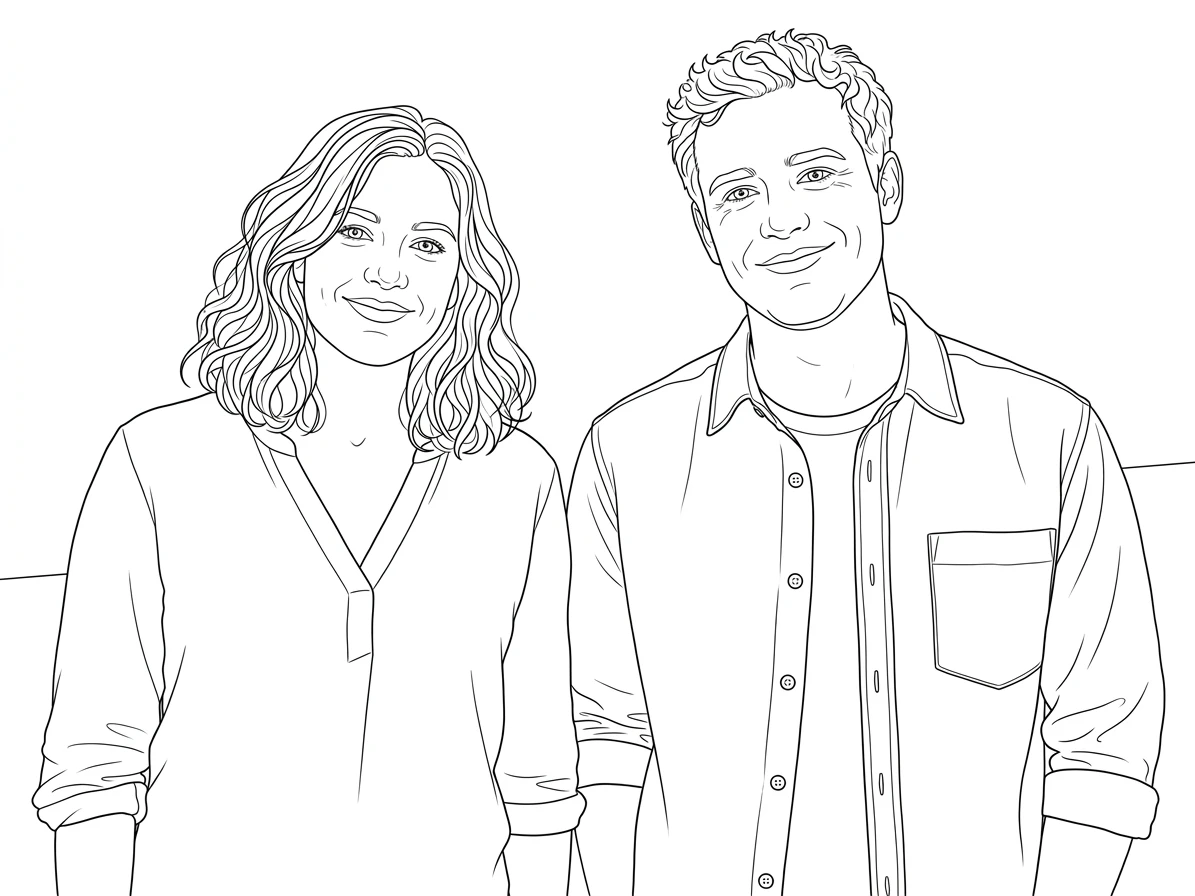
A shared photograph offers a different kind of coloring page: recognizable people and gestures become part of the activity. Clothing outlines, hairstyles, and the space between subjects help preserve the arrangement of the original image. A clear, uncomplicated source is especially useful when the drawing needs to distinguish several faces and hands at once.

For a birthday activity or a personal keepsake, choose a frame with enough room around each subject. Keep the faces reasonably large and avoid a dense crowd in the background. Check the resulting outlines for merged hands, missing features, and unusually dark areas. This is a generated raster drawing, so you can use your usual image or print tools to set the final paper size.

Original two adult friends standing side by side against a cream wall, wearing a blue blouse and mustard shirt.
Black-outline coloring page of the same two friends, with recognizable hairstyles, expressions, and open clothing shapes.

Drag the divider or use the arrow keys to compare the same source photo with its generated result.

A shared memory to color

Check how the original subject becomes open coloring spaces separated by dark outlines, with less photographic surface detail.

Botanical Coloring Pages from Photos

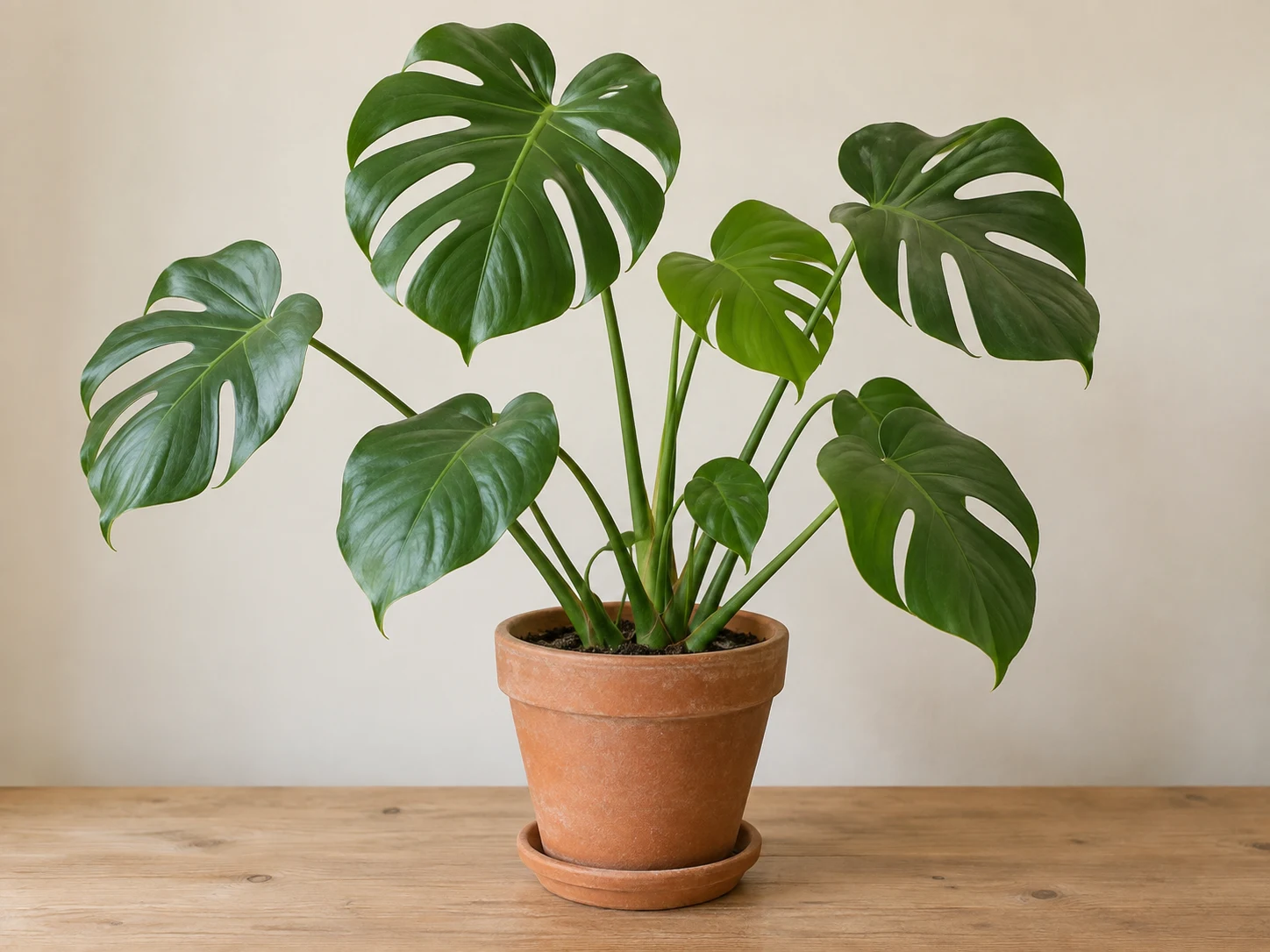
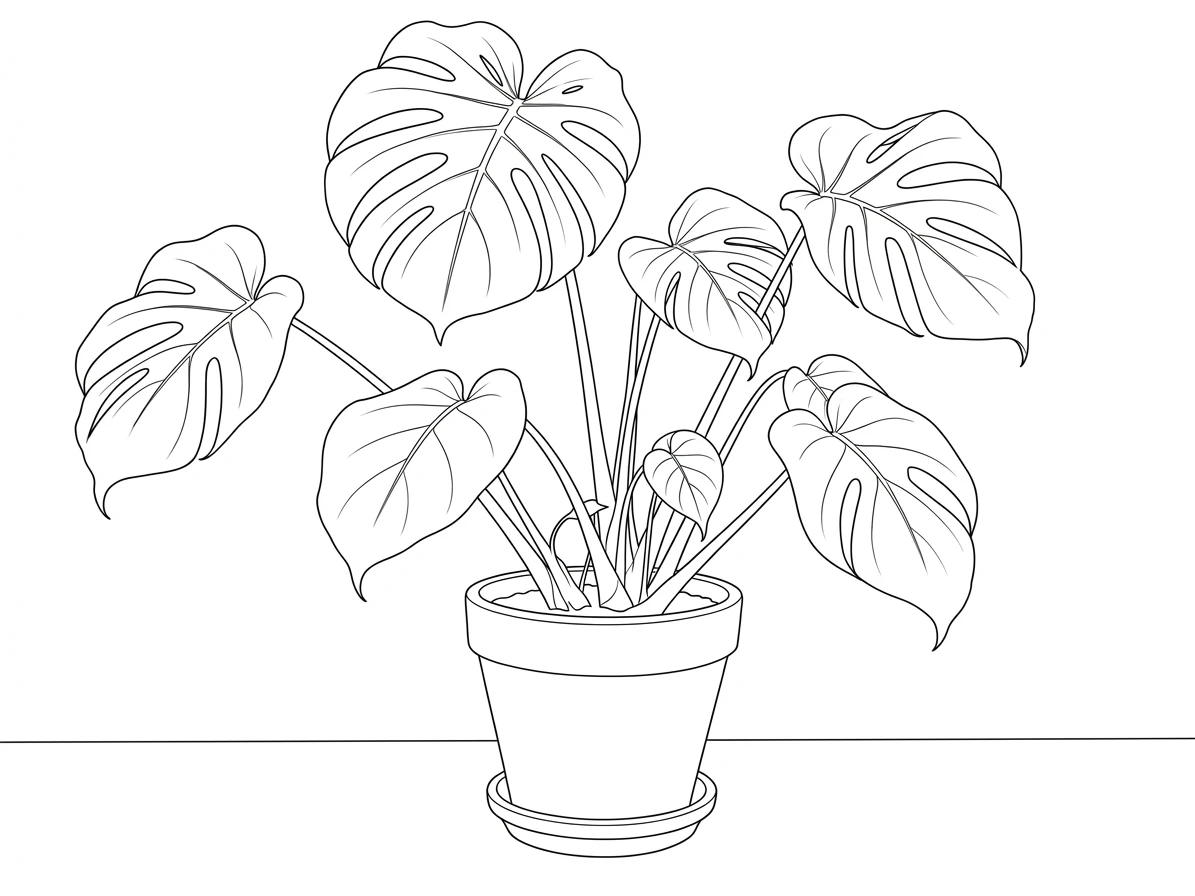
Plants provide shapes with a different rhythm from portraits and pets. Broad leaves create generous coloring spaces, while stems and repeated petals introduce smaller details. The botanical reference shows how the source arrangement can guide the page, even when photographic texture and subtle color differences are replaced by a simpler network of outlines.

A single plant or a small arrangement is a useful first choice. Separate the foliage from a busy background and keep the edges of the pot and leaves visible. Once the output is ready, examine where stems cross and where neighboring leaves touch. Those intersections determine whether the drawing feels clear and enjoyable to color rather than turning into a confusing collection of small enclosed areas.

Original monstera plant with separated split leaves in a terracotta pot against a light background.
Botanical coloring sheet of the same monstera plant, with leaf contours, open interiors, and an outlined pot.

Drag the divider or use the arrow keys to compare the same source photo with its generated result.

Botanical shapes with room to fill

Check how the original subject becomes open coloring spaces separated by dark outlines, with less photographic surface detail.
Clean Outlines, Room for Color

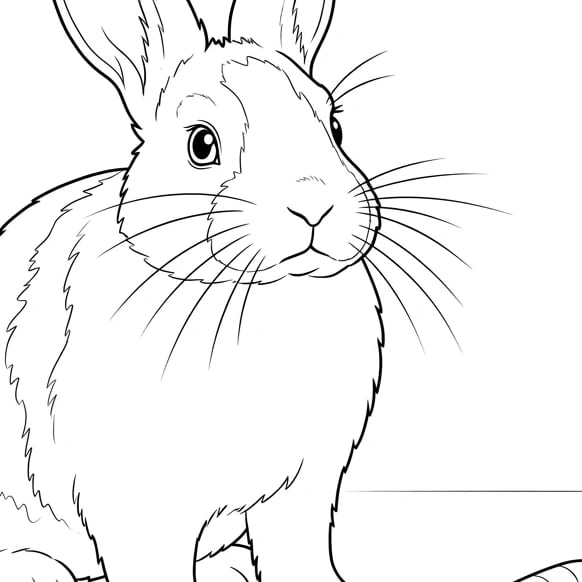
Good coloring spaces need more than a dark outline around every visible detail. The drawing should leave room for color while keeping the subject understandable. Look closely at the reference to judge the balance between large open areas, smaller decorative shapes, and the line weight that separates one part from another.

Open your downloaded result at the intended print size before using it. Check thin lines, small gaps, and patches that may look too dark on paper. The tool supplies an image file, not a preformatted PDF or an editable vector worksheet. Your regular printing application can position it on the page, and a different source crop can help if the first result contains more detail than you need.

Close-up of the generated rabbit coloring sheet showing black contours and open white coloring regions.
How to create

How to Turn a Photo into a Coloring Page

One photo, one effect, a result you can save.

1

Simplify the source

Pick a clear subject with separated shapes. A quieter background gives the generated outlines more room to remain readable.

2

Create the line-art image

Keep the coloring-page preset selected, check the credit cost and submit the photo. No separate prompt is needed on this page.

3

Prepare it for coloring

Inspect the open areas and contour lines, then download the image. Use your own print preview to choose paper size and fit.

Create Coloring Page

Photo to Coloring Page FAQ

What does Photo to Coloring Page make?

The preset creates a black-outline image intended to leave open areas for coloring. It simplifies the photo into recognizable shapes on a light background, though the amount of detail depends on the source and the generated result.

How do I turn a photo into a coloring page?

Choose one photo with a clear subject, upload it and review the credit cost. Create the effect, then inspect the linework and blank spaces. Download the image and choose its size in your normal print or drawing software.

Which photos make the simplest coloring sheets?

A single subject with a plain background usually gives more usable space to color. Look for separated shapes and visible edges. Busy patterns, tangled foliage and many small objects can lead to an intricate page with tighter areas.

Does it export PDF, SVG, or A4 files?

The download is an image file. This page does not create a vector SVG, a multi-page PDF or a preformatted A4 document. Use your preferred layout or print application to place the image on the paper size you need.

Is Photo to Coloring Page free to generate?

Explore the examples without spending credits. Creating a coloring image uses the amount displayed beside Create. Check the current cost and your account balance before submitting your source photo.

Why are there too many tiny outlines?

The model may turn textured backgrounds, fur or clothing patterns into many small shapes. Try a simpler composition or crop the source before uploading. Review the output at a comfortable coloring size rather than only as a small preview.

How is a coloring page different from a sketch?

A coloring page aims for open white areas bordered by clear lines. A sketch can retain more tonal shading and paper texture. Choose the coloring effect for filling shapes, or Photo to Sketch when you prefer a finished drawing with shadow.

Try Photo to Coloring Page

Start with your photo, explore the effect, and save a result that feels personal.