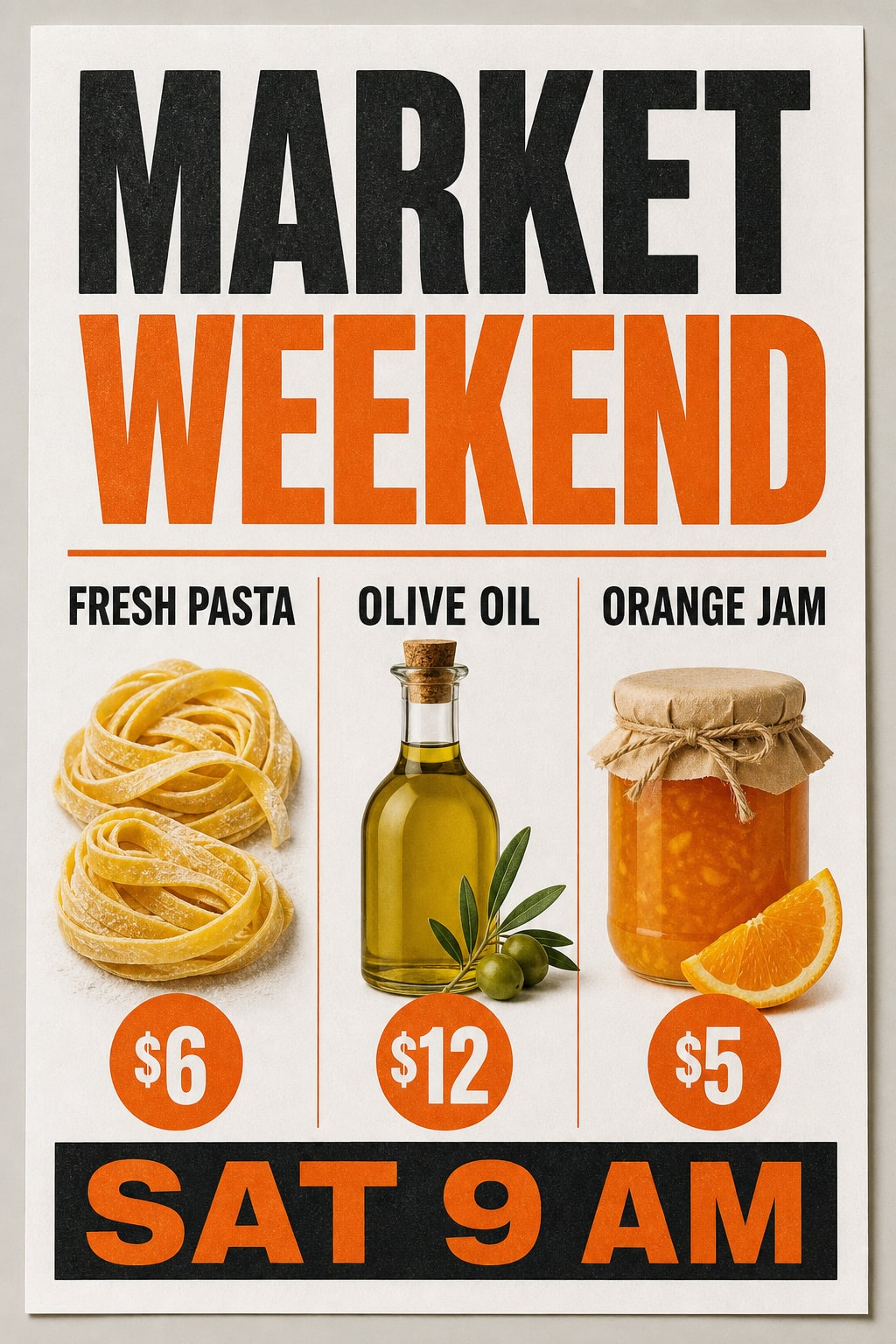
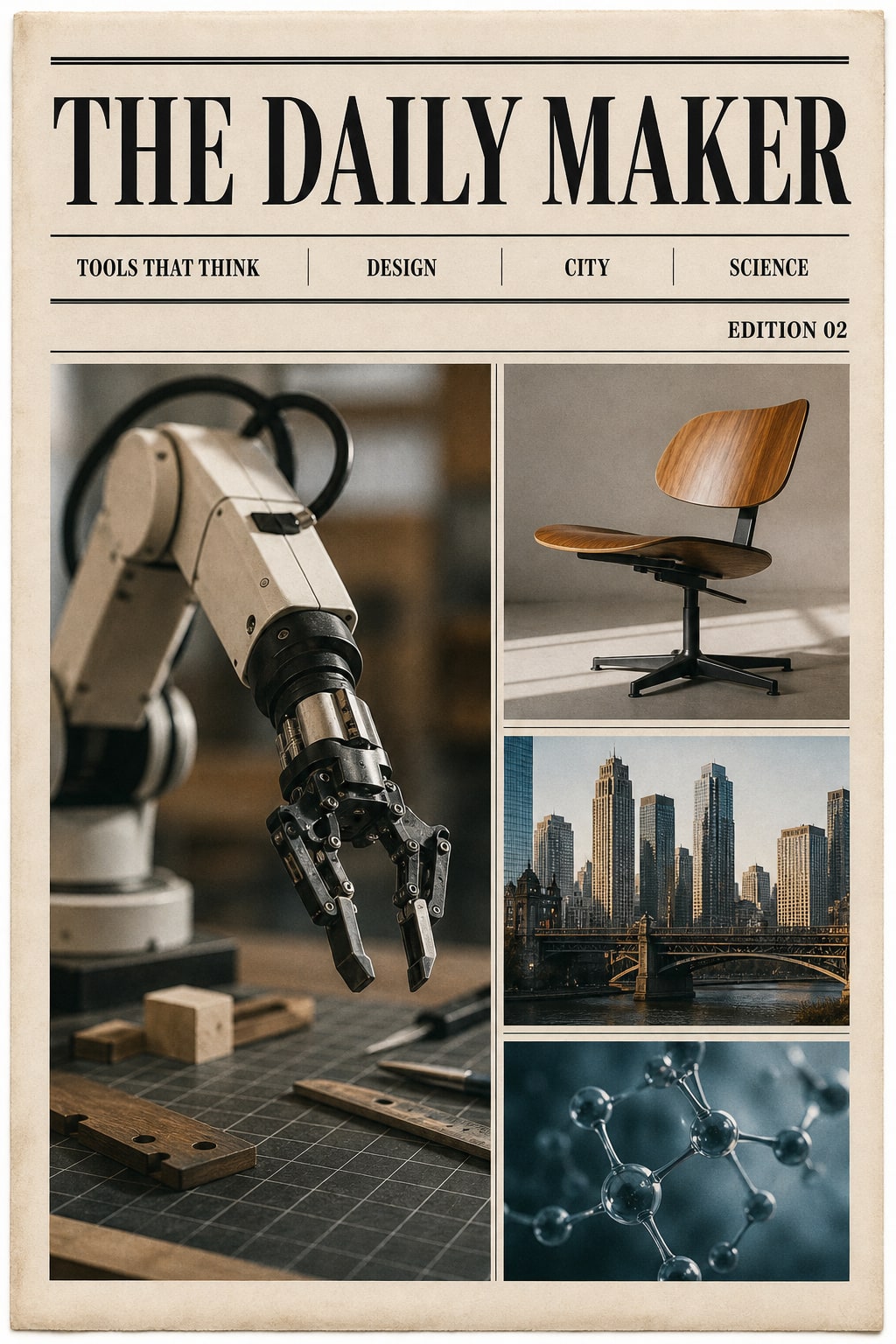
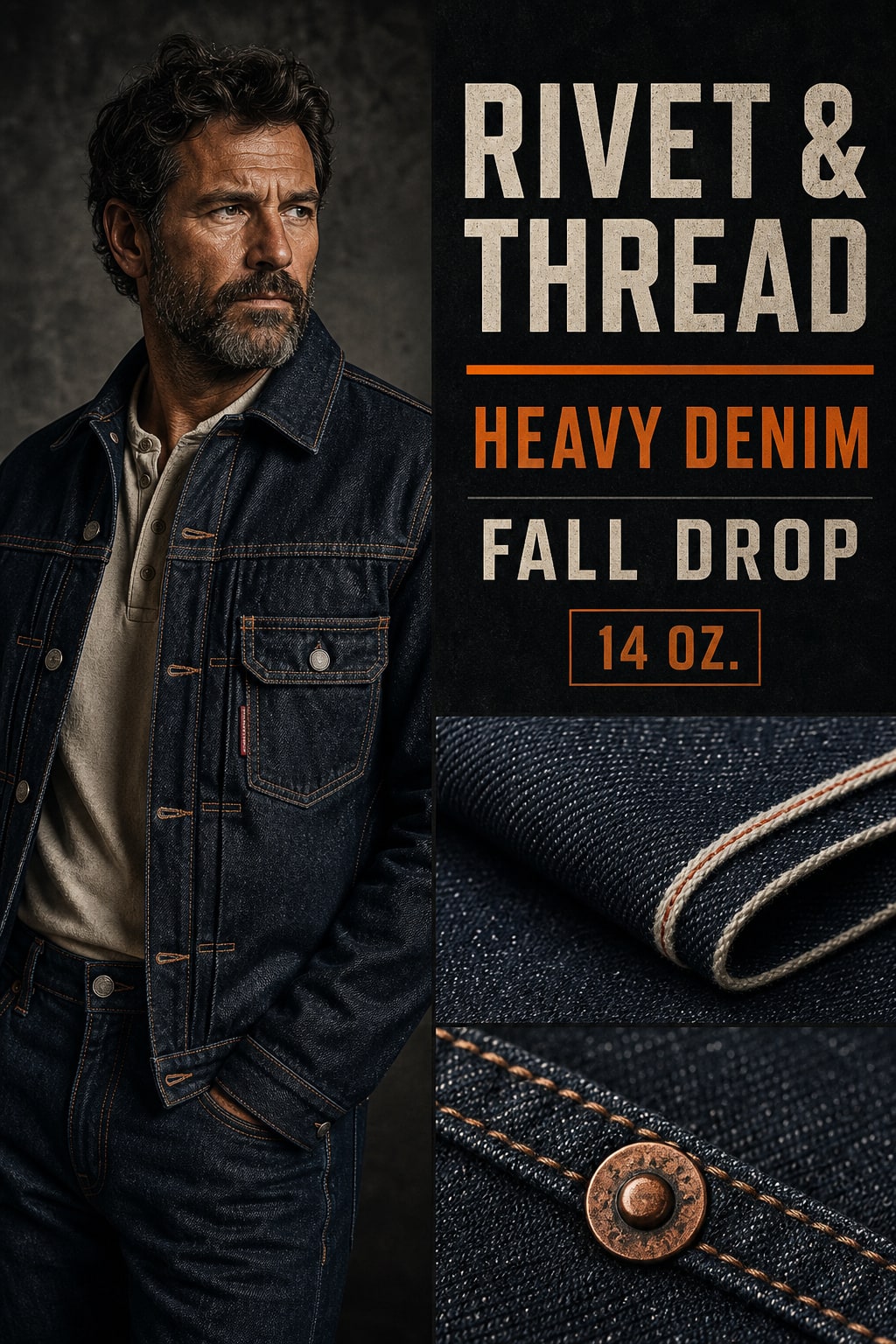
Create posters, menu concepts, and editorial covers with a deliberate hierarchy for short visible words.
Provide exact copy and indicate which lines should dominate.
Check text, proportions, and the final crop at full size.
Use a focused brief and change one visible variable when refining the result.
Reference gallery examples · Zanta
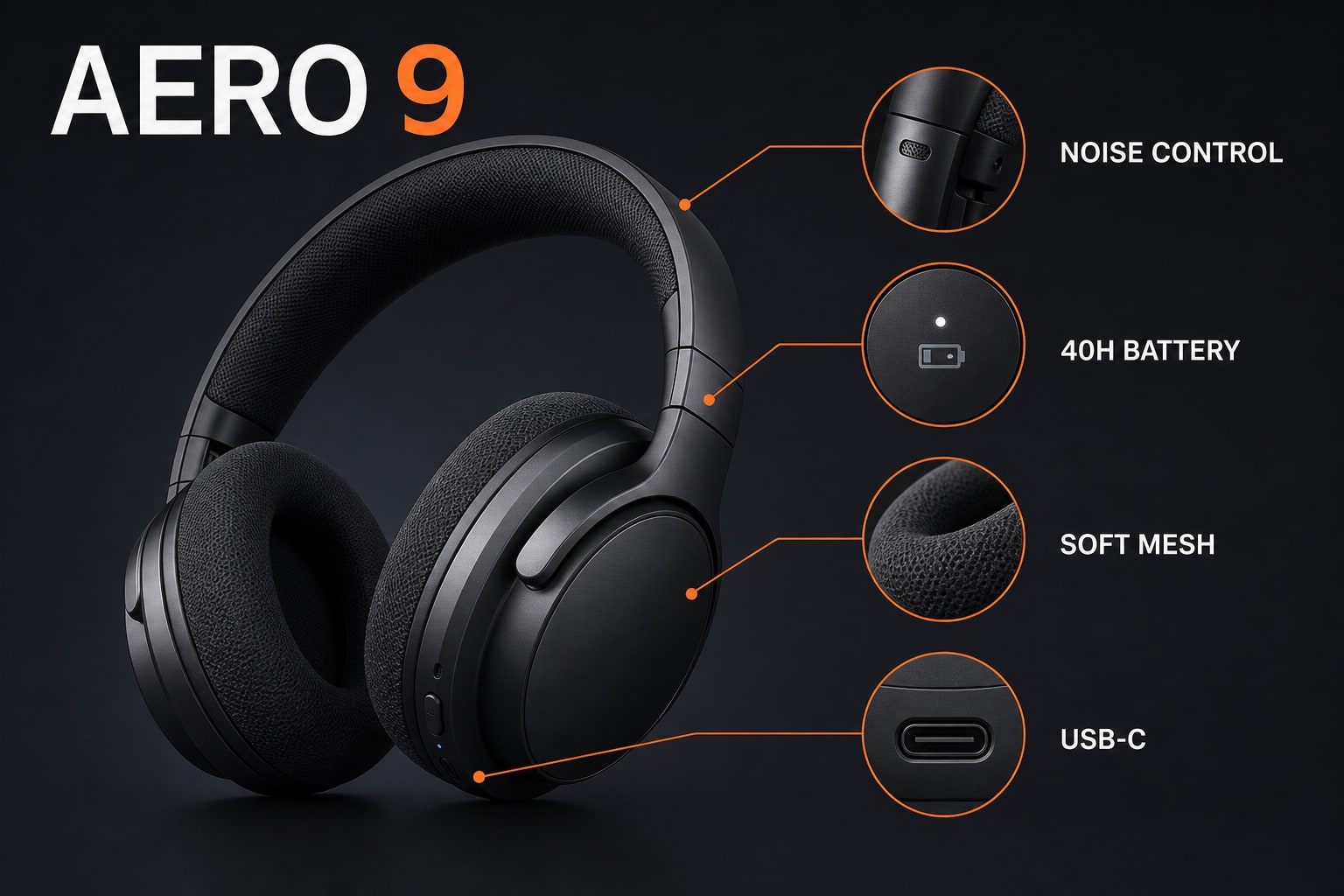
Diagrams and Labeled Graphics
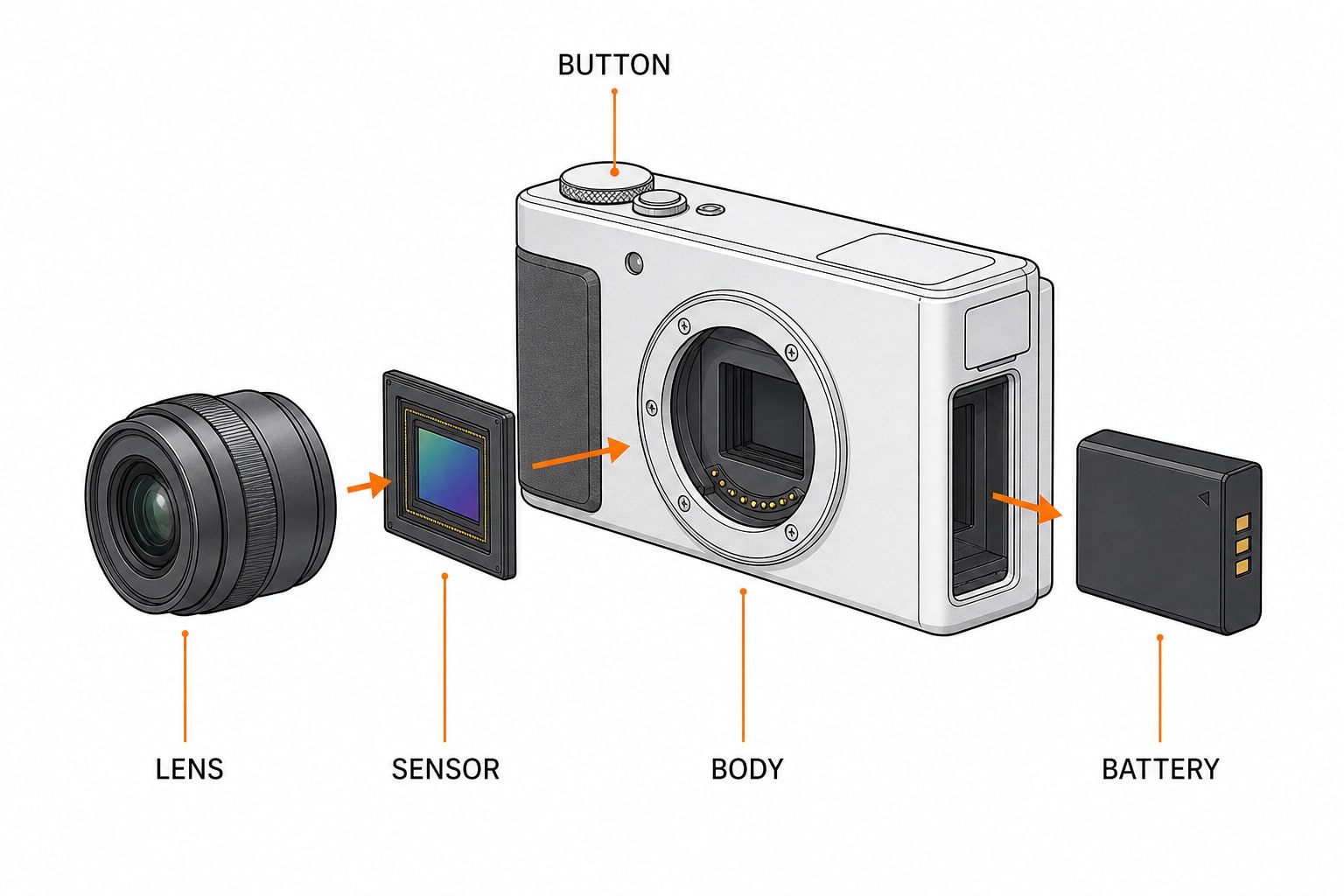
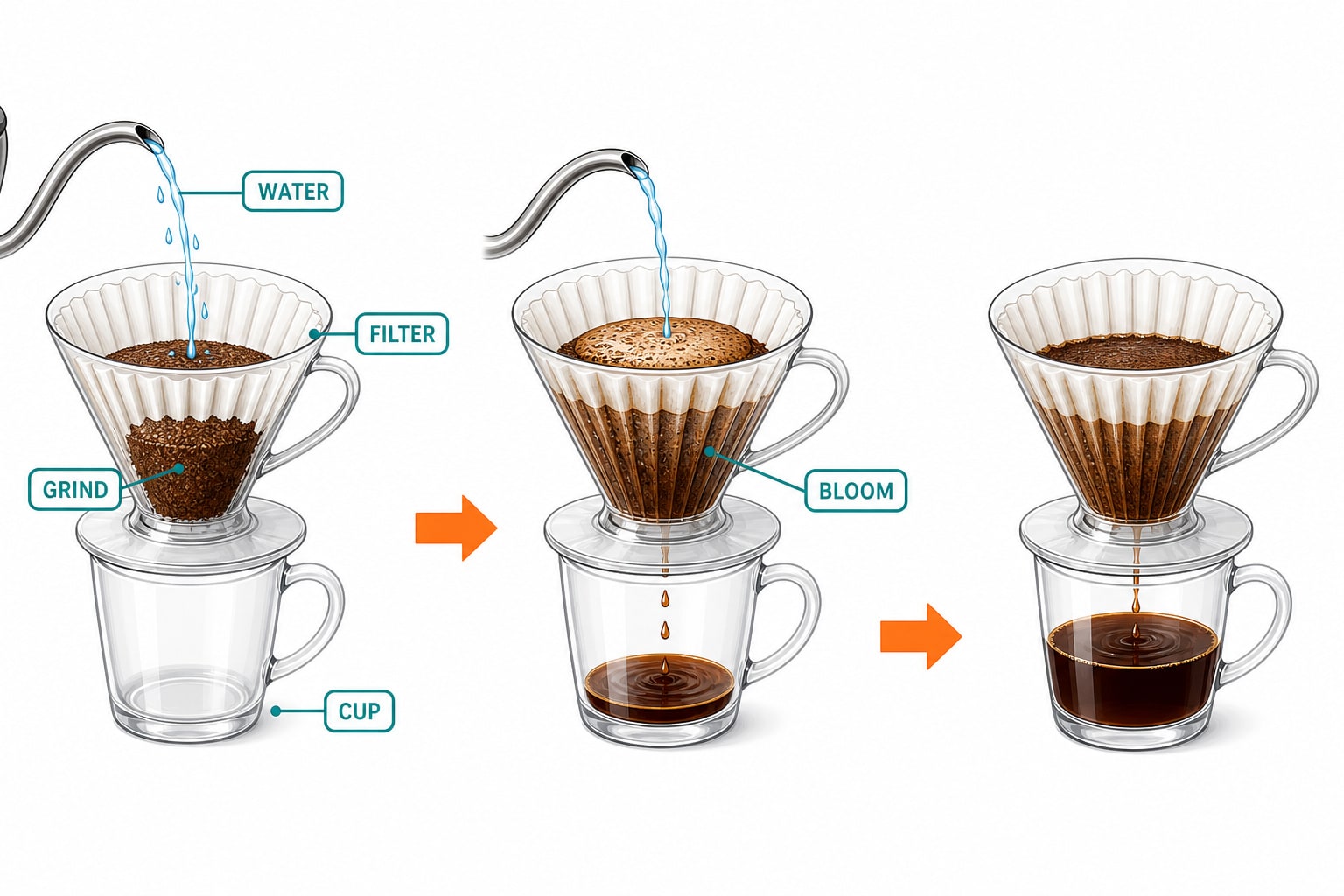
Arrange parts, steps, rooms, or objects into an image that explains a concrete relationship.
Describe the logical structure as well as the visual style.
Check text, proportions, and the final crop at full size.
Use a focused brief and change one visible variable when refining the result.
Reference gallery examples · Zanta
Product Posters and Ads
Develop a product hero or campaign board around shape, material, light, and a clear headline.
Exclude invented logos and unverified product claims.
Check text, proportions, and the final crop at full size.
Use a focused brief and change one visible variable when refining the result.
Reference gallery examples · Zanta
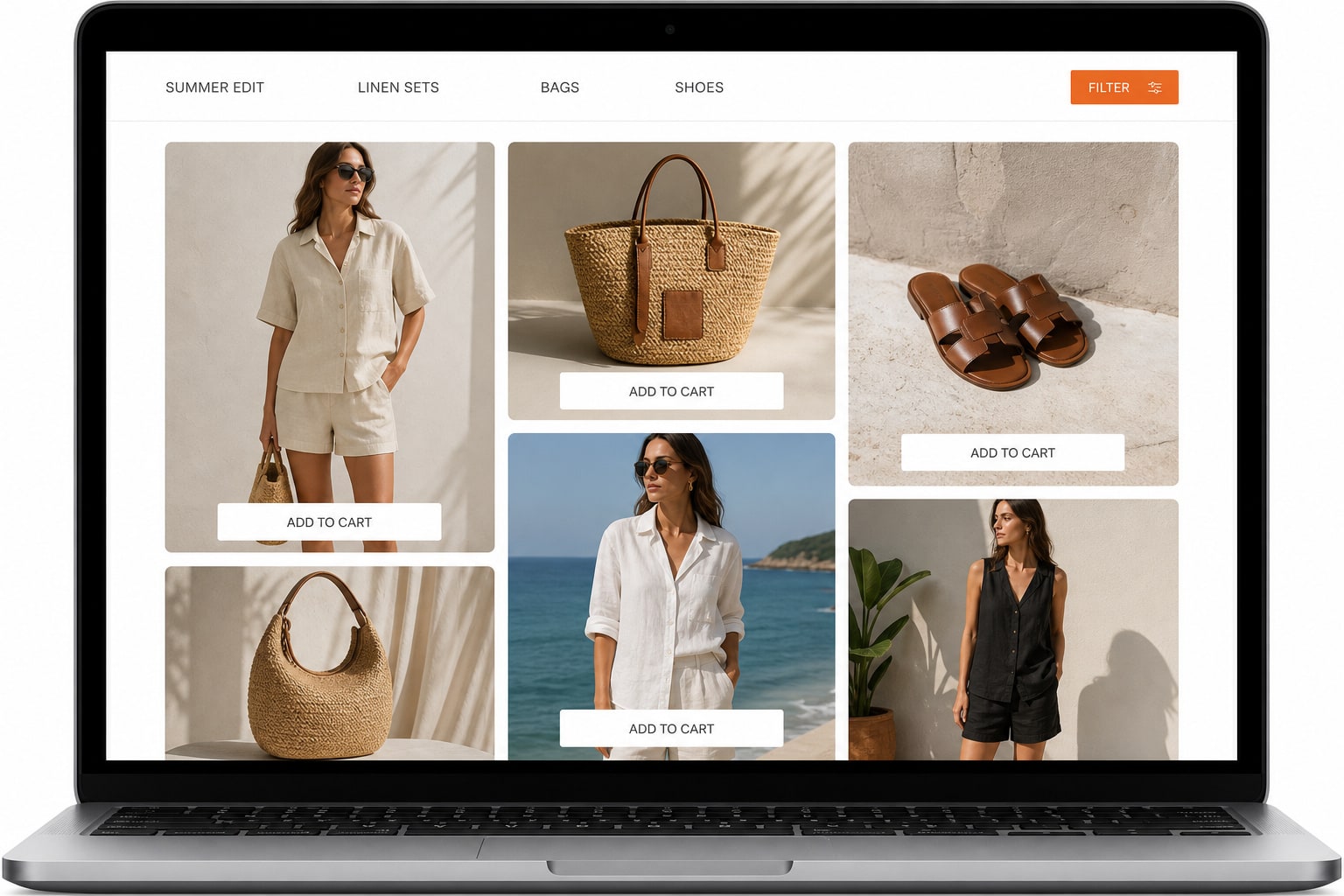
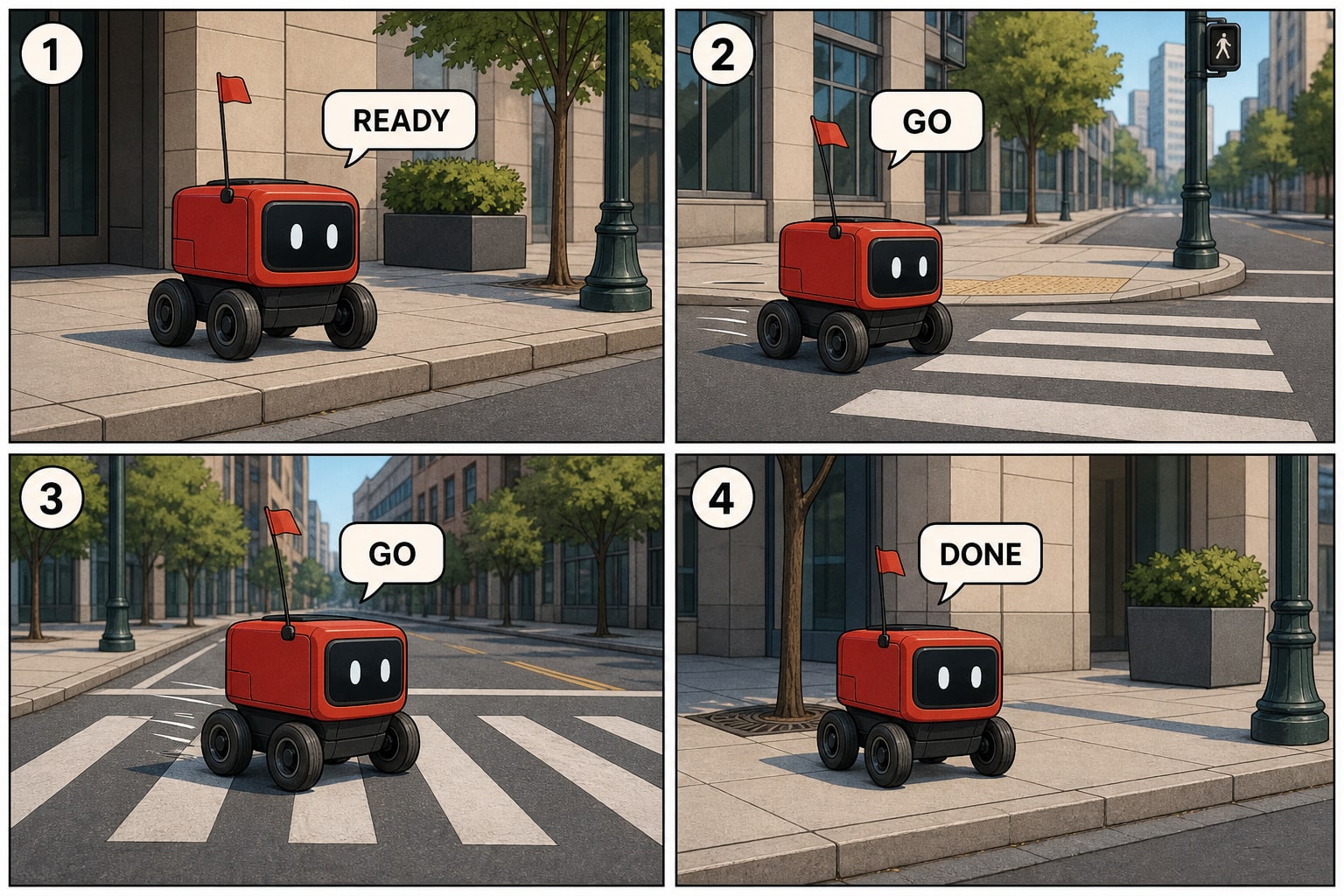
Multi-Panel Layouts and UI Concepts
Use explicit panel counts and layout rules for visual stories, concept boards, and interface mockups.
Inspect repeated characters, labels, and alignment together.
Check text, proportions, and the final crop at full size.
Use a focused brief and change one visible variable when refining the result.
Reference gallery examples · Zanta
GPT Image 2 Prompt Examples
New starting briefs for the visual directions shown below. The images are reference gallery examples from Zanta, not verified outputs of these prompts.
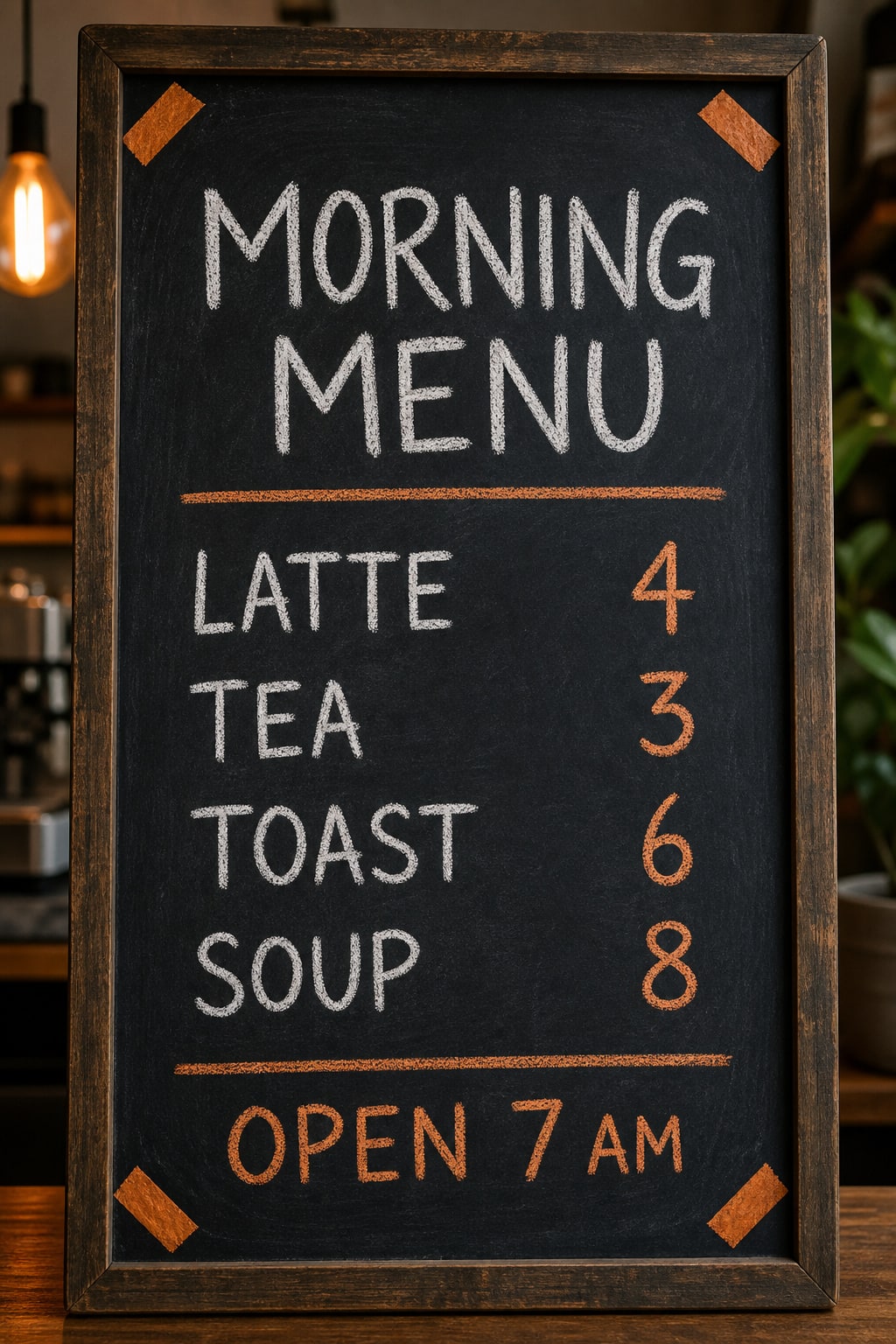
Cafe Menu Board
Design a restrained cafe menu on ivory paper with a fine botanical accent. Exact text only: FERN CAFE, ESPRESSO 3, LATTE 4, FILTER 3, TEA 3. Keep drink names left-aligned, prices right-aligned, clear spacing, and a simple dark-green title. No extra words or decorative fake letters.
Reference gallery example · Zanta
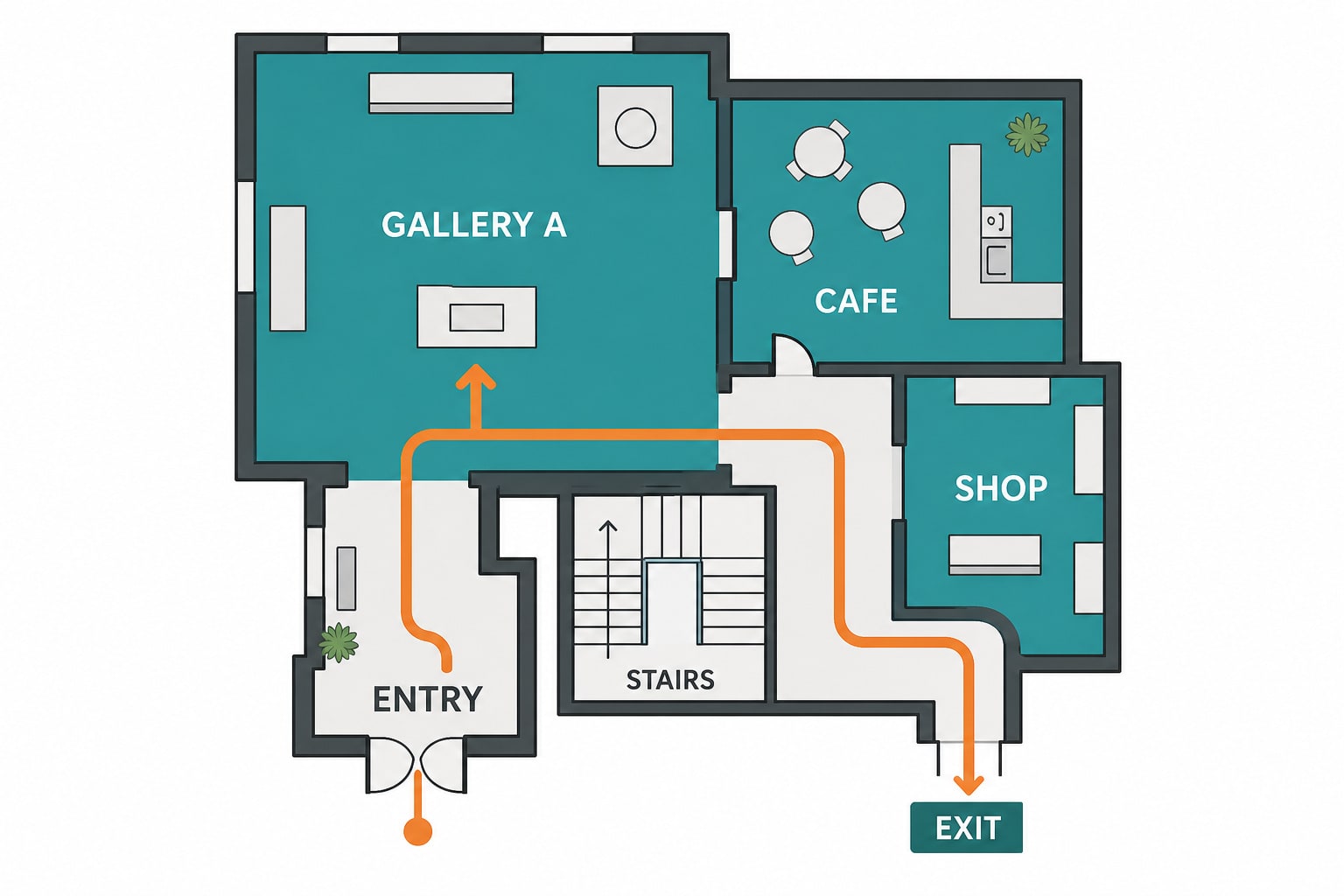
Museum Wayfinding Map
Create a fictional museum floor-map poster with five clearly separated rooms and a small entrance marker. Exact labels only: ENTRY, GALLERY, STUDIO, COURTYARD, CAFE. Use a restrained cream and blue palette, simple arrows, clear reading order, and one coherent floor-plan outline. Do not imply this is a real building plan.
Reference gallery example · Zanta
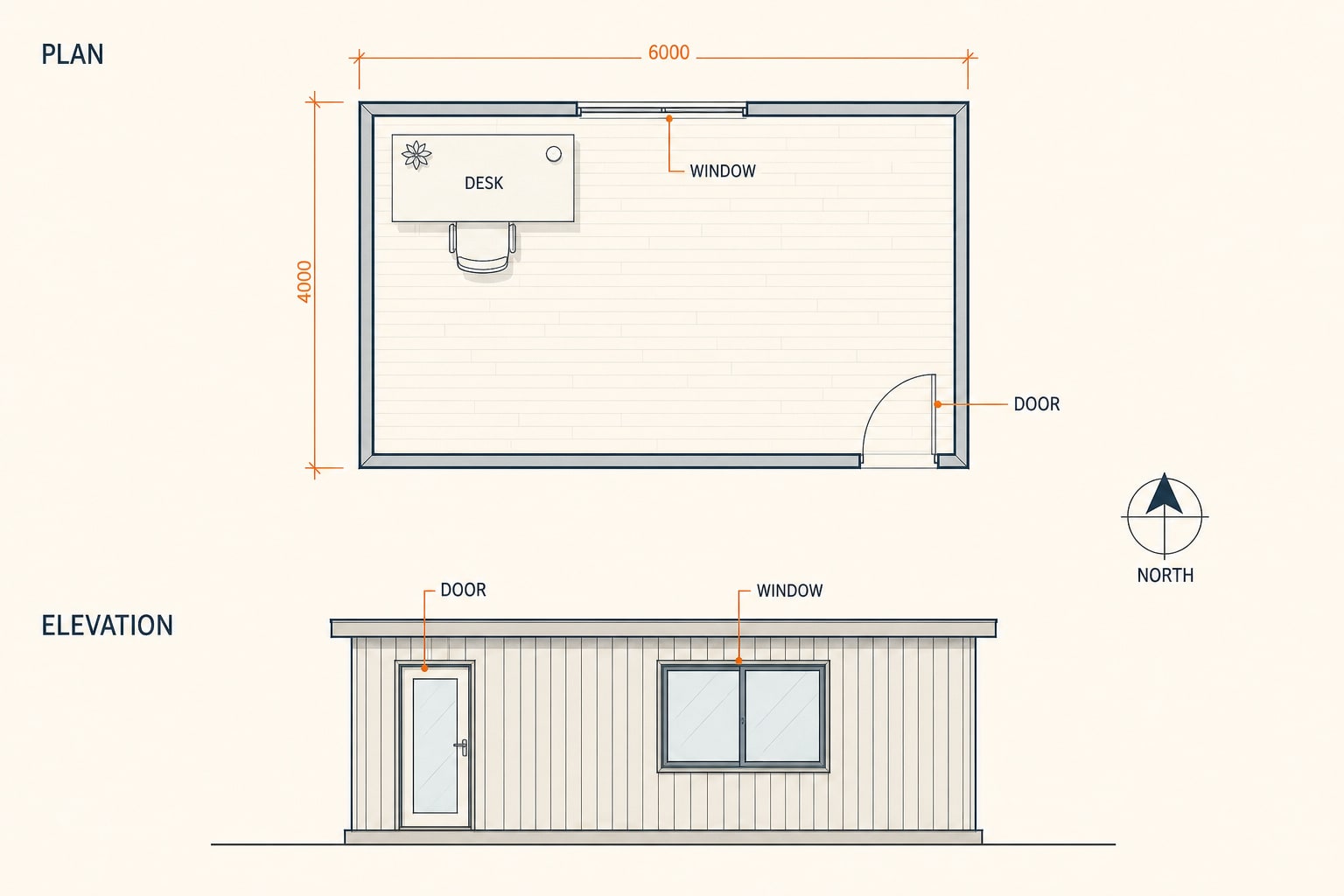
Architecture Concept Board
Create a clean architectural concept board for a small reading pavilion. Include one axonometric view, one floor plan, and one front elevation in a consistent pale-gray line style. Exact labels only: PLAN, ELEVATION, READING ROOM. Show coherent furniture placement, warm timber, and soft daylight.
Reference gallery example · Zanta
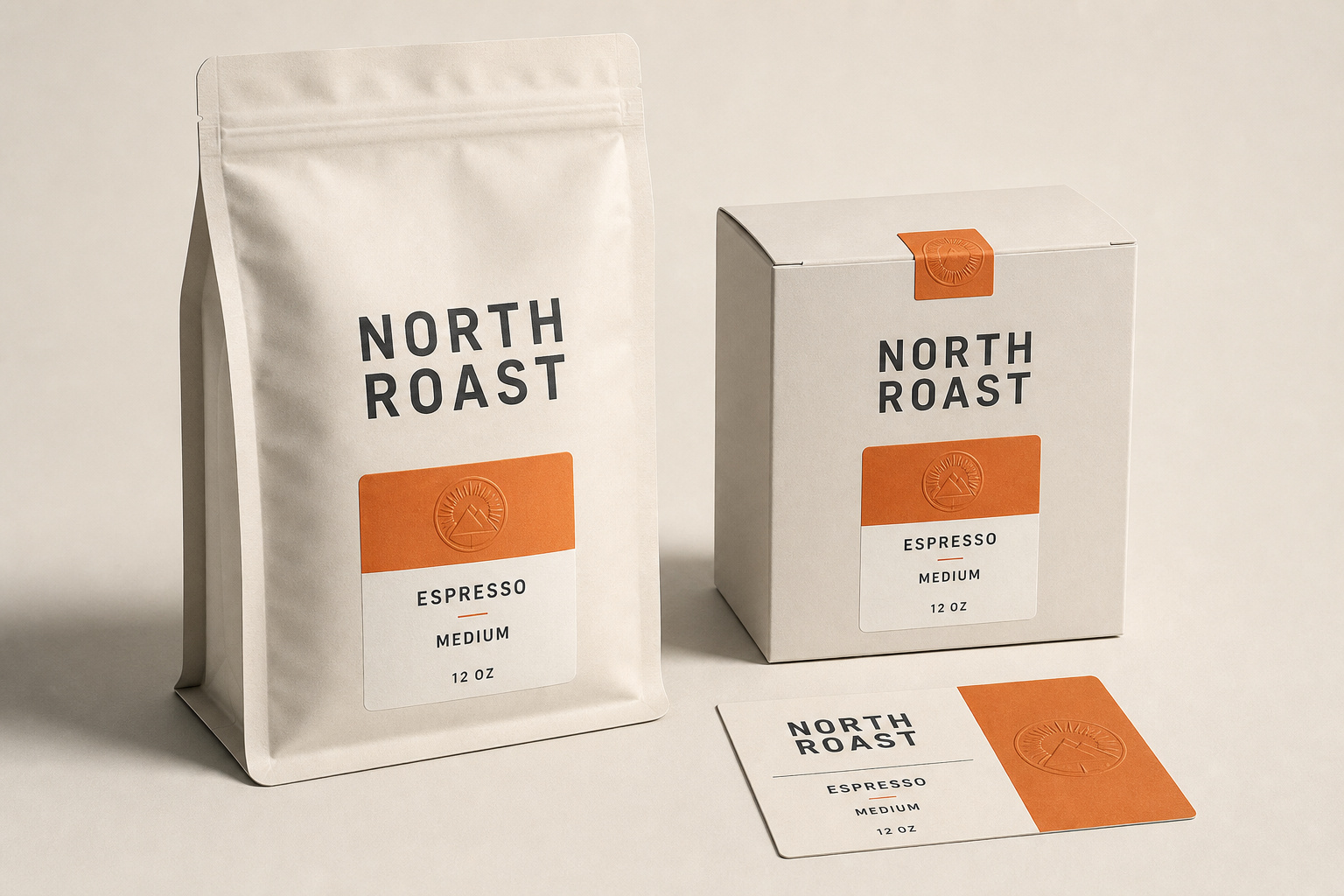
Coffee Packaging Board
Create a premium packaging concept board for a fictional coffee collection. Show three paper bags with close-up label insets, warm studio light, and an ivory background. Exact visible words only: NORTH ROAST, ESPRESSO, DECAF, 12 OZ. Keep paper texture and label geometry realistic; no real brand marks.
Reference gallery example · Zanta
GPT Image 2 Prompt Tips
Write a production brief that makes the result easy to inspect, compare, and refine.
01 · DELIVERABLE
Name the asset first
Start with the poster, product still, character sheet, diagram, or campaign image you actually need.
02 · LAYOUT
Describe hierarchy and placement
Explain where the subject, copy space, supporting objects, and focal point belong in the frame.
03 · MATERIAL
Use concrete visual evidence
Name surfaces, light direction, lens feel, texture, environment, and the intended finish.
04 · TEXT
Keep visible words short
Quote the required words exactly and review spelling, casing, punctuation, and invented copy.
05 · QA
State the reject conditions
Call out fake logos, extra subjects, source drift, broken anatomy, or an unsafe crop before generating.
GPT Image 2 Use Cases
Choose the model by the job and review the visible failure mode before you publish.
Campaign-ready stills
Good fit
Product heroes, posters, social images, thumbnails, and landing-page visuals with an inspectable art direction.
Watch for
Review text, logos, product geometry, crop safety, and whether the result actually fits the channel.
Reference-guided edits
Good fit
Carry product shape, character identity, wardrobe, room layout, or material cues into a new visual.
Watch for
A reference guides generation; it does not guarantee pixel-perfect preservation of every source detail.
Concept exploration
Good fit
Compare several controlled visual directions before investing in a polished final or production shoot.
Watch for
Keep prompts and settings comparable so the batch produces a useful decision rather than unrelated images.
Practical answers about access, settings, references, review, and output use.
How do I start an image?
Sign in, write a concrete visual brief, choose the available output settings, and check the credit estimate before generating. Your completed images appear in Assets.
Can I try it with free credits?
Eligible accounts can use the credits currently available in their balance. Daily check-in may add credits when enabled. Each generation uses the amount shown in the generator; access is not an unlimited free offer.
Can I upload reference images?
Add up to 4 JPG, PNG, or WebP images. Describe what each image should guide and what needs to remain recognizable. Review the output rather than assuming exact preservation.
Which output sizes and ratios can I choose?
The generator offers 1K, 2K, 4K output and 1:1, 4:3, 3:4, 16:9, 9:16, 2:3, 3:2, 21:9, 5:4, 4:5 framing. Choose from the controls shown and check the updated credit estimate.
How can I improve visible text?
Quote the exact words, keep them short, describe their placement and hierarchy, and review spelling and punctuation at full size. A visually convincing layout may still contain text mistakes.
Why did the image miss part of my brief?
Long or conflicting instructions make a result harder to control. Keep one main subject, state the protected details, and change one visible variable at a time when refining the image.
Are the samples results tested on this site?
These are examples from the reference website, reused for visual comparison. The prompt examples are newly written starting briefs, not the original prompts or a claim that this site reproduced the displayed images.
What should I check before publishing?
Check text, anatomy, product geometry, factual labels, and the final crop. Review the current site terms and make sure you have permission to use any supplied references or recognizable material.
What is GPT Image 2 a useful starting point for?
It is a practical starting point for a poster, product concept, menu, diagram, visual storyboard, or interface mockup with short, inspectable text.
Can it make a working interface?
It generates an image of a layout. Buttons, navigation, forms, and charts in a visual mockup do not become a working website or application.
How do I choose between image models?
Compare a small number of results from the same brief. Review composition, readability, source fidelity, and cost before committing to a larger batch.
Start with GPT Image 2 in Dola AI
Create polished stills, readable short typography, reference-guided edits, brand mockups, and controlled production drafts.