
Store owners
Prepare clean product layers for listings and ads.
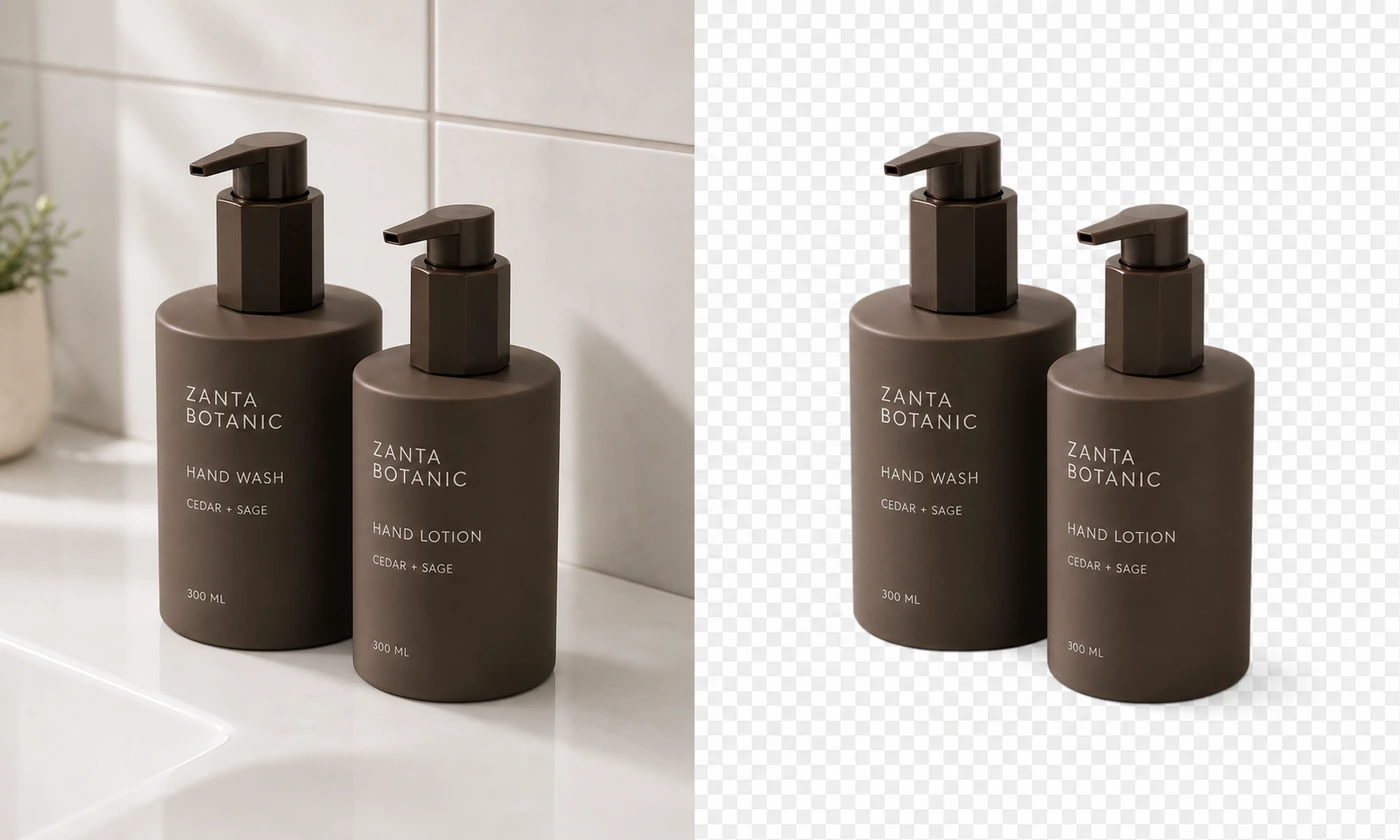
Keep the product you already photographed and remove a simple background before preparing a listing, presentation, or campaign. Start with a sharp source that shows the entire outline, including handles, straps, and small gaps.
Inspect handles, pale edges, reflections, and gaps before using the cutout at full size.
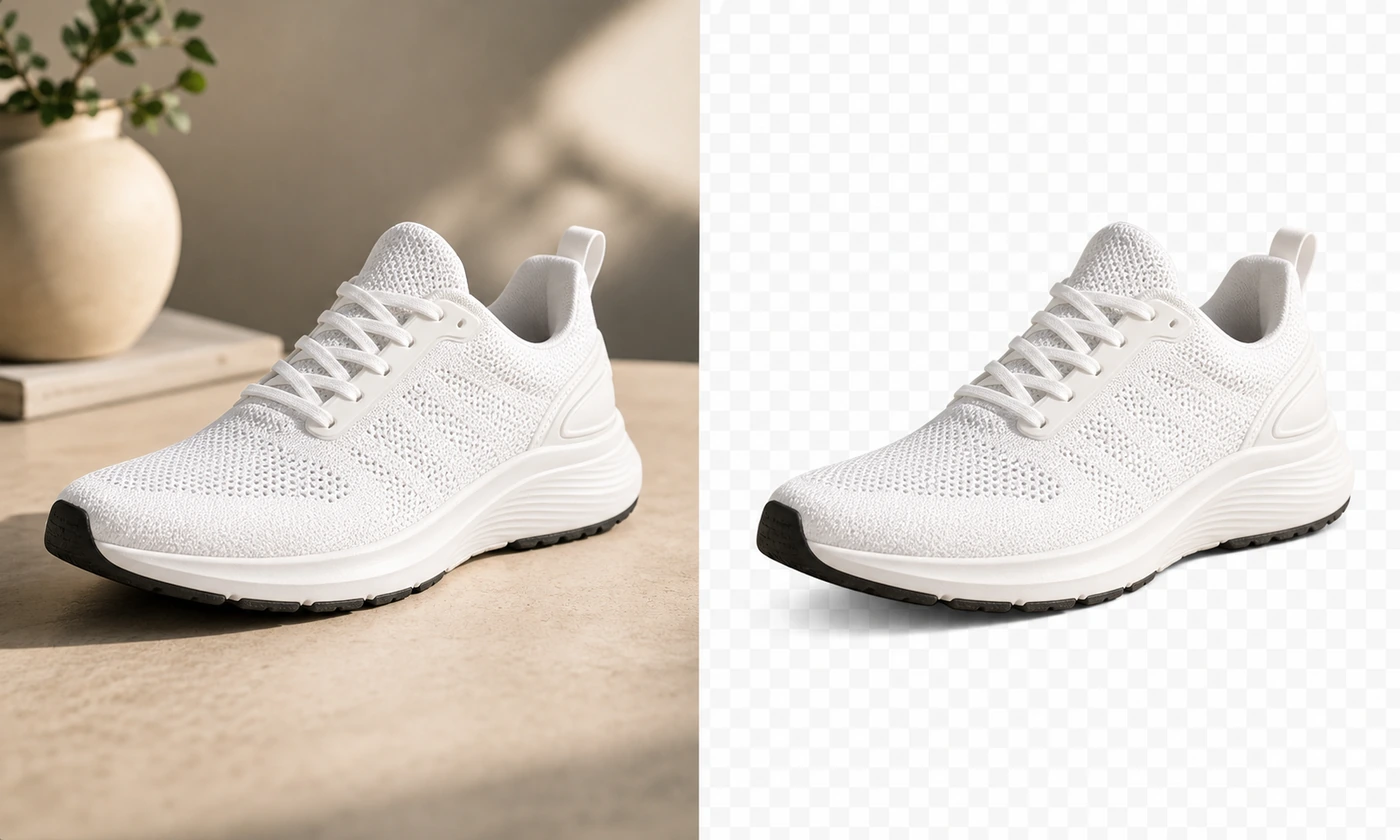
Prepare a portrait layer for a profile card, speaker page, or presentation. An evenly lit source makes the outline easier to preserve than a tightly cropped or blurred photograph.
Fine hair and backgrounds close to the subject color may still need manual cleanup.
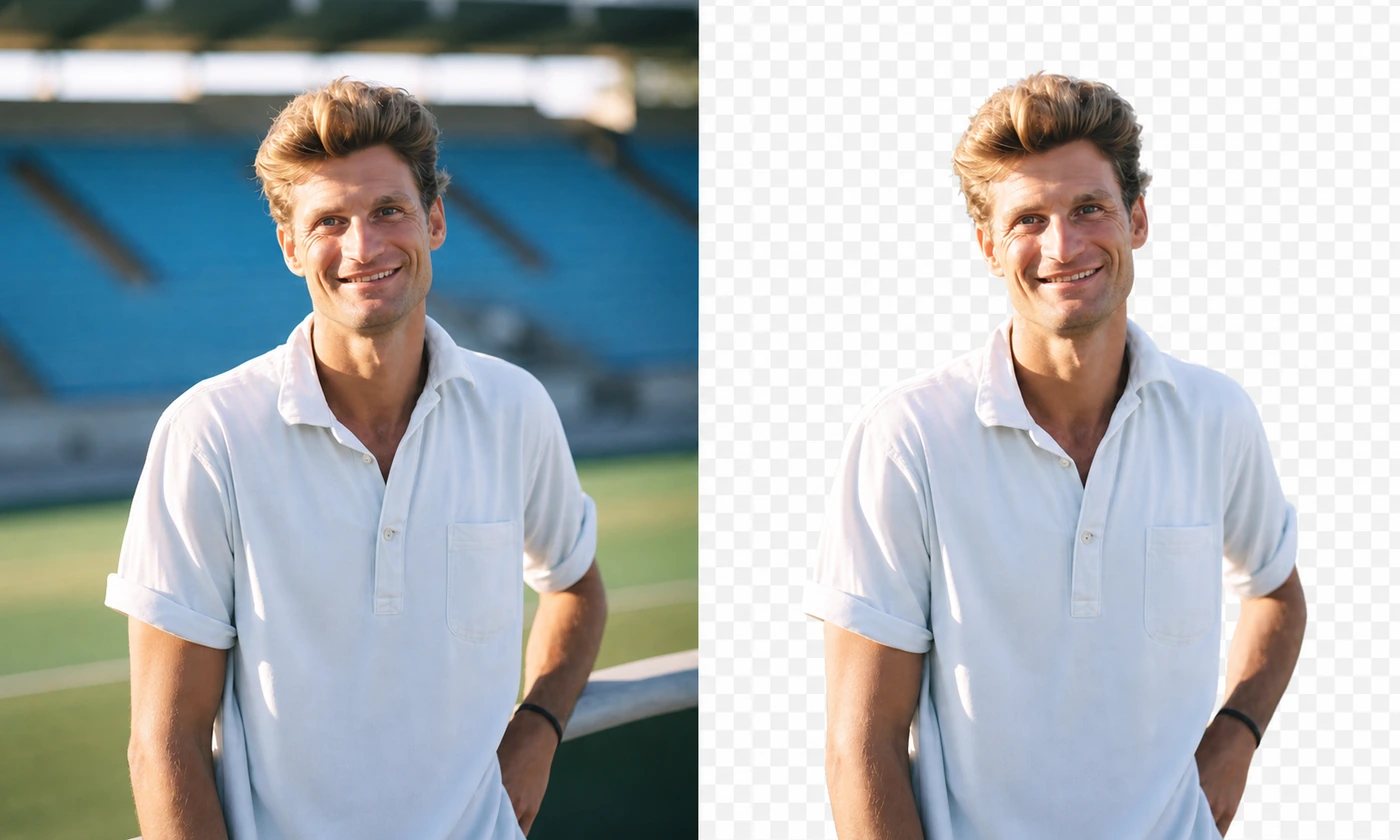
Use the accepted cutout as a reusable layer above a color, photograph, or graphic in your preferred editor. One product or portrait can then be placed in several campaign layouts without carrying along the original background.
Download PNG; JPEG cannot preserve transparency.
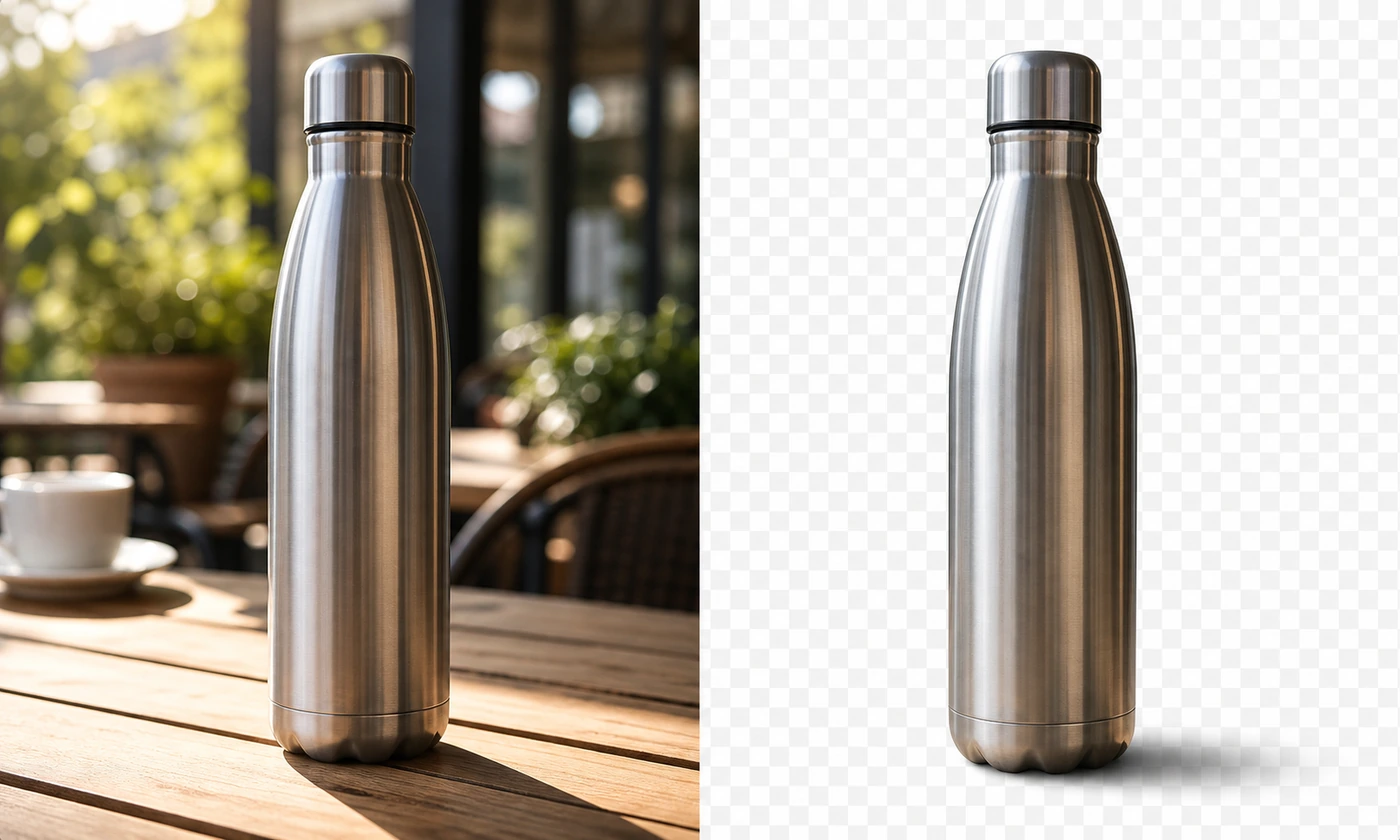
Download the cutout for precise placement in another design. Removing a background isolates existing pixels; it does not create a replacement setting, rebuild missing parts, or add a matching floor and shadow.
This fast edge-based tool works best on flat or uncluttered backgrounds.
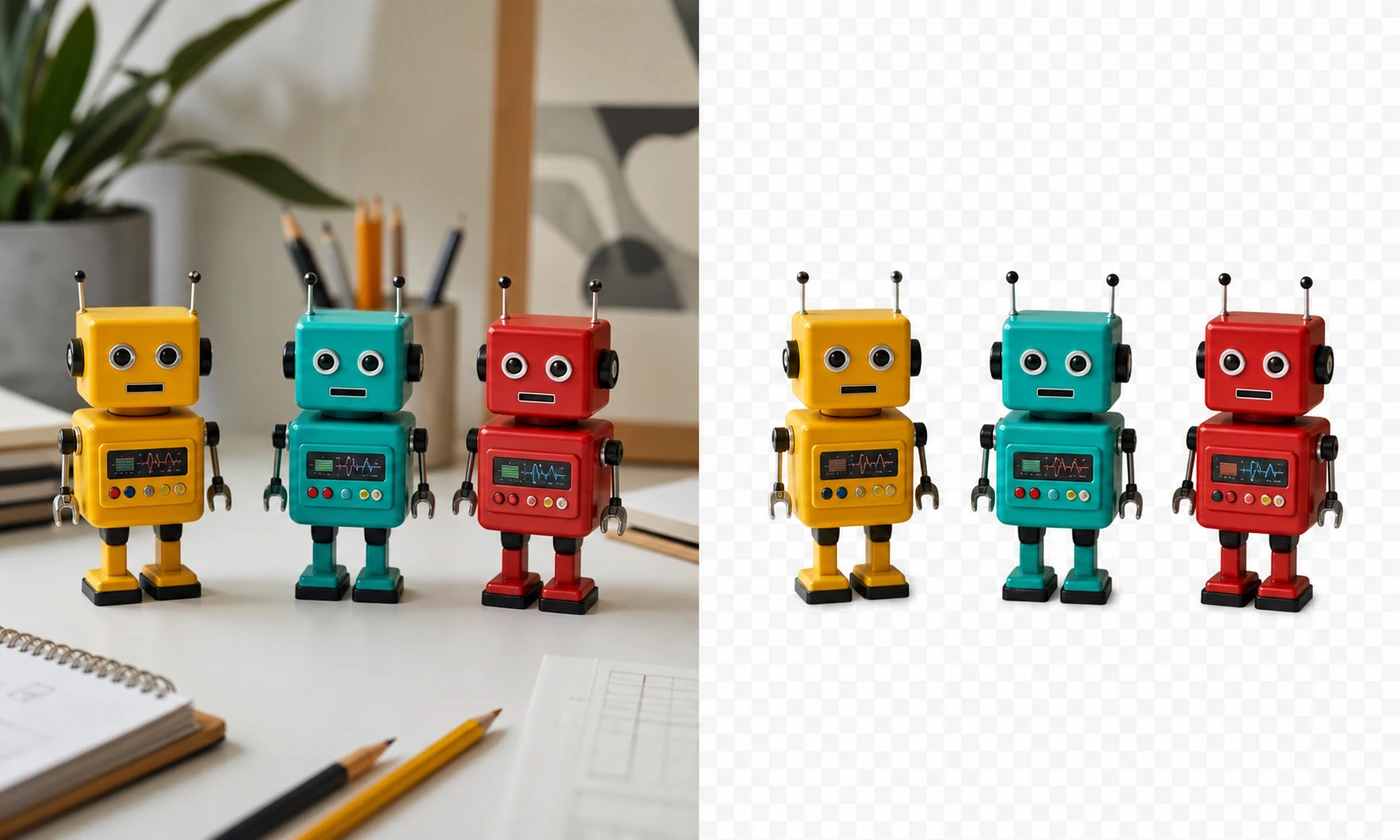
A clean subject layer for product listings, profiles, campaigns, presentations, and your next creative layout.
Prepare clean product layers for listings and ads.
Separate a person from a plain wall or studio backdrop.
Reuse one approved subject across several layouts.
Prepare a simple prop or subject before composition.
Upload one image, remove the simple background, and review the transparent cutout before reuse.
Choose a product, portrait, or object with a clear outline against a simple, even background.
Confirm your image permissions, review the credit cost, and generate a cutout with GPT Image 2. Inspect fine edges and transparent gaps.
Download the transparent PNG and place it in your listing, profile, poster, or preferred layout editor.
Questions about AI background removal, credits, transparent PNGs, and edge quality.
Yes. After you confirm image permissions and submit, your image is stored privately and sent through our AI provider for editing.
Use a sharp subject against a flat, uncluttered background with visible separation around the complete outline.
Hair, glass, reflections, shadows, and colors shared by the foreground and background are difficult to separate automatically.
The result is a PNG so transparent pixels remain transparent in compatible editors.
Upload a JPEG, PNG, or WebP image. Other file formats must be converted before using this tool.
The file must be no larger than 10 MB, with at most 16 million decoded pixels and no edge above 8192 pixels.
Yes. Review the cost shown before submitting. GPT Image 2 background removal normally costs 20 credits; eligible plan benefits are reflected in the displayed quote. Failed generations are refunded.
The illustrated comparisons are reference material from Zanta, not a guarantee of the result for your source image.
Generated images are saved to your account and reappear after refreshing. An unfinished task continues on the server. Download important results for your own archive.
Upload one image, remove its simple background, and review the transparent cutout before downloading.