
Name one clear subject
Define the subject, material, environment, and the details to preserve.
Explore still-frame animation, portrait-format motion, cinematic clips, and text-led video examples. Runway is a preview here; generation is not connected yet.
Runway generation is not available yet. Explore the reference examples below, or choose a connected model in the studio.
Open available video models Compare all modelsReference gallery examples from Zanta illustrate visual directions. They are not results verified on this site.
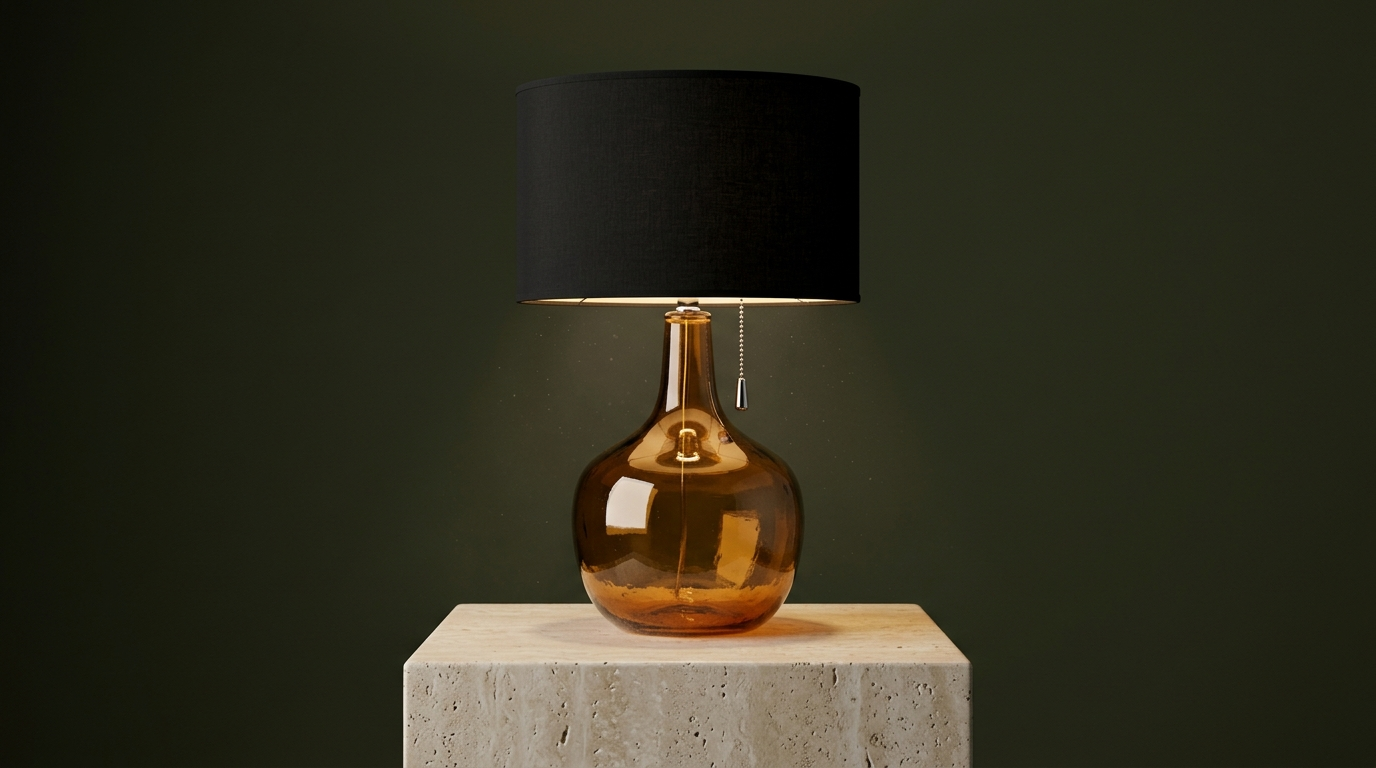
Compare the amber lamp reference with the animated example. Review the glass, base, light, and rotation.
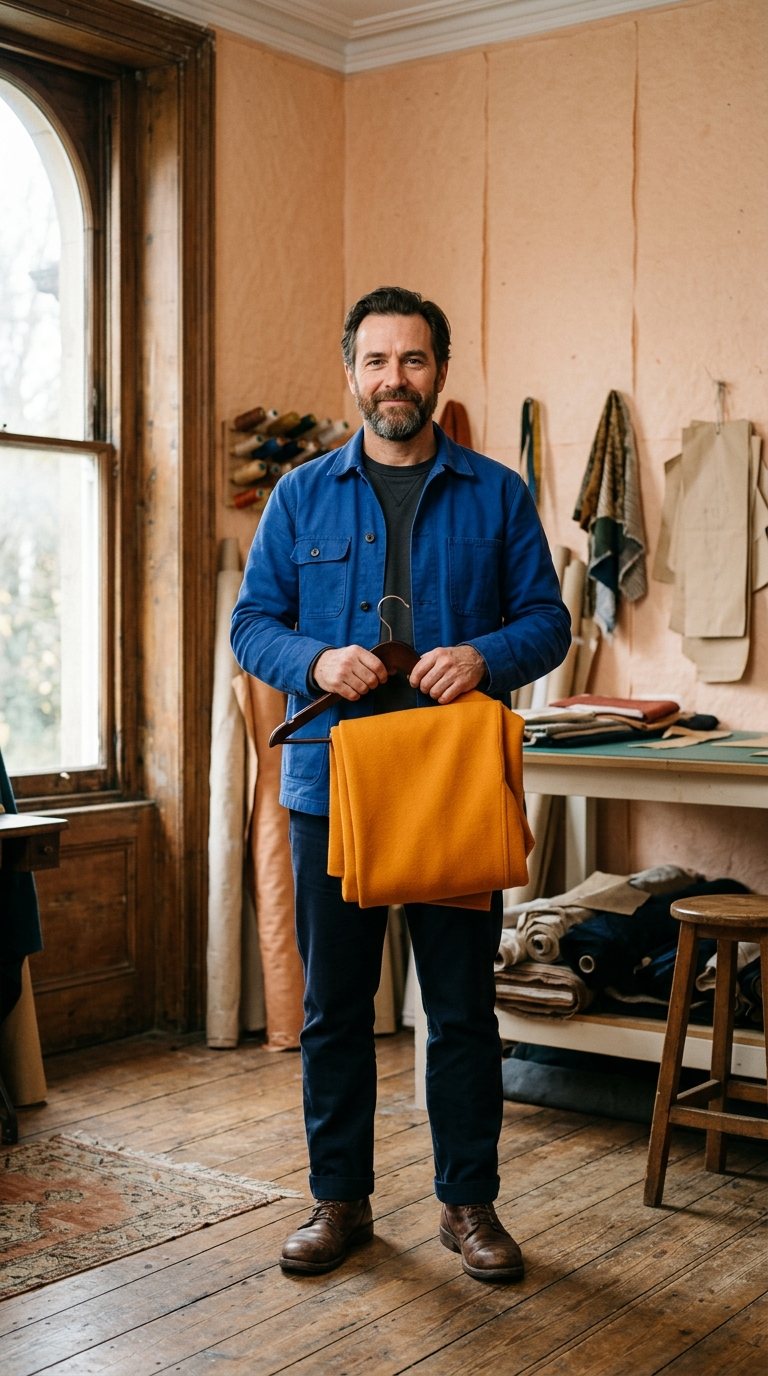
Inspect the tailor reference and vertical movement for clothing continuity, hand detail, and stable framing.
Watch the greenhouse example for lighting, reflections, and controlled object movement.
Review the tide-pool scene for subject action, camera placement, and a clear ending.
Write a production brief that makes the result easy to inspect, compare, and refine.
Define the subject, material, environment, and the details to preserve.
Set the aspect ratio and explain where the subject belongs in the frame.
Keep the shot action and camera motion precise enough to review.
Inspect source fidelity and final crop before publishing.
Choose the model by the job and review the visible failure mode before you publish.
Compare the controls available in Dola AI before opening another workspace. Each model keeps its own identity, settings, and credit estimate.
| Model | Inputs | Output settings | Workspace |
|---|---|---|---|
| Veo 3.1 | Prompt + up to 4 images | 480P / 720P · 4/6/8s | Open model |
| Grok Imagine | Written prompt | AUTO · 6s | Open model |
| MiniMax H3 | Prompt + up to 9 images + up to 3 audio clips | 480P / 768P / 1080P · 1/2/3/4/5/6/7/8/9/10s | Open model |
| Seedance 2.5 | Prompt + up to 4 images | 480P / 720P · 6/10s | Open model |
Explore this gallery while generation is unavailable, then open an available model if you want to create a new result.
Explore the supplied gallery and inspect composition, motion, and visible details.
Use the prompt tips to describe a subject, format, and outcome you can check.
This model has no active generation workspace or upload fields in Dola AI yet.
Choose a connected image or video model explicitly and review its own settings and credit estimate.
Public walkthrough links. Open a video on YouTube to review its context, author, and date.
A public video linked from the reference gallery. Opens YouTube in a new tab.
External linkA public video linked from the reference gallery. Opens YouTube in a new tab.
External linkA public video linked from the reference gallery. Opens YouTube in a new tab.
External linkA public video linked from the reference gallery. Opens YouTube in a new tab.
External linkA public video linked from the reference gallery. Opens YouTube in a new tab.
External linkA public video linked from the reference gallery. Opens YouTube in a new tab.
External linkExplore independent community discussion. These links open external sites.
Follow the provider directly for current announcements. Availability here is shown in the workspace above.
Practical answers about access, settings, references, review, and output use.
Not yet. This is a Runway gallery preview. Generation is disabled and no credits are charged. Open an available model from the directory to create.
No. These are public gallery examples from the reference website, stored locally for visual comparison. They are not verified results from this project.
Uploads are not available for preview-only models. Available model workspaces show their supported reference inputs and limits.
Yes. Open the AI Video workspace or model directory and choose a connected model. Its identity and cost are shown before submission.
No. Browsing and playing reference examples do not submit a generation request. A connected model charges only under its displayed generation settings.
No identical result is promised. Define composition, material, framing, and motion from the gallery, then inspect the output from your selected model.
Describe one subject, its environment, light, format, and important details. For video, add one action and one camera path.
Review text, anatomy, object geometry, source permissions, and final crop. For video, watch the whole clip and listen to the sound.
Explore still-frame animation, portrait-format motion, cinematic clips, and text-led video examples. Runway is a preview here; generation is not connected yet.
Open available video models