
Lock identity and material
Name the defining shape, surface, wardrobe, product detail, and anything that must stay stable.
Turn a concise written scene into a six-second cinematic clip in landscape or portrait format.
Reference gallery examples from Zanta illustrate visual directions. They are not results verified on this site.
Describe the opening composition in words, then give the subject a short action and one camera path. The reference-site input comparison below is illustrative; uploads are not available on this page.
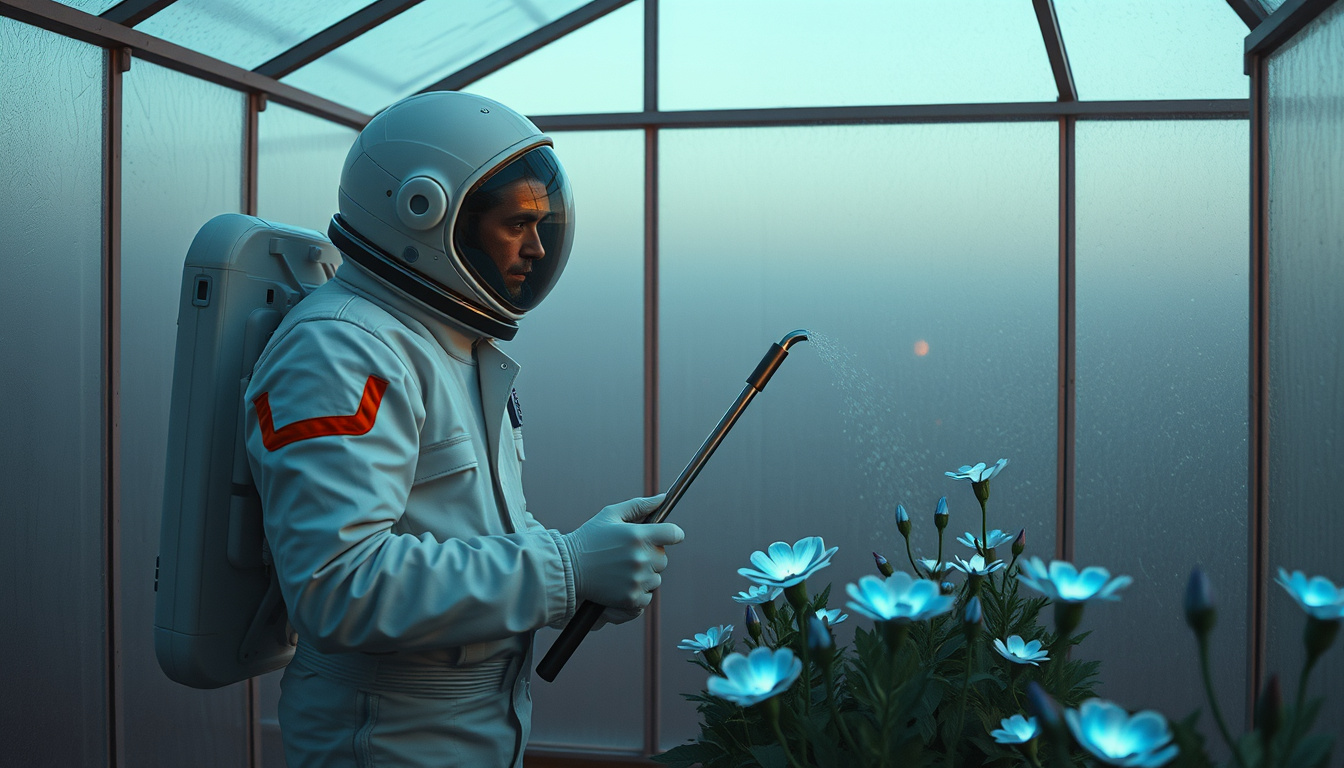
Describe the character, object, and environment as separate parts of one shot. This text-only generator does not take the reference images shown in the comparison.
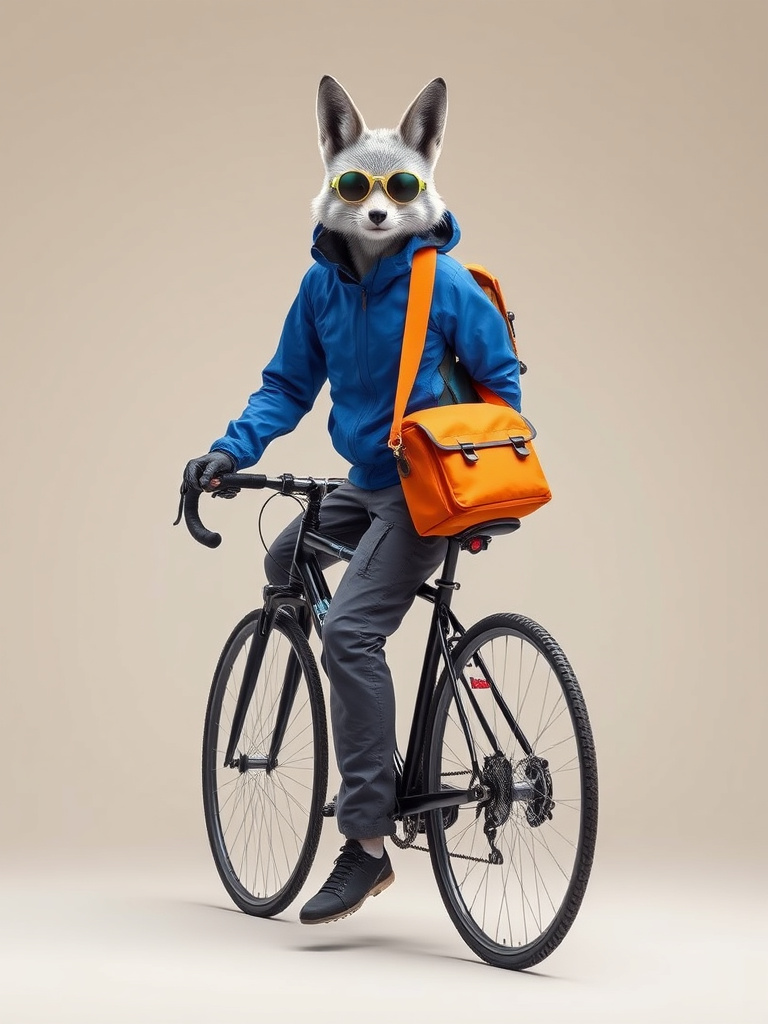
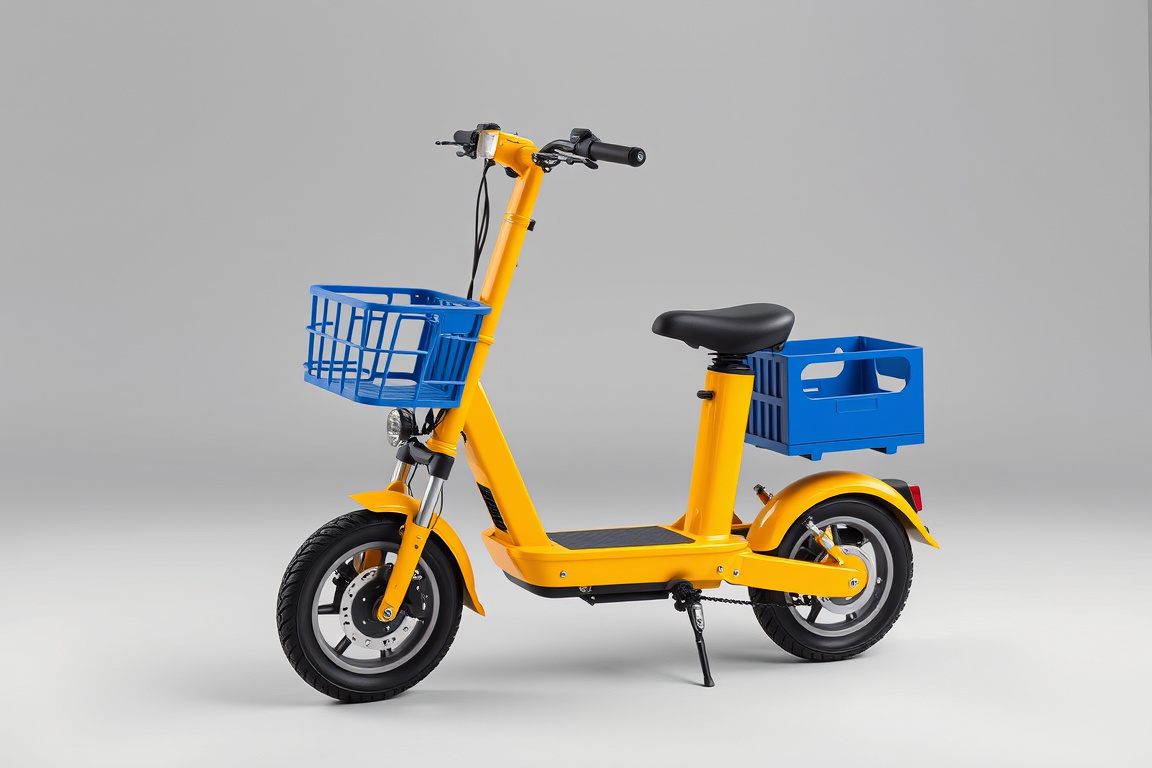
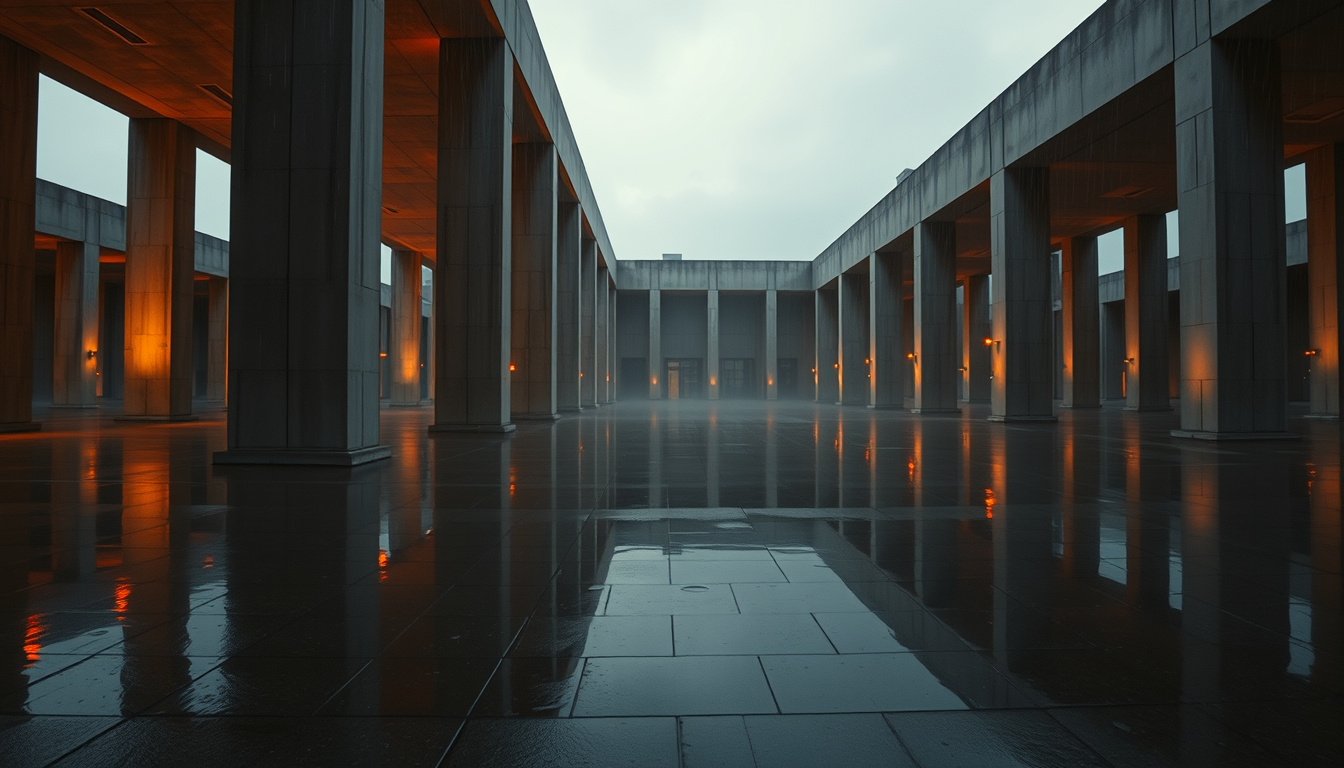
Use a clear start, direction of travel, and endpoint for a six-second camera-led scene.
Describe a short line or environmental sound when it matters to the scene, then inspect the returned audio. There is no dedicated audio upload or soundtrack editor here.
Give an object or character one action with a visible cause, intermediate motion, and a clean final state.
Choose 16:9 or 9:16 before writing the scene so the subject and camera path fit the final placement. The square reference-site example is for comparison; square output is not offered here.
Write a production brief that makes the result easy to inspect, compare, and refine.
Name the defining shape, surface, wardrobe, product detail, and anything that must stay stable.
Describe a short action that can finish naturally inside one clip instead of stacking a full story.
Pick a wide, medium, or macro view and one move such as dolly-in, orbit, lateral track, or crane reveal.
Set the time, weather, materials, foreground movement, lighting direction, pace, and final mood.
Review identity drift, deformation, camera wobble, broken physics, audio mismatch, and the final frame.
Choose the model by the job and review the visible failure mode before you publish.
Compare the controls available in Dola AI before opening another workspace. Each model keeps its own identity, settings, and credit estimate.
| Model | Inputs | Output settings | Workspace |
|---|---|---|---|
| Veo 3.1 | Prompt + up to 4 images | 480P / 720P · 4/6/8s | Open model |
| Grok Imagine | Written prompt | AUTO · 6s | Open model |
| MiniMax H3 | Prompt + up to 9 images + up to 3 audio clips | 480P / 768P / 1080P · 1/2/3/4/5/6/7/8/9/10s | Open model |
| Seedance 2.5 | Prompt + up to 4 images | 480P / 720P · 6/10s | Open model |
Keep the first pass comparable, then spend more only after the direction is working.
Define the asset, audience, format, and one visible outcome.
Describe the subject, composition, material, light, motion, and reject conditions.
Select only the ratios, sizes, quality tiers, and references supported by this route.
Inspect the complete result, then change one variable for the next attempt.
Public walkthrough links. Open a video on YouTube to review its context, author, and date.
A public video linked from the reference gallery. Opens YouTube in a new tab.
External linkA public video linked from the reference gallery. Opens YouTube in a new tab.
External linkA public video linked from the reference gallery. Opens YouTube in a new tab.
External linkA public video linked from the reference gallery. Opens YouTube in a new tab.
External linkA public video linked from the reference gallery. Opens YouTube in a new tab.
External linkA public video linked from the reference gallery. Opens YouTube in a new tab.
External linkExplore independent community discussion. These links open external sites.
Follow the provider directly for current announcements. Availability here is shown in the workspace above.
Practical answers about access, settings, references, review, and output use.
Sign in, describe one short scene, choose the available duration and format, and check the displayed credit estimate. Watch the full completed clip in Assets before downloading it.
Generation uses the credits shown before submission. You can use any eligible free credits in your balance, but this page does not promise unlimited free videos.
This generator currently accepts a written prompt only. It does not expose reference-image uploads or image editing for this model.
The generator offers AUTO output and 16:9, 9:16 framing. Available durations: 6 seconds. Choose from the controls shown and check the updated credit estimate.
There is no audio-upload or soundtrack-editing control on this page. You can describe desired sound in the prompt, but review the returned clip rather than assuming every sound will be present.
Name the subject, one physical action, one camera path, the light, and a clean final state. Keep the action count small enough to fit into the selected clip length.
The clips are reference-website examples for visual comparison. They are not a claim that this site generated the same result, audio, duration, or every capability shown in the reference.
Watch the whole clip for identity drift, object deformation, camera wobble, awkward cuts, audio mismatch, and the final crop. Review the current site terms and your permission to use any references.
Describe the defining shape, color, clothing, material, and environment in words. Repeat those essentials when trying another scene; this page does not expose image uploads.
No. The comparison samples show visual directions from the reference site, while this generator accepts a written scene brief only. Describe the intended role of each element in the prompt.
This page offers a six-second preset in 16:9 or 9:16. It has no square format or extension control; plan a separate follow-on shot when you need another beat.
Change one concrete part of the shot, such as camera height, action, light source, or environment. A precise physical scene is more useful than a long list of broad style words.
Turn a concise written scene into a six-second cinematic clip in landscape or portrait format.
Try the generator