Skip to content

Watercolor Filter for Photos

Effect

Watercolor FilterPhoto to painted image
0/1 max
Aspect Ratio

Result

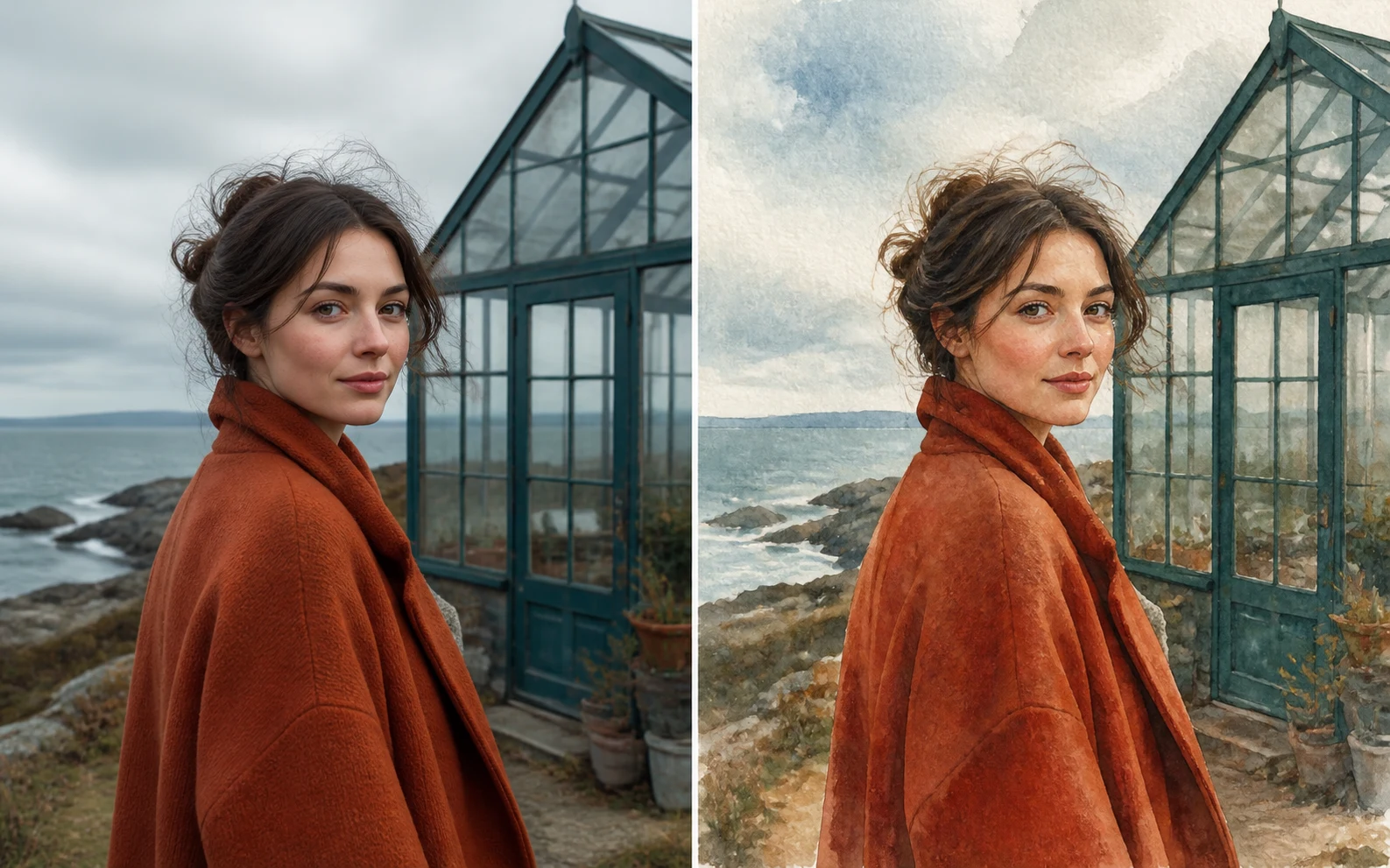
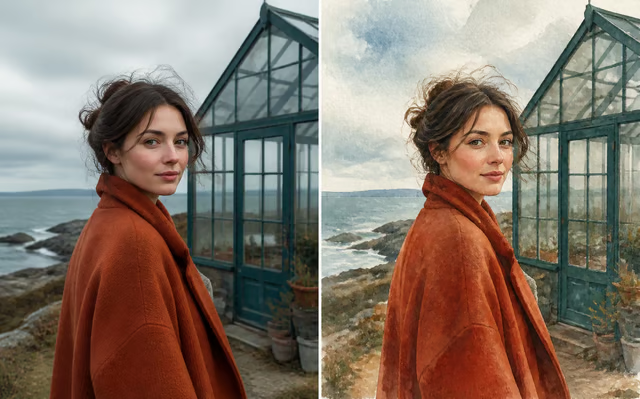
A coastal portrait alongside its watercolor interpretation.

Source preparation

A Clear Photo, a Softer Finish

Choose a photograph with a clear focal point before introducing a softer painted finish. A face in even light, a strong building outline, or a few separated objects gives the model useful structure. The reference arrangements show how a readable source can support watercolor texture without leaving the subject indistinct.

  1. 01Give the main subject even illumination and a little room inside the frame.
  2. 02Choose a sharper, simpler photograph when blur or a crowd hides important details.
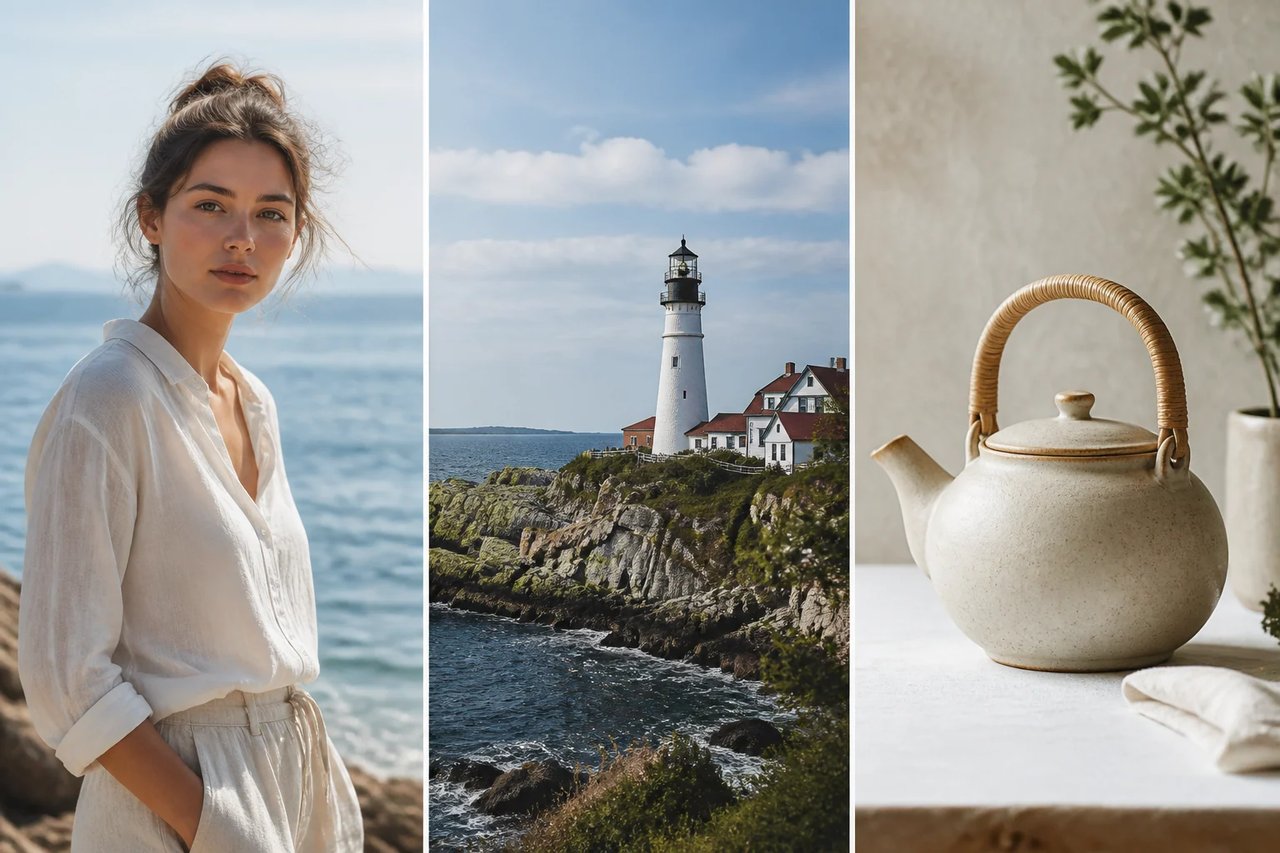
Three strong Watercolor Filter source-image compositions: a clear coastal portrait, a lighthouse with readable horizon, and a simple ceramic still life with separated object shapes.

Travel and place

Turn Travel Photos into Watercolors

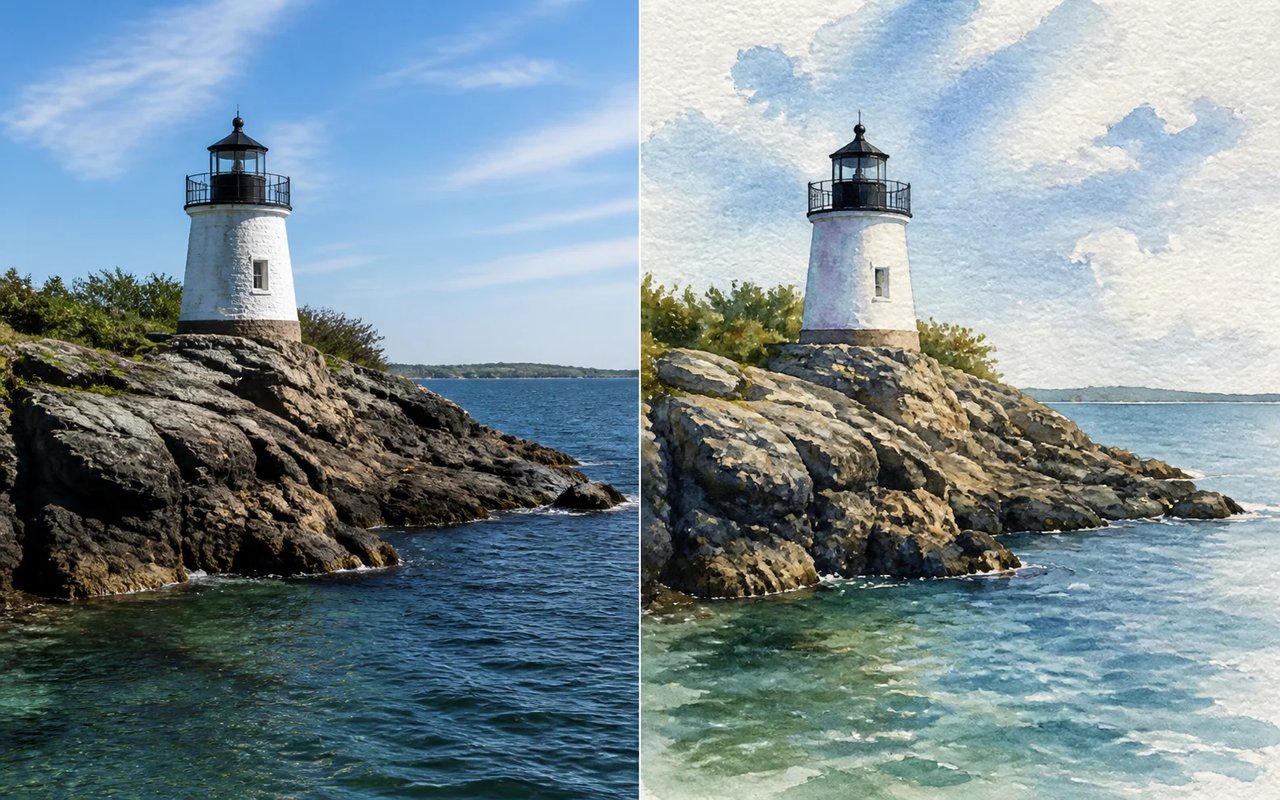
Use a landscape photo with one clear focal point. The lighthouse example keeps its tower, shoreline, and horizon recognizable while softer washes suggest weather and atmosphere. Strong shapes help the painted scene stay readable without preserving every small detail.

  1. 01Let one building or landscape feature lead the composition.
  2. 02Consider a personal travel note, an album page, or an illustrated social post.
A white lighthouse on a rocky coast shown as a source photo beside a pale blue Watercolor Filter result.

Pets and keepsakes

Watercolor Pet Portraits

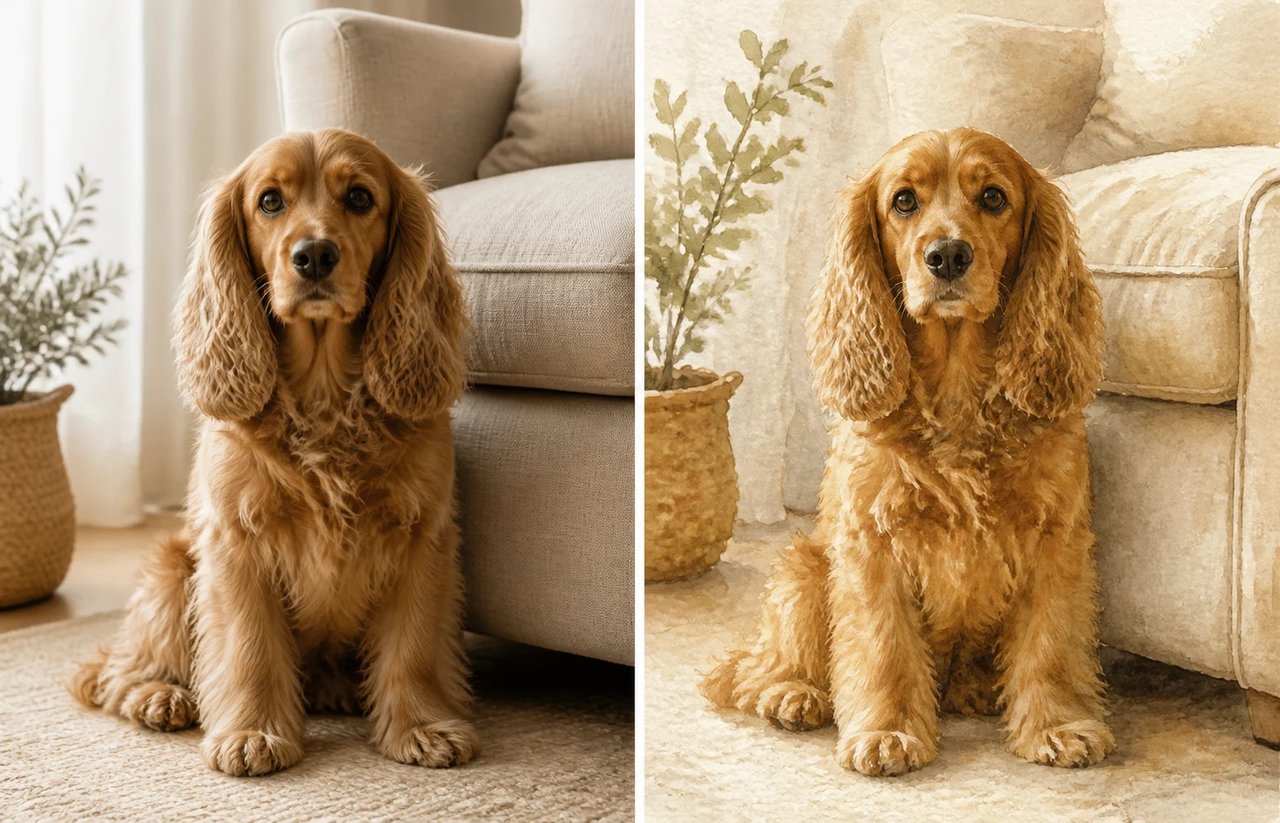
A pet portrait works best when its expression and distinctive features remain easy to see. In this example, the coat color and familiar pose carry the subject through the painted treatment. Choose a source that gives the face enough space, then compare the ears, eyes, and muzzle in the output.

  1. 01Include enough facial detail and coat pattern to identify the animal.
  2. 02Check the painted interpretation against the upload before deciding how to use it.
A golden spaniel sitting beside a sofa shown as a source photo beside a warm Watercolor Filter result.

Products and editorial still life

Watercolor Still Life and Invitations

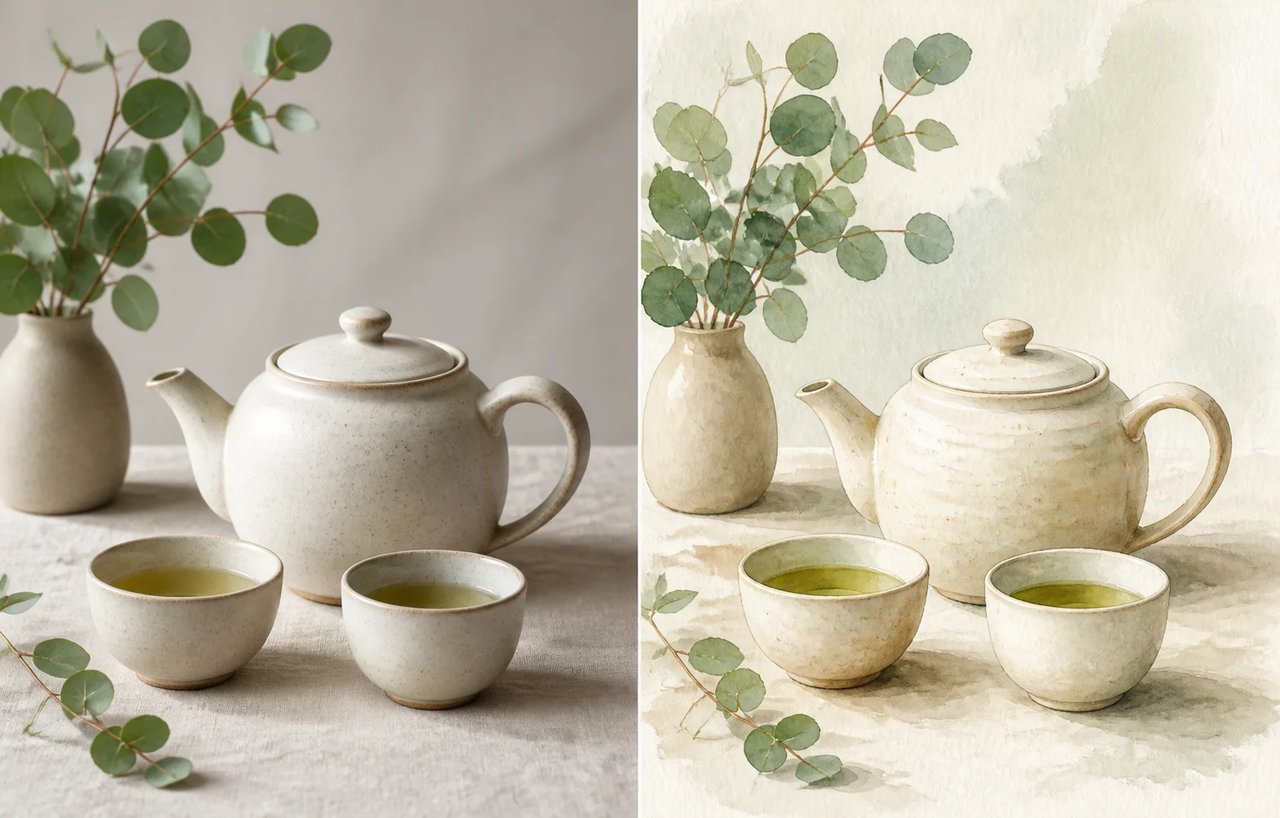
A simple tabletop arrangement can become an illustration for an invitation, personal note, or editorial concept. The ceramics and foliage in this example give the scene distinct shapes and a restrained palette. Leave room between objects so their edges stay readable when the photo is reinterpreted.

  1. 01Keep neighboring objects far enough apart to preserve clear edges.
  2. 02A less cluttered setting can leave space for lettering in your own editing tool.
A white teapot, cups, and eucalyptus shown as a source photo beside a restrained Watercolor Filter result.

Result review

Soft Washes and Paper Texture

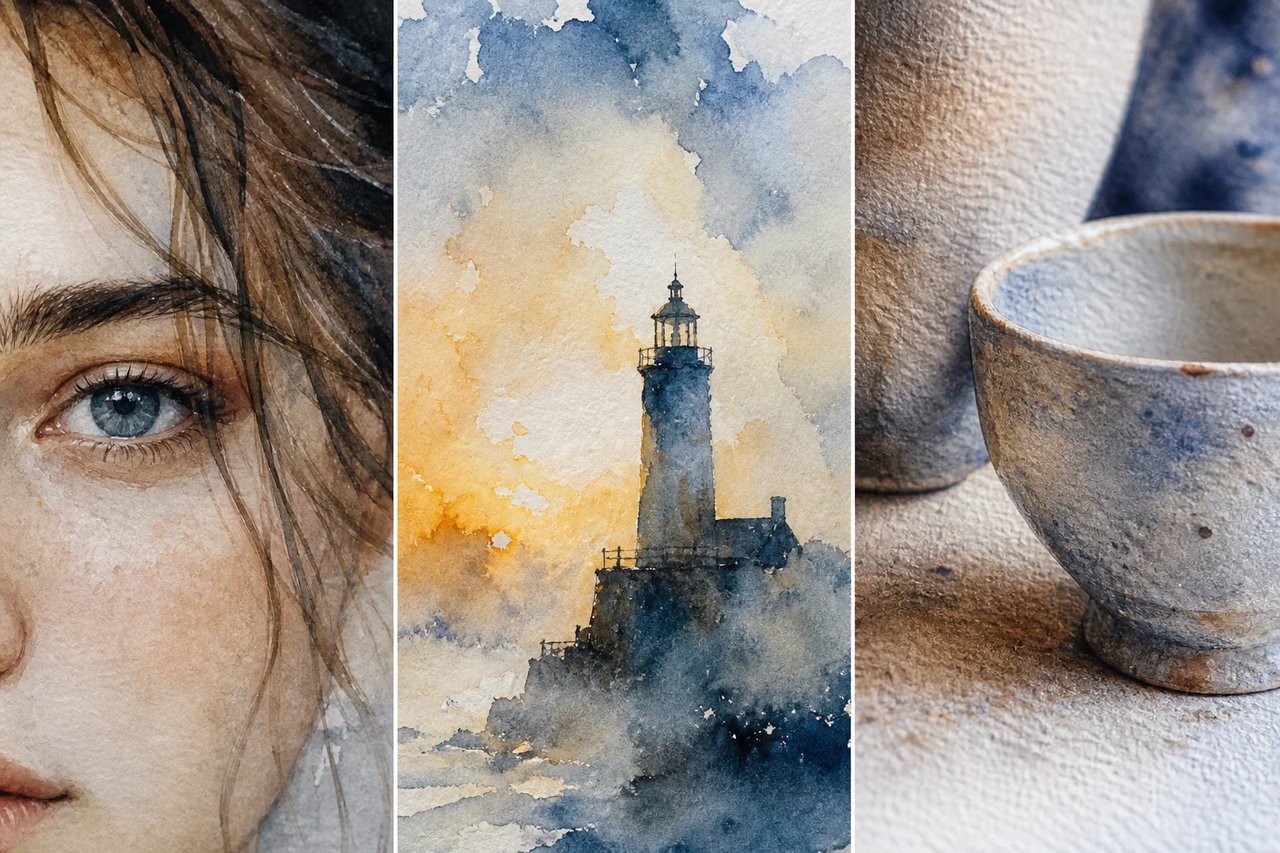
Judge the painted finish at a closer scale. Transparent washes, varied edges, and areas of visible paper should support the subject. Inspect facial features and object contours alongside the texture, so an appealing wash does not distract from changes you would rather correct.

  1. 01Judge recognizable shapes together with the character of the painted surface.
  2. 02Inspect the output at its intended display or printing size.
Close watercolor quality studies showing readable facial features, controlled pigment blooms around a lighthouse, and believable paint texture on ceramic and cold-press paper.

Practical applications

Watercolor Filter Use Cases

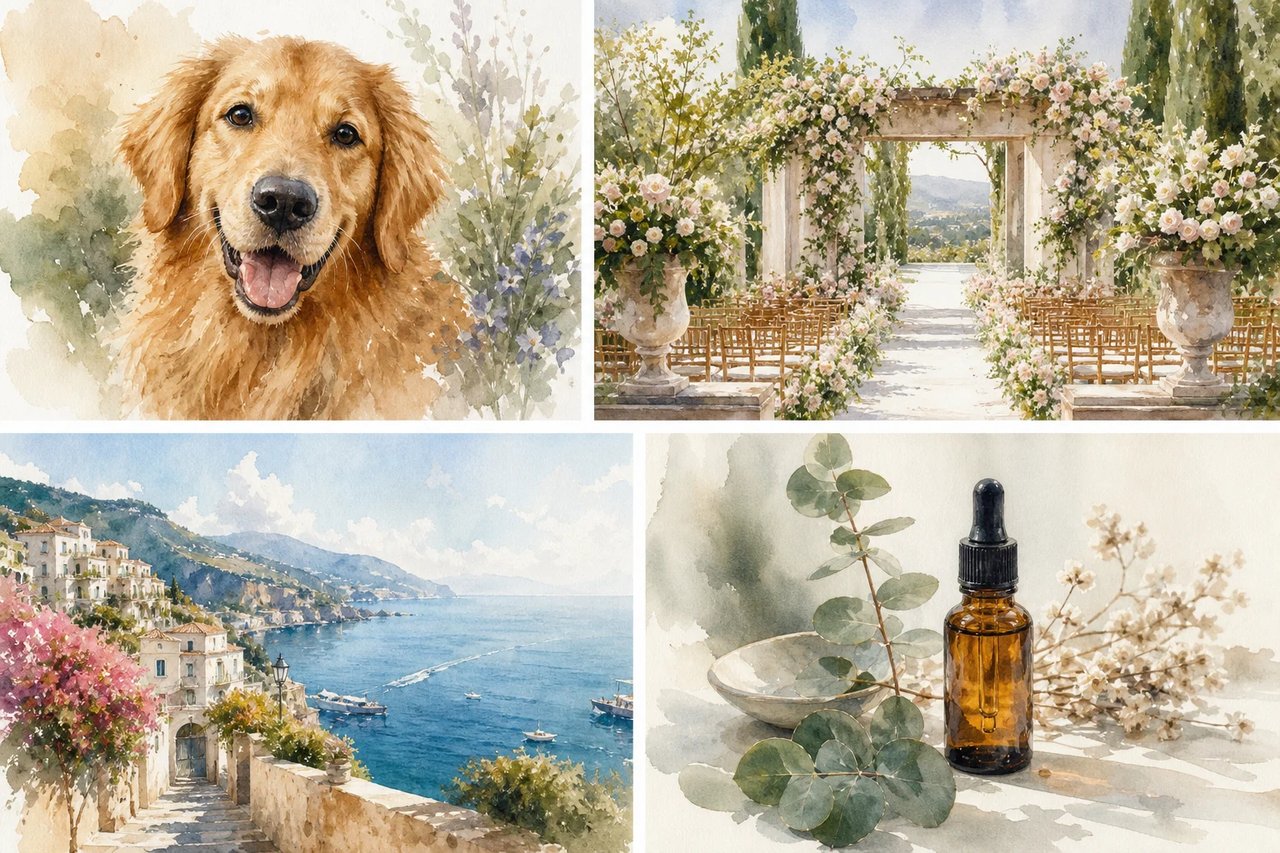
Explore a painted direction for a place, a pet, a personal keepsake, or a product scene. Each application starts from the composition and subject in your own photograph.

Four Watercolor Filter use cases: a pet keepsake, a wedding venue illustration, a travel journal scene, and a botanical product editorial concept.
How to create

How to Use the Watercolor Filter

One photo, one effect, a result you can save.

A white teapot, cups, and eucalyptus shown as a source photo beside a restrained Watercolor Filter result.
1

Select the subject

Upload one clear portrait, pet, scene or still life. Even light and an uncluttered background help the painted forms stay readable.

2

Create the painted version

Review the credit cost and create with the watercolor preset. The painting instructions are supplied for this workflow.

3

Compare the washes and detail

Check how the colors and important features were interpreted, then download the finished image for your project.

Create Watercolor Image

Watercolor Filter FAQ

Choosing one source photo, preparing clear subjects, understanding generation credits, reviewing the painted result, and deciding when a simple editing filter is sufficient.

What does the Watercolor Filter do?

Dola AI interprets your photo as a watercolor-style image, using translucent color, soft painted edges and paper-like texture. The subject and composition guide the result.

How do I use the Watercolor Filter in Dola AI?

Upload one image, review the displayed credits and create the watercolor effect. Compare the painted version with the source, then download the result you prefer.

Is the Watercolor Filter free to use?

Viewing examples is free. New generations use the displayed credit cost, and require a signed-in account.

Which source photo works best for Watercolor Filter?

Choose a distinct subject with even light and a background that does not compete with it. Portraits, pets, buildings and still lifes can all work. Extremely fine patterns may blend into the washes, so check the details that matter in the finished image.

Will Watercolor Filter keep a face, pet, or landmark exact?

The photo provides a reference, but the model can simplify a face, a pet’s markings or architectural features while painting them. Look closely at those details with the comparison slider. A sharper source may help, but exact reproduction is not promised.

Why can a Watercolor Filter result look muddy or too smooth?

Mixed lighting and tightly packed detail can produce blended colors or broad smooth areas. Try a less cluttered image with clearer tonal separation. The preset asks for watercolor texture, but each generation may balance that texture and the subject differently.

How is the Watercolor Filter different from a normal filter?

This workflow generates a new interpretation guided by the photo. It can redraw edges and details along with changing color and texture. A conventional photo filter usually modifies the existing pixels more directly, so preserve your original file for comparison.

Can I use a Watercolor Filter result for a client or brand?

For client work, start with source images you are allowed to edit and review the generated details before delivery. Check the applicable Dola AI terms for your intended use. The tool creates the artwork; it does not verify third-party rights or approve a brand asset.

Create a Watercolor Image

Start with your photo, explore the effect, and save a result that feels personal.