Skip to content

Free AI Video Generator from Text & Photos

60 credits

Turn a scene description or still image into a short video. Choose an available model, review the credit cost, and direct the motion.

AI Video Prompts for Clean Cinematic Motion

Explore eight video prompts with previews, from product and lifestyle scenes to sport, sci-fi, animation, and retro film. Choose a prompt to adapt for your next video.

Citrus Can Splash

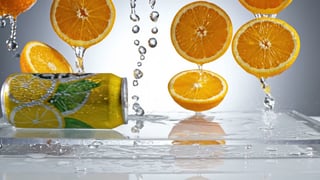
A chilled citrus soda can without branding rotates slowly on a wet acrylic surface as orange slices and clear water droplets float briefly in slow motion behind it. Clean high-key studio lighting, crisp commercial product video, bright yellow and silver palette, shallow depth of field, no readable text, no logo, no watermark, no subtitles.
Curtain Light Interior

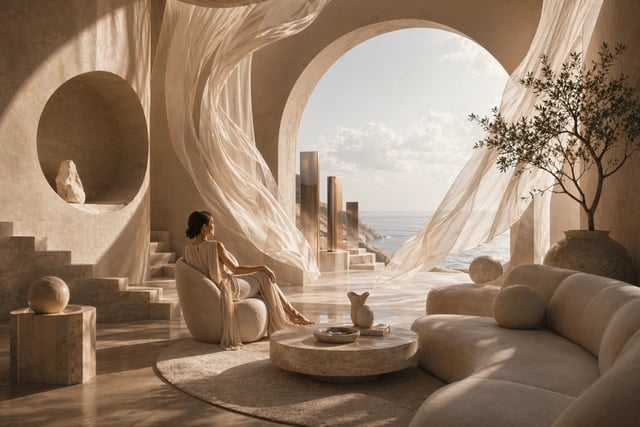
Modern quiet living room at sunrise with linen curtains moving gently, warm light bands sliding over a low sofa, ceramic vase, and wood floor. Slow locked-off camera with subtle breathing motion, architectural magazine video style, clean background, no people, no readable text, no logo, no watermark, no subtitles.
Linen Object Morning

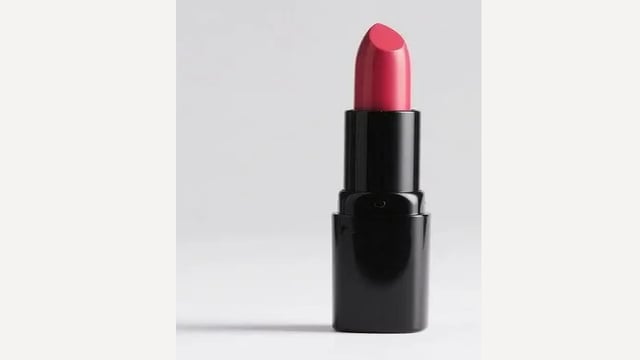
Clean lifestyle object scene with a small matte ceramic diffuser on a low shelf beside linen curtains, morning light sliding gently across pale wood and fabric. Slow locked-off camera with subtle focus shift, quiet premium interior video, restrained palette, no people, no readable text, no logo, no watermark, no subtitles.
Mountain Bike Descent

Wide action shot of a fully geared mountain biker descending a clean rocky alpine trail under a bright blue sky, dust trailing behind the tires, camera tracks parallel at medium speed with stable cinematic motion. Outdoor sport commercial style, crisp natural light, no readable text, no logo, no watermark, no subtitles.
Orbital Glass Habitat

Graphic sci-fi glass habitat above Earth, translucent ring structures turning slowly while a small maintenance arm glides along the frame. Clean composition, cool light, polished hard-surface design with generous negative space, quiet cinematic mood, no humans, no readable text, no logo, no watermark, no subtitles.
Dog Cafe Laptop

A golden retriever wearing simple round sunglasses sits at an outdoor cafe table beside an open laptop, paws tapping lightly on the keyboard, passersby blurred in the background. Handheld natural camera feel, warm cheerful cafe ambience, playful but polished social video, no readable text, no logo, no watermark, no subtitles.
Painted Floating Marsh

Hand-painted quiet marsh at sunset, layered hills and paper clouds moving gently like a small theater set, reeds swaying around a reflective stream. Slow panoramic camera move, painterly texture, soft color harmony, calm storybook mood, no characters, no readable text, no logo, no watermark, no subtitles.
Retro Desk Fan Shadows

Empty 1980s office corner with a desk fan, venetian blinds, paper stacks, and a small monochrome monitor glowing softly. Fan blades turn slowly as striped shadows slide over the wall. Slow dolly-in, restrained retro film grain, low room hum, no people, no readable text, no logo, no watermark, no subtitles.
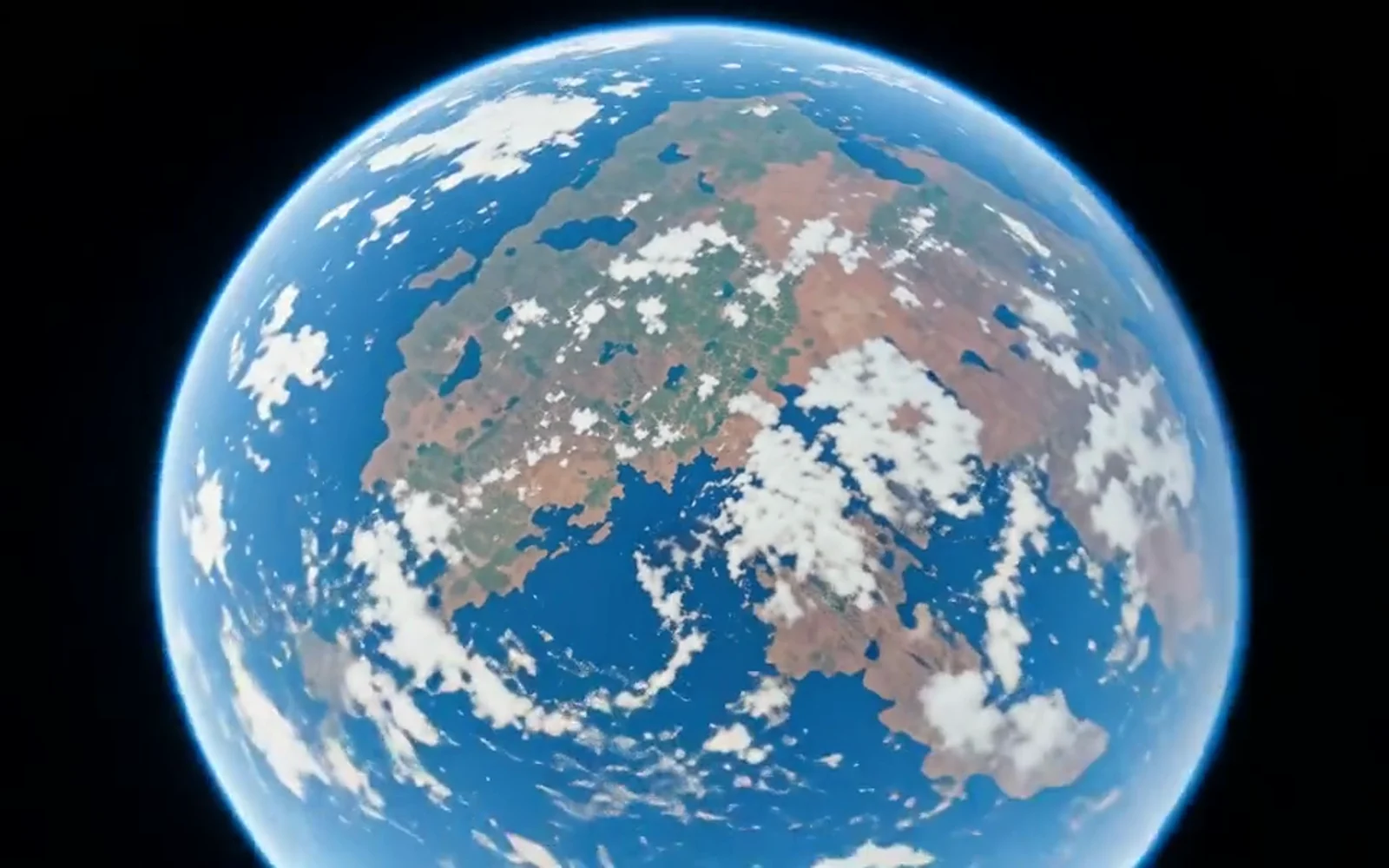
Turn text or an image into a video

Create a short clip from a scene prompt, or animate a reference image with a supported model. Use the video editor to set the format, duration, and result count before reviewing the credit quote.

AI image generator and photo editor

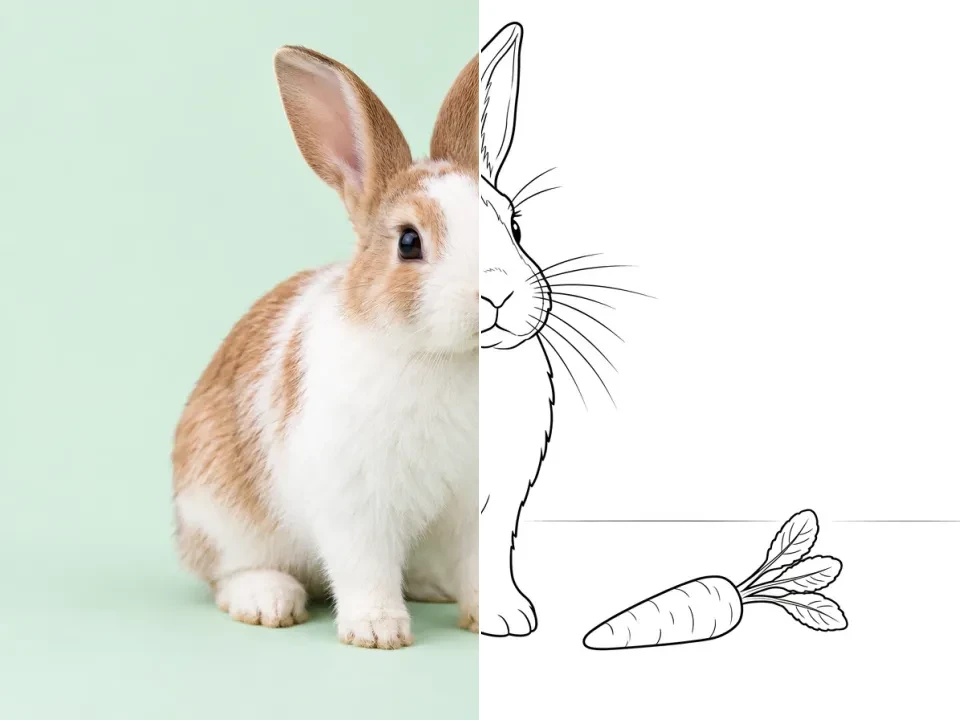
Use text to image to create portraits, product photos, illustrations, and thumbnails. For image to image, upload your own photo and describe a new background, style, or scene with a model that supports references.

Try the free AI image generator →

AI video generator from text and images

Use text to video to turn a scene description into a short clip, or image to video to animate a still photo. Describe subject movement and camera motion, then choose the settings supported by your video model.

Try the free AI video generator →

Create AI Videos from a Text Prompt or Photo

Decide what the scene starts from, then give one clear action and camera direction.

Text to video: start with an idea

Use a written scene for story shots, visual concepts, or atmosphere clips when you have no source image. Describe the subject, environment, movement, and camera behavior together.

Image to video: start with a frame

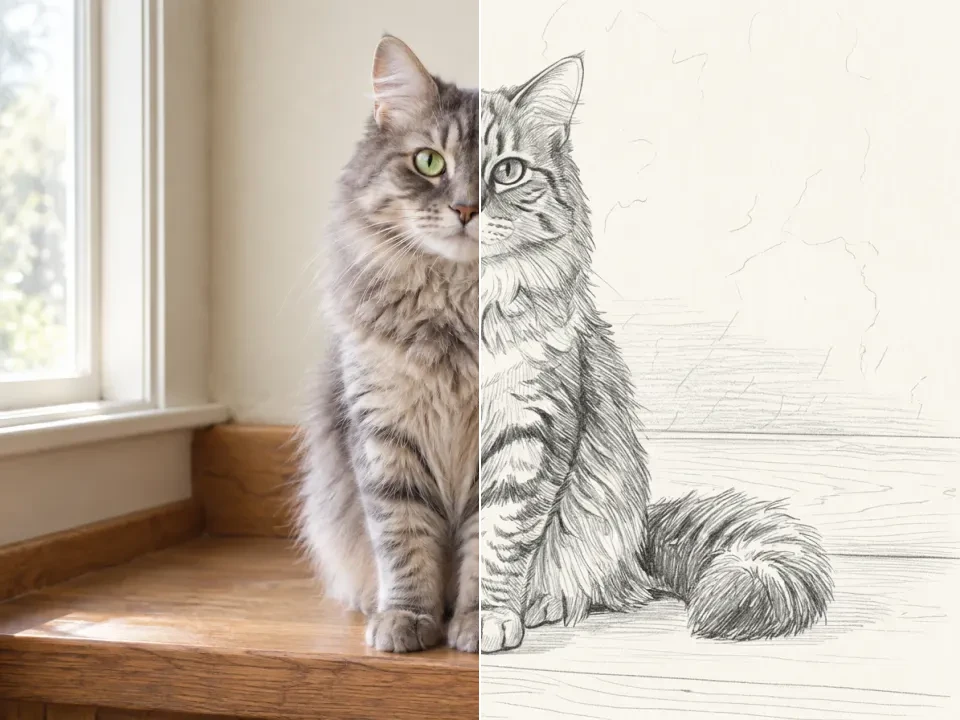
Animate a product photo, character design, or illustration with a model that supports image references. Focus the prompt on motion. Review the result because fine details may change.

Product video concepts

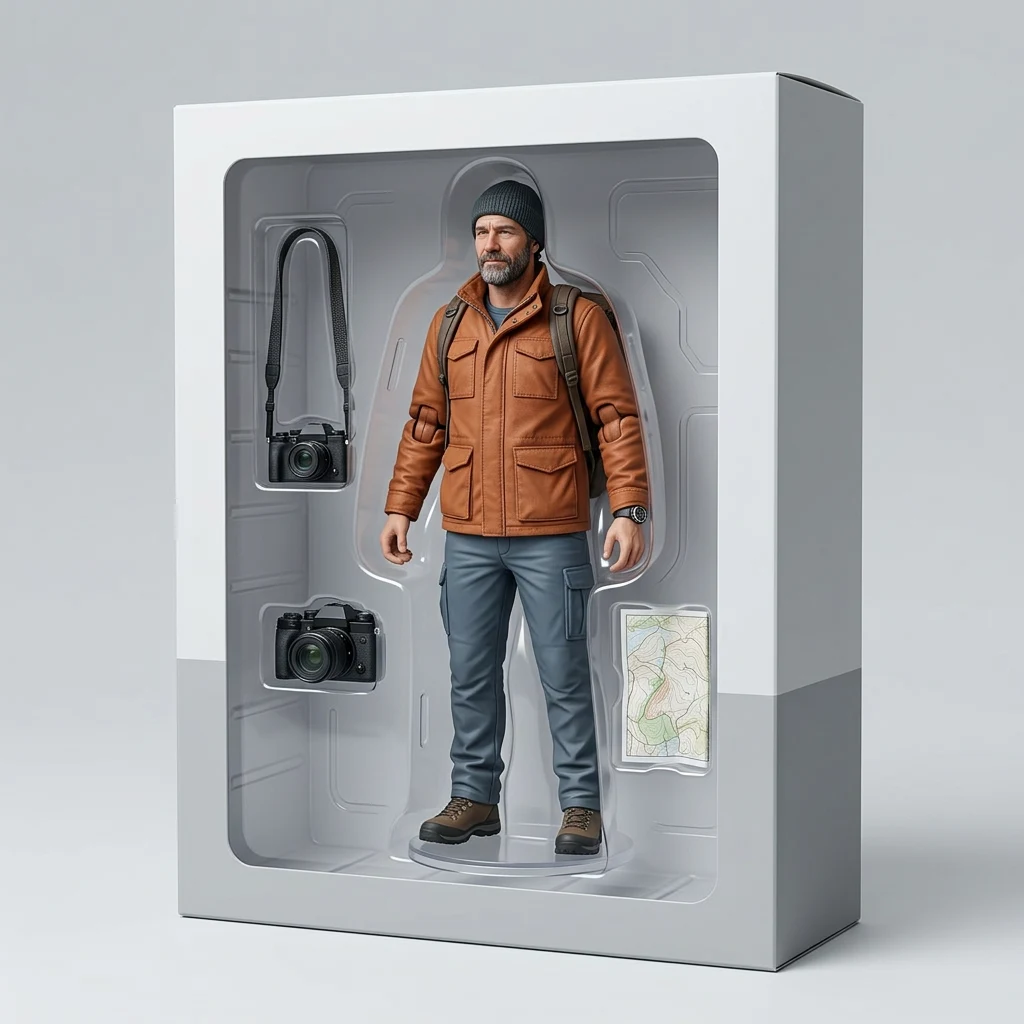
Explore a product reveal from your own photo. Check shape, labels, and material details before using a generated clip in a campaign.

A ceramic mug on a wooden table. The camera slowly moves from left to right, warm window light moves across the glaze, a thin wisp of steam rises. One continuous shot, keep the mug shape stable.

Vertical social clips

Choose an available portrait ratio for a focused scene. Keep the subject and one clear action near the center of the frame.

Vertical composition: a cyclist rides along a quiet coastal road at sunrise. The camera tracks beside the bicycle at a steady pace, soft sea mist in the distance. One smooth shot.

Storyboards and cinematic ideas

Test a setting, lighting direction, or camera move before committing to a larger edit or production.

A small observatory above the clouds at blue hour. The camera slowly pushes toward the open dome as its telescope turns toward a bright star. Gentle cloud movement, cinematic lighting, one continuous shot.
Read the AI video and prompt guide →

Video Models in Dola AI

Pick the video model by the clip you need: realistic motion, first-frame animation, scene continuity, camera direction, or another take from the same still.

Veo 3.1 AI Video Generator for Realistic Motion

Google Cloud documents Veo 3.1 for text-to-video and image-to-video, including prompt rewriting, reference assets, first-and-last-frame workflows, C2PA support, and horizontal or vertical outputs. Use Veo 3.1 for hero clips, product loops, cinematic ad concepts, and image-to-video workflows.

Strong for realistic motion

Veo 3.1 is a model for believable movement, clean camera feel, and polished clips that can support ads, landing pages, and launch visuals.

Starts from text or a source image

Invent a scene from a prompt, or animate an image when you already have the opening composition you want.

Useful when the shot needs control

Reference assets and first-and-last-frame workflows make Veo 3.1 relevant when the beginning, ending, and subject continuity matter.

Veo 3.1

AI Video Generator

Create AI video from a text prompt, source image, or photo with Veo 3.1, then compare each clip with your creative brief.

  • Start from text when the scene does not exist yet.
  • Start from an image or photo when the first frame, product, or subject is already approved.
  • Choose the video model, ratio, duration, and motion intent before spending credits.
  • Start from text or an image, then choose the model and video settings in one place.
Create AI video
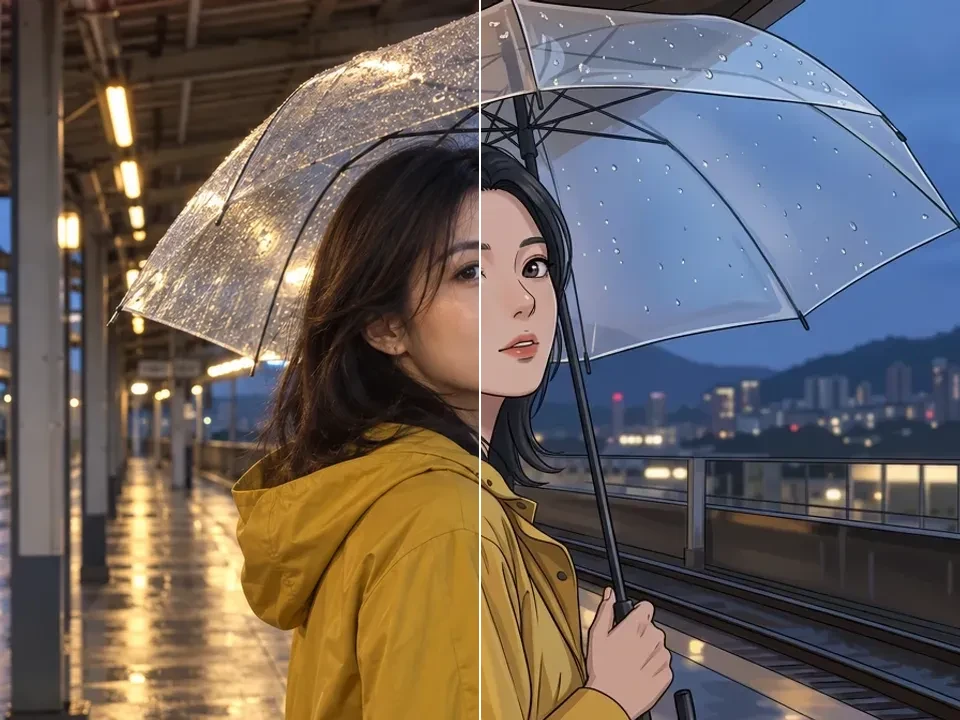
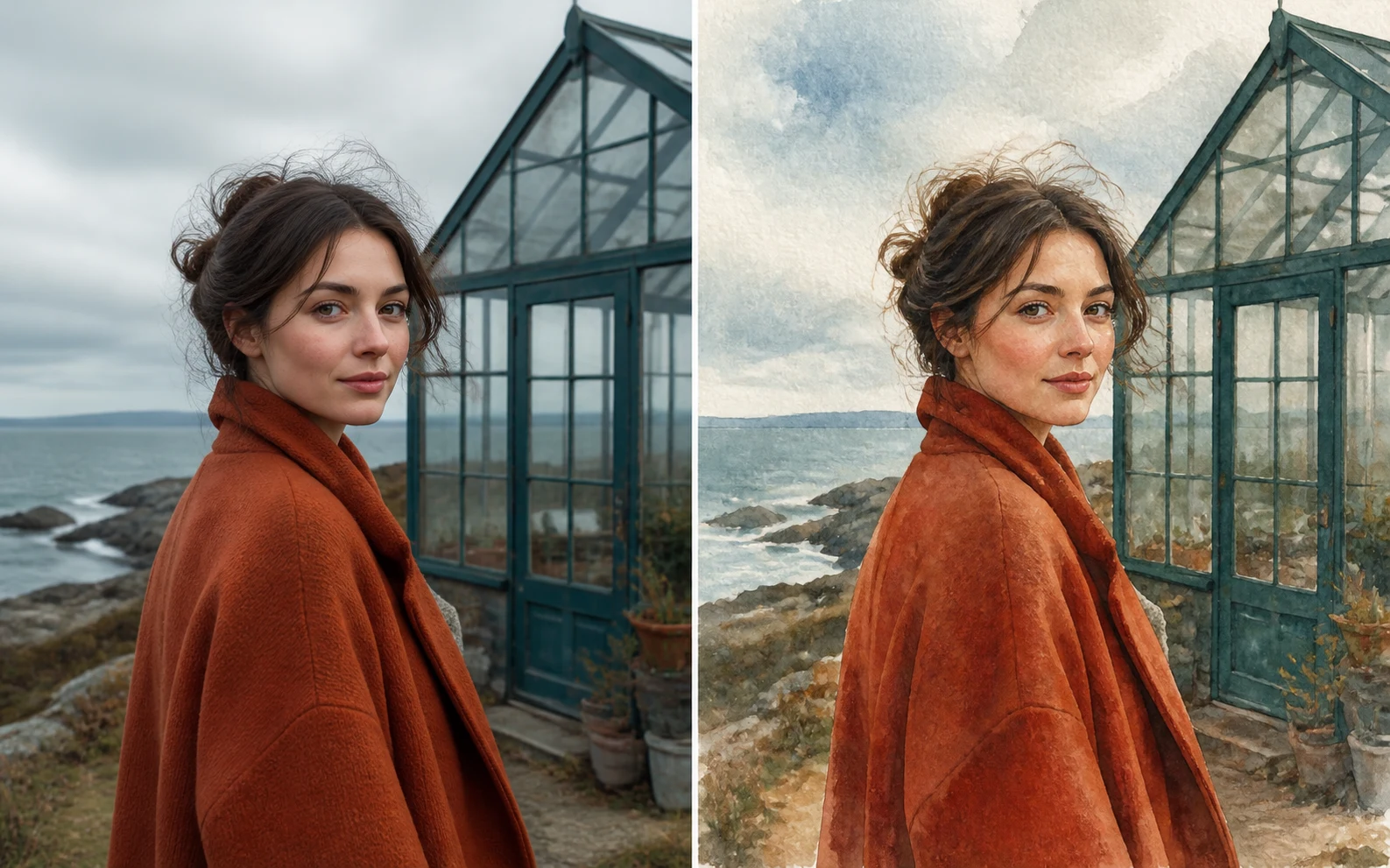
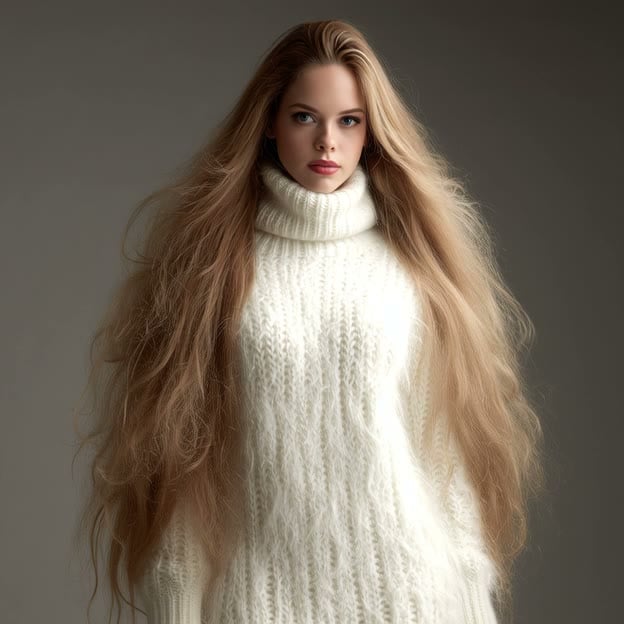
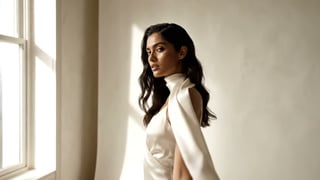
Portrait-led image-to-video example with elegant subject motion

Image to Video and Text to Video in One Studio

Use image to video for approved frames or product photos, or start with text to video when the scene needs invention.

  • Use image or photo input for product loops, portrait motion, and approved campaign stills.
  • Use text input for scenes that need to be invented from a brief.
  • Keep the output goal stable while the input mode changes inside the studio.
  • Keep the source frame and motion direction together in one studio.
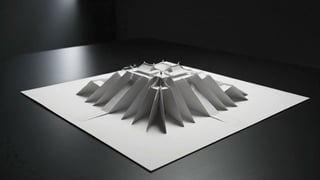
Sculptural salon still used as the first frame for image-to-video

Direct the Shot Before You Generate

Give Veo 3.1 clear camera movement, pacing, and scene continuity to help direct a focused shot.

  • Choose the placement first so composition and framing match the final channel.
  • Write motion cues such as push-in, orbit, drift, handheld, or slow reveal.
  • Compare a few strong directions instead of overworking the first acceptable clip.
  • Keep prompts focused on one scene or one motion idea per generation.
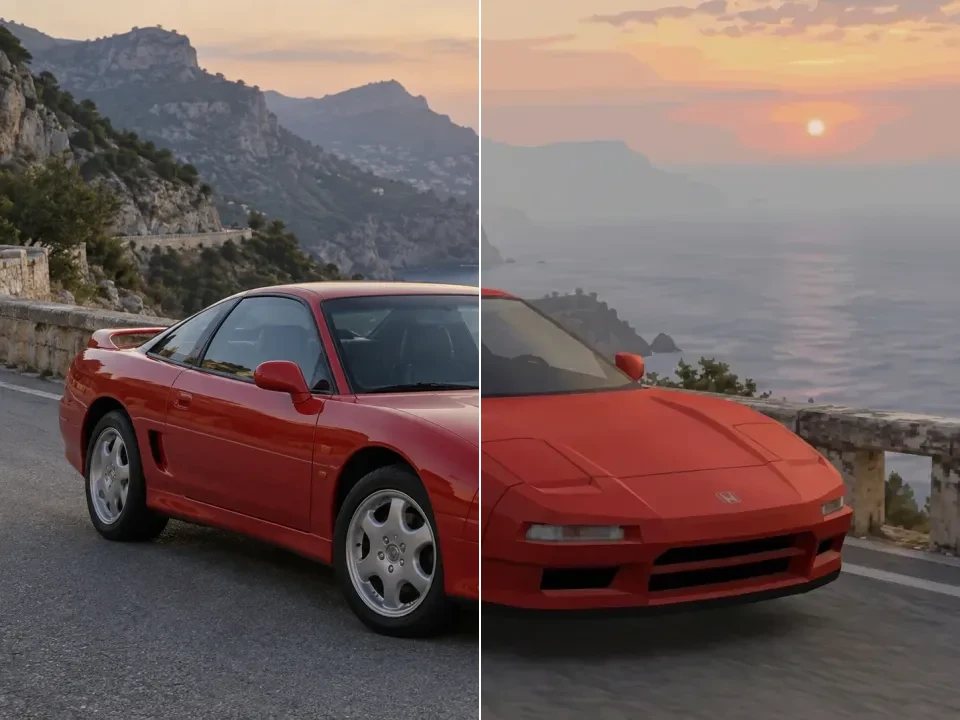
Product still extended into a premium motion loop

AI Video Generator Use Cases

Use AI video when the idea needs motion proof before a full edit or campaign build.

HOOK TESTING

Ad hooks and social clips

Test opening moments with Veo 3.1 for polished realism when camera movement drives the opening hook.

Wide citrus product hook video for social ad testing
PRODUCT MOTION

Product and landing loops

Animate product stills with Veo 3.1, compare the motion, then keep the loop that fits the page.

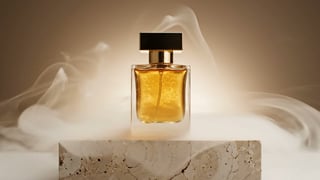
Wide fragrance product loop for landing page motion
EDITORIAL CLIPS

Portrait and editorial motion

Use Veo 3.1 to add slow camera movement, atmosphere, and subtle subject motion to an approved source still.

Wide editorial portrait motion clip from a source frame
DIRECTION FINDING

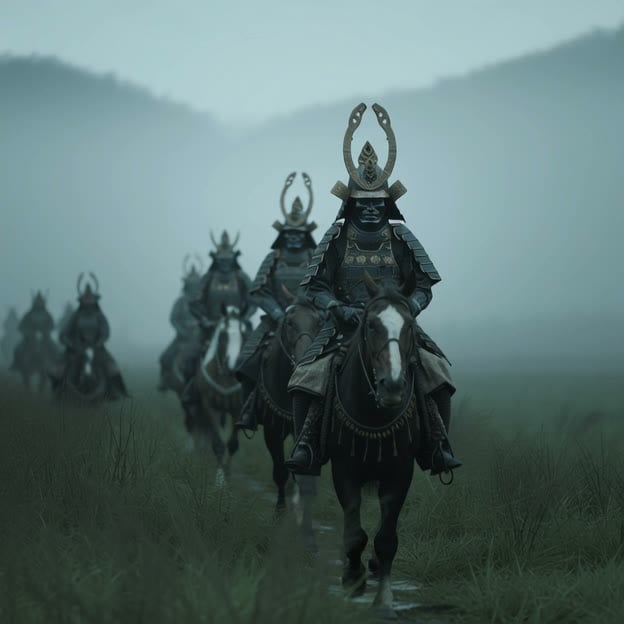
Concept and storyboard clips

Use Veo 3.1 when a clip needs a clear scene, character beat, consistent props, or storyboard-like flow.

Wide concept storyboard clip for motion direction testing

How to Generate a Video with Dola AI

Start with a clear idea, then check your settings and credit quote before submitting.

Image to video sequence with atmospheric motion
1

Write a scene or add a starting image

Write the subject, setting, lighting, and style. With a reference image, explain the change you want; for video, add movement and camera direction.

2

Choose a model and check the quote

Select an available model and supported format. Sign in, then review the full batch cost on the Generate button.

3

Generate and follow the task status

Submit your request after checking the settings. Follow progress in the editor; completion time varies by model, settings, and provider demand.

4

Preview, refine, and download

Review the output and adjust the prompt for another version. Find completed results in the result panel or your signed-in history and download the ones you want.

Start AI video

AI video generator FAQ

Answers about free credits, account access, and your creative workflow.

What is the difference between text to video and image to video?

Text to video starts with a description of a new scene. Image to video uses an uploaded still to guide the starting composition. For an image reference, describe the motion and camera behavior you want rather than repeating every visible detail.

What video duration and resolution can I choose?

Duration, resolution, aspect ratio, and audio support depend on the selected model. Choose your model first, then use the options and credit quote actually displayed in the editor.

How long does AI video generation take?

Generation time varies by model, provider demand, and settings. Follow the task status in the editor. When the clip completes, play it and check the motion, subject consistency, and details before downloading or publishing.

Is Dola AI free to use?

100 sign-up credits plus daily check-in rewards of 40–120 credits. Check-in rewards follow your consecutive-day streak and can be claimed once per UTC day. Generations use credits; free credits do not mean unlimited generation.

Do I need an account to generate?

You can browse examples, write a prompt, and choose settings before signing in. Generation and reference uploads require a signed-in account. Signing in does not automatically submit your draft.

How many credits does a generation cost?

The cost depends on the model, resolution, quality, video duration, and result count. The Generate button shows the total for your selected batch. Check that quote before submitting; claim an available check-in reward or review pricing if your balance is too low.

Where can I find and download my results?

Completed work appears in the result panel and your signed-in generation history. Preview an image or play a video, then download the result you want to keep.

Can I use generated media in commercial projects?

Review our terms and the selected model’s usage rules before publication. Use reference images and other assets you have permission to use; a successful generation does not establish rights for every use.

Make your next idea visible

Start with a prompt or a reference image, then choose the workflow that fits your idea and credit balance.