Skip to content

No Beard Filter

Effect

No BeardTry a clean-shaven look
0/1 max

Result

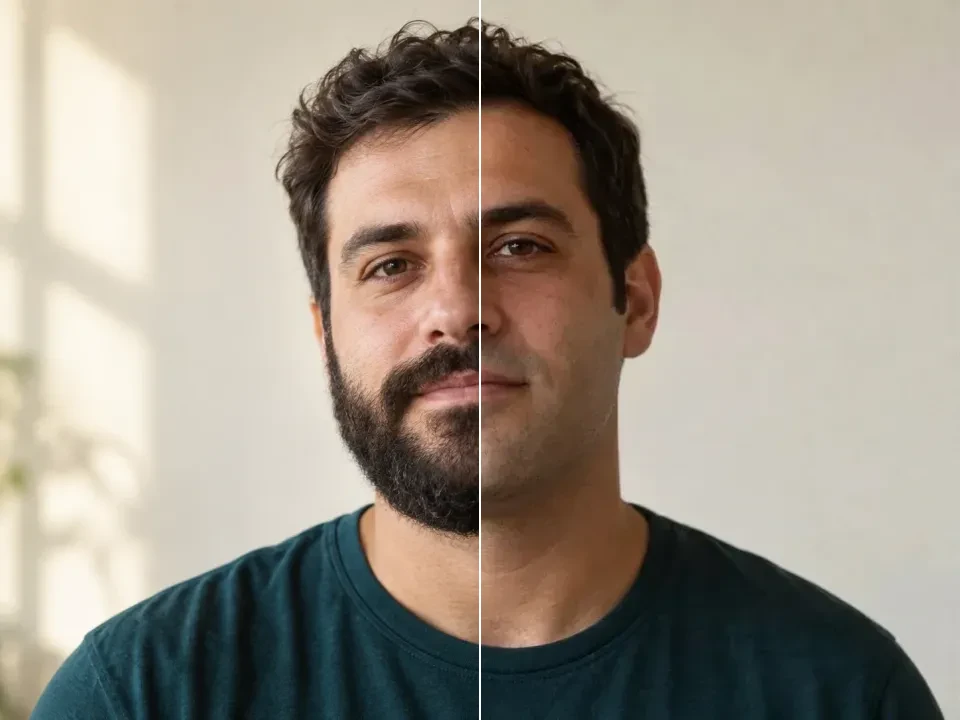
Original adult man with a dense dark beard, wavy hair, and a teal shirt in soft window light.
The same adult portrait after the No Beard Filter, with beard and moustache removed and the teal shirt retained.

Drag the divider or use the arrow keys to compare the same source photo with its generated result.

No Beard Filter: Preview a Fresh Look

Preview a clean-shaven direction before changing your grooming routine. The source photograph supplies the expression, head position, and lighting; the preset asks the image model to reconstruct the lower face with less visible facial hair. This is a generated interpretation, so it is useful for exploring a look rather than predicting an exact shave.

Compare more than the missing beard. Look at the shape beneath the mouth, the transition into the neck, and whether the cheeks still belong naturally to the same portrait. A recent photograph with even light gives the model clearer information than a heavily filtered selfie. Keep a copy of your source so you can evaluate the two versions side by side.
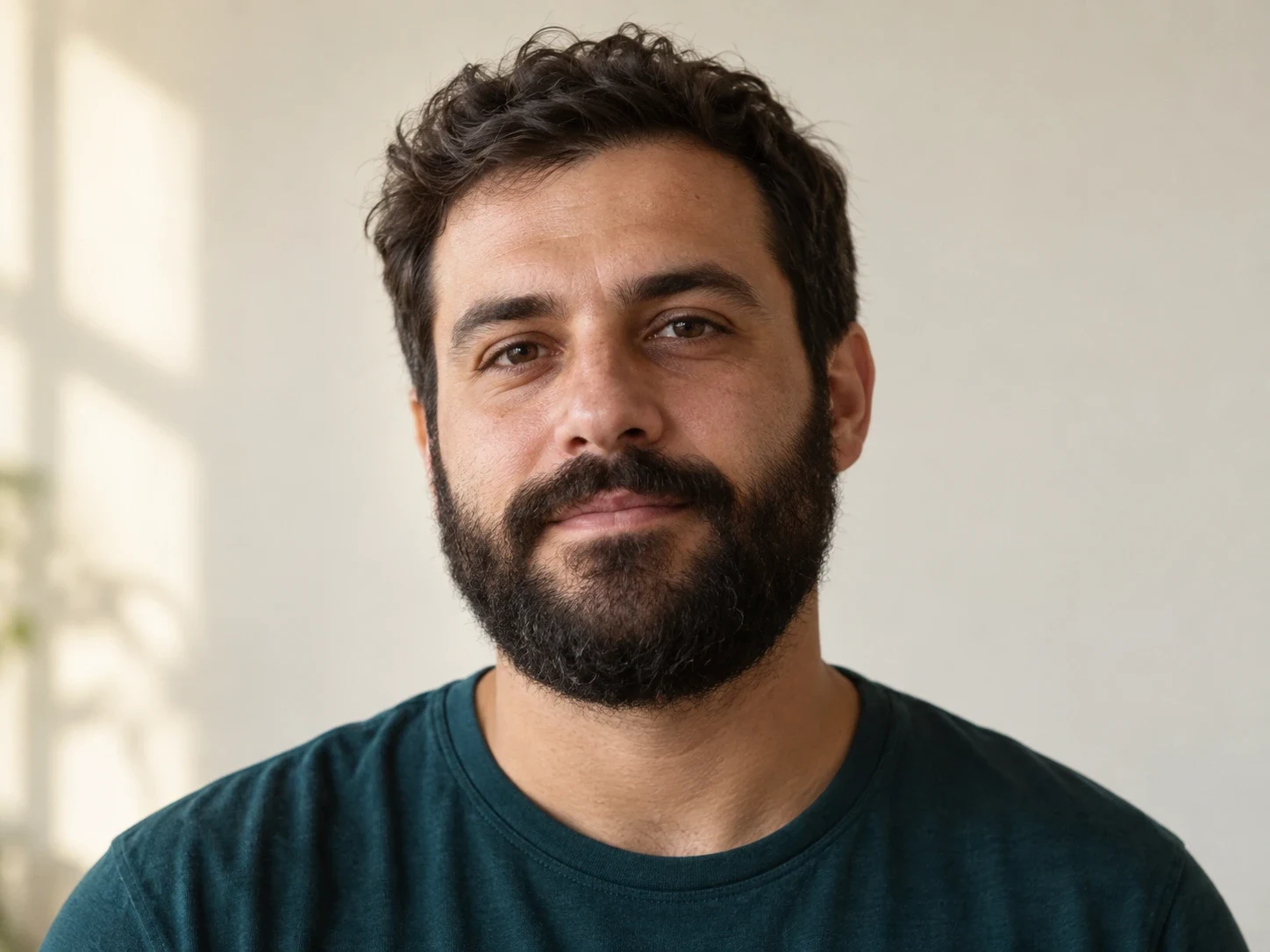
Original adult man with a dense dark beard, wavy hair, and a teal shirt in soft window light.
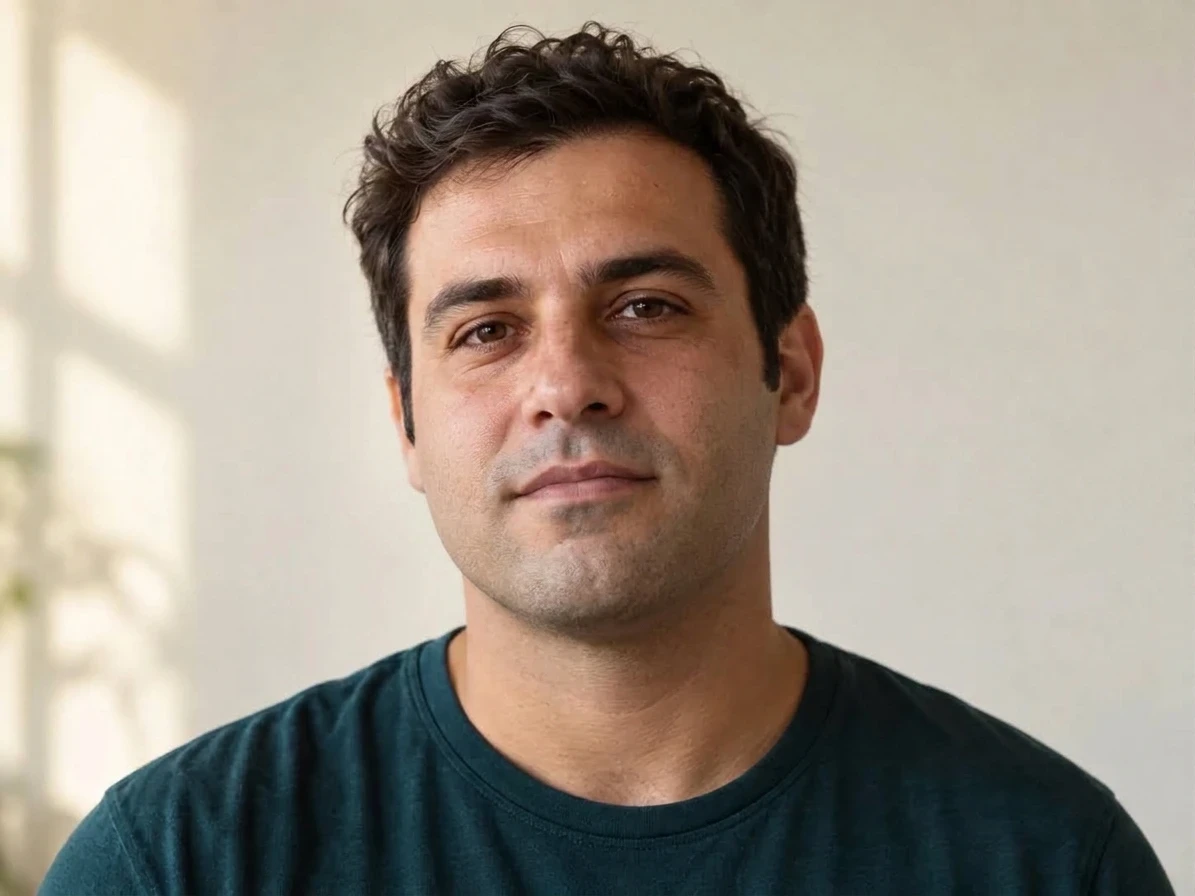
The same adult portrait after the No Beard Filter, with beard and moustache removed and the teal shirt retained.

Drag the divider or use the arrow keys to compare the same source photo with its generated result.

A full beard, a fresh look

Inspect the chin and jaw alongside the expression and lighting in the portrait to judge how naturally the clean-shaven interpretation fits.
A Beardless Filter for Different Beards

Different amounts of facial hair leave different clues about the face underneath. A short beard exposes more of the jaw, while a dense beard can hide both skin and contour. The paired examples show those two starting points and make it easier to see what the clean-shaven treatment is changing.

Give the model a clear view of the whole lower face. Avoid a hand across the mouth, a scarf over the chin, or a deep shadow beneath the jaw. Where the original photograph hides the skin, the result has to invent it. Check those reconstructed areas closely and choose a source with more visible detail if the result feels unfamiliar.

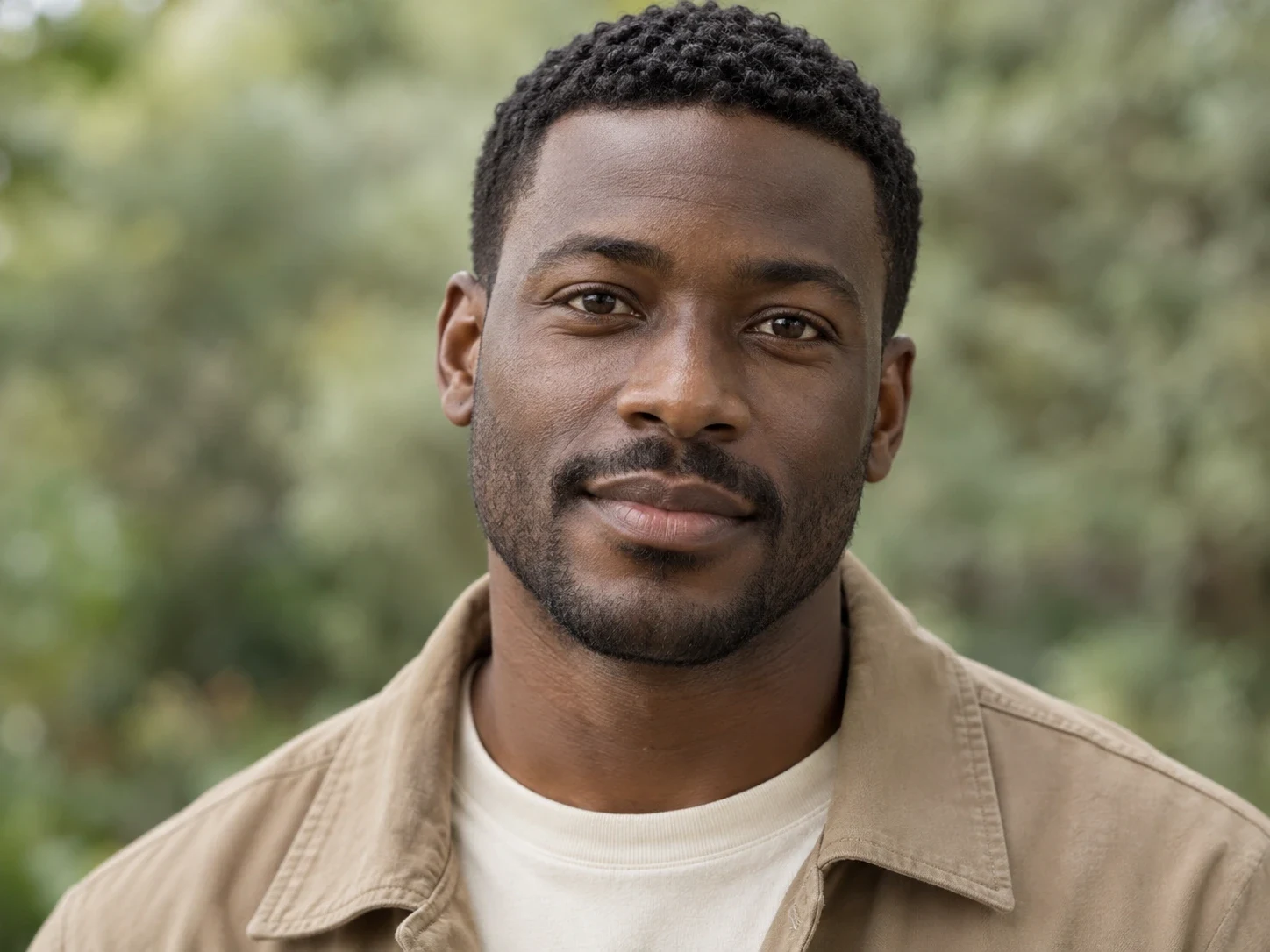
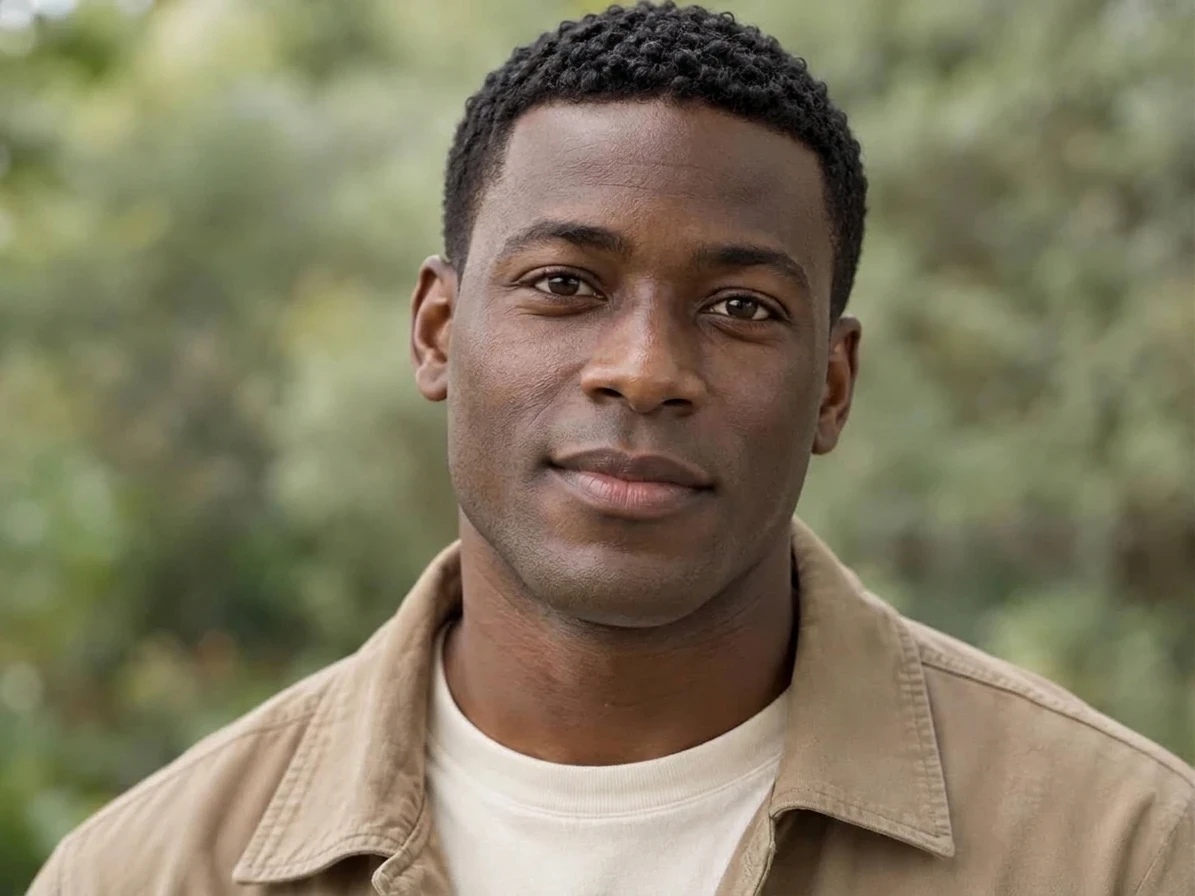
Original adult Black man with short facial stubble and a tan jacket against a softly blurred green background.
The corresponding clean-shaven portrait with natural dark skin texture and the same tan jacket and green background.

Drag the divider or use the arrow keys to compare the same source photo with its generated result.

From stubble to clean-shaven

Inspect the chin and jaw alongside the expression and lighting in the portrait to judge how naturally the clean-shaven interpretation fits.
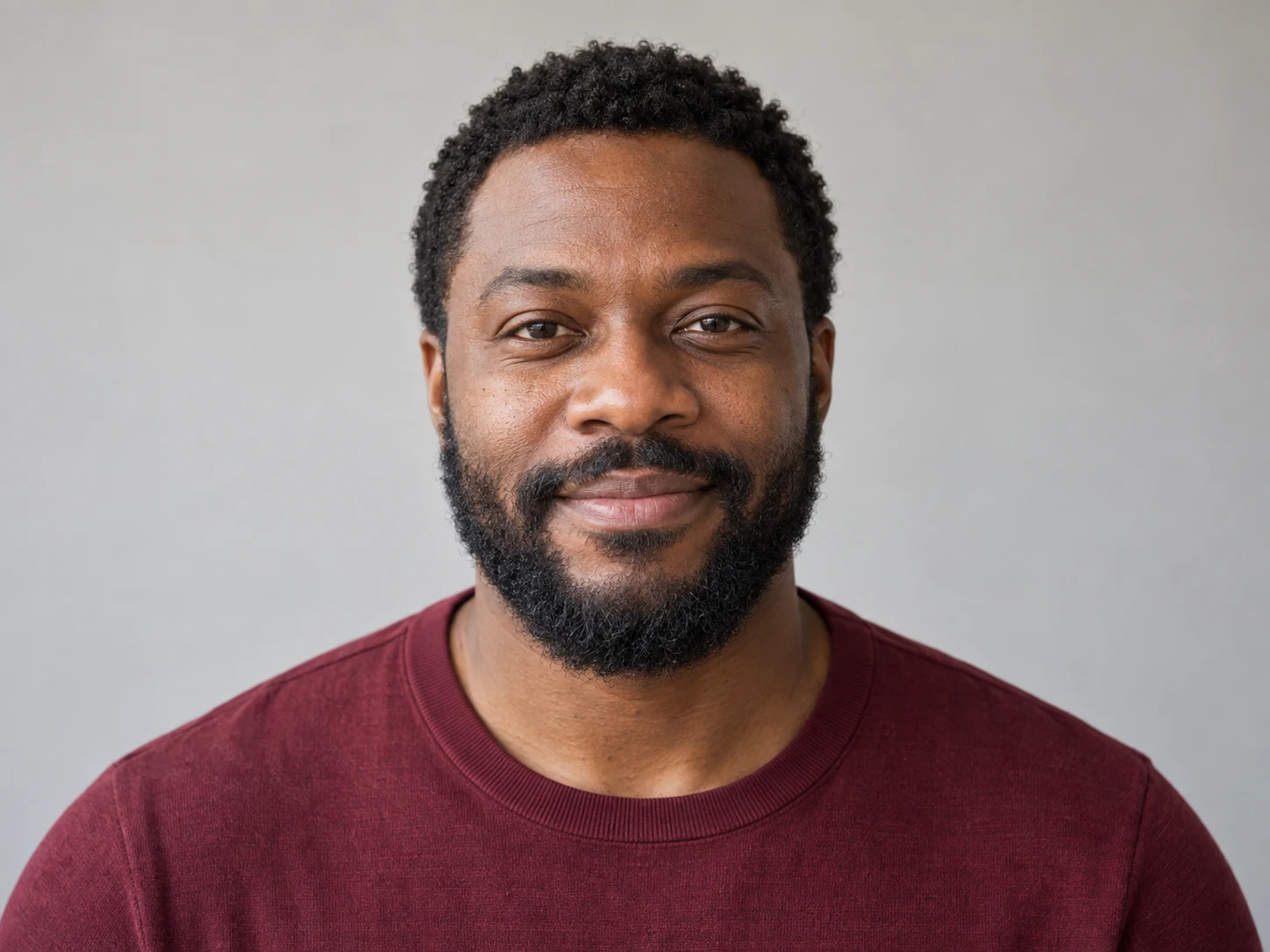
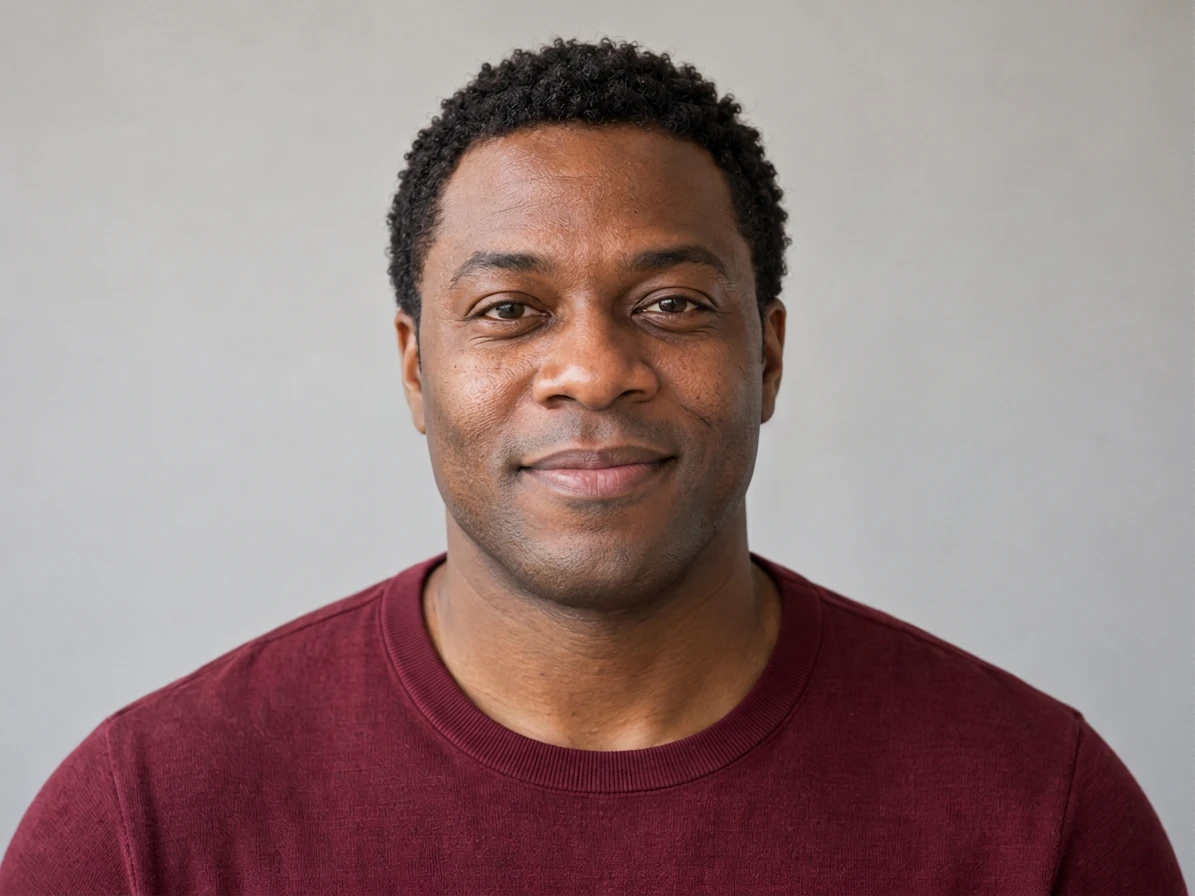
Adult Black man with a dense short beard and moustache, a burgundy shirt, and soft window light.
The corresponding clean-shaven portrait with the same deep brown skin, short coiled hair, burgundy shirt, and expression.

Drag the divider or use the arrow keys to compare the same source photo with its generated result.

Full beard on deeper skin tones

Inspect the chin and jaw alongside the expression and lighting in the portrait to judge how naturally the clean-shaven interpretation fits.
Remove a Beard from an Angled Photo

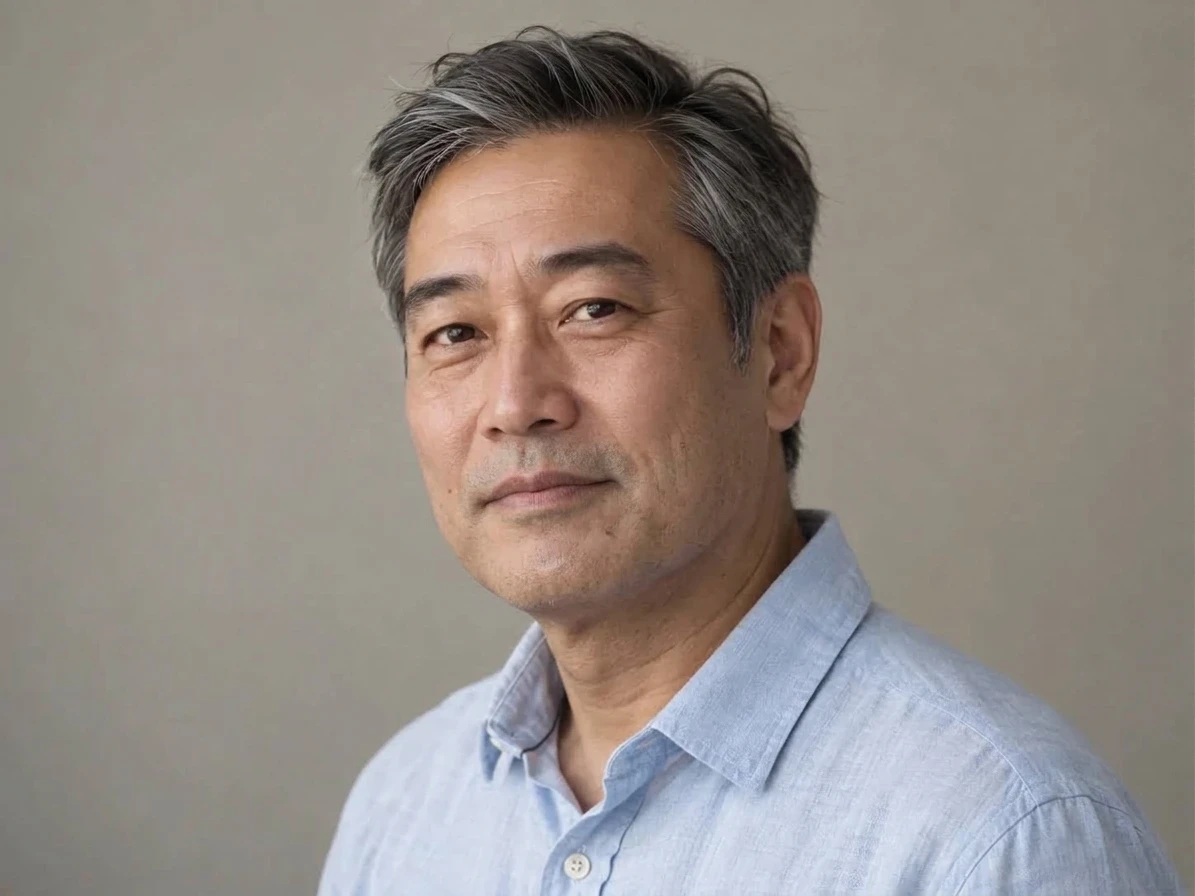
An angled portrait can still provide a useful grooming preview. The important information is the visible cheek, jawline, and edge of the beard, rather than a perfectly symmetrical camera position. In the example, the head keeps its turn while the lower face receives a cleaner finish that follows the existing direction of light.

Leave space below the chin and along the cheek nearest the camera. Cropping these edges makes it harder to judge whether the edited face connects convincingly to the neck. Review the ear, sideburn, and hairline as well as the beard area. If an angle conceals too much, a second photograph from a more open position may offer a clearer comparison.

Original adult East Asian man with a salt-and-pepper beard and blue linen shirt, photographed at a slight angle.
The same three-quarter portrait without a beard, retaining salt-and-pepper scalp hair and a blue shirt.

Drag the divider or use the arrow keys to compare the same source photo with its generated result.

A softer three-quarter view

Inspect the chin and jaw alongside the expression and lighting in the portrait to judge how naturally the clean-shaven interpretation fits.
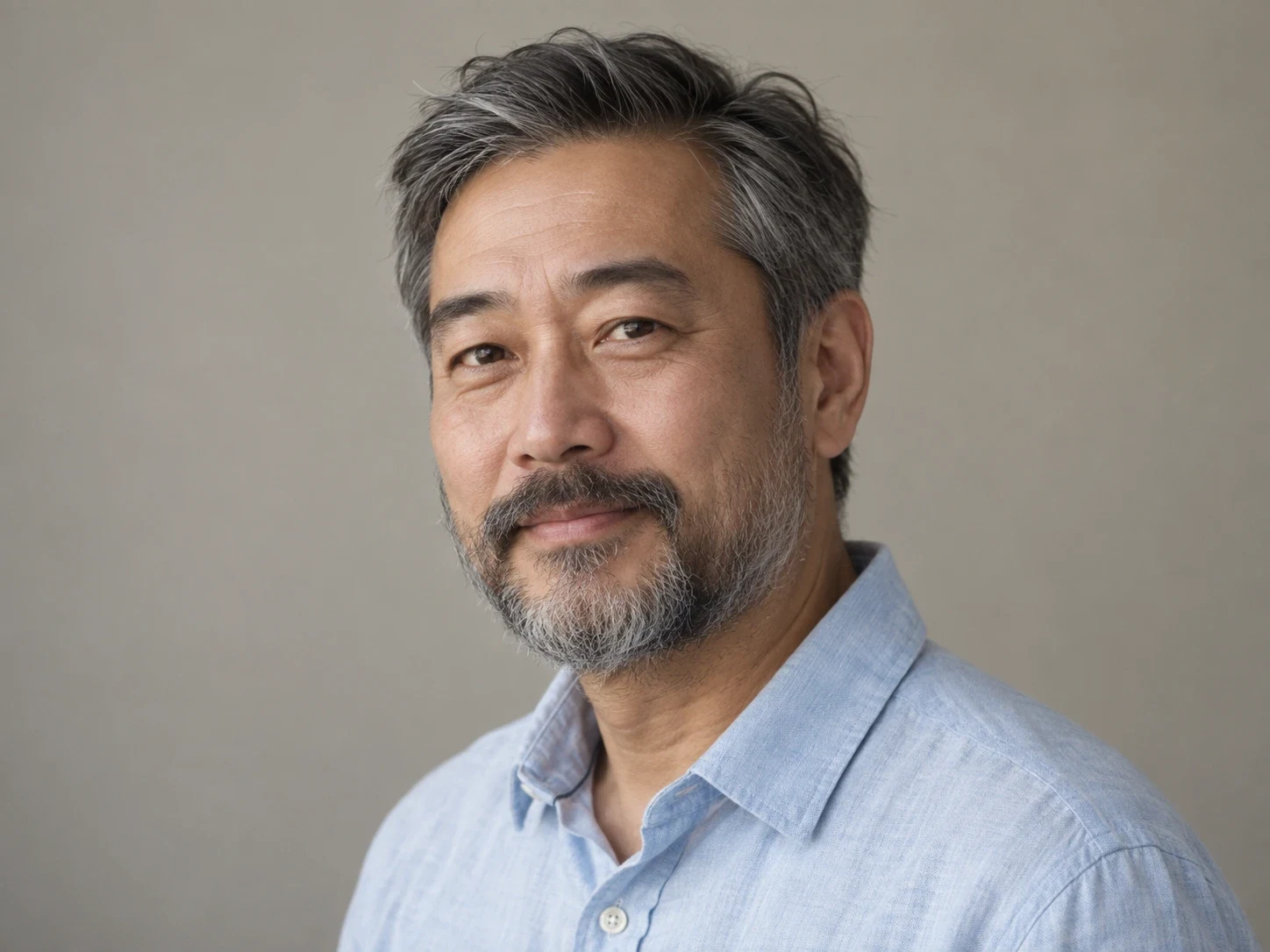
Natural Skin in a No Beard Photo

Natural-looking skin needs texture, color variation, and light that agrees with the rest of the portrait. Simply covering dark hair with a flat skin color would make the change obvious. The enlarged example focuses attention on the cheek and chin, where the generated surface needs to sit comfortably beside untouched-looking facial details.

Start with a photograph that has not already been smoothed heavily. This gives the model a better indication of the skin finish you want to retain. Inspect the transition around the lips and beneath the nose at full size. Treat the preview as one possible interpretation, and avoid assuming that newly revealed skin or facial contours are an exact record of your appearance.

Detail from the first clean-shaven result showing lips, chin, and naturally lit skin.
How to create

How to Use the No Beard Filter

One photo, one effect, a result you can save.

1

Frame the full jaw

Select a sharp, evenly lit portrait that shows the mouth, chin and entire beard without hands or other objects covering them.

2

Apply the clean-shaven edit

Review the displayed credits and create the effect. The fixed preset asks for natural skin in place of beard and moustache hair.

3

Inspect the facial detail

Compare the lips, jawline and lighting with your source before downloading. Keep the original alongside this creative preview.

Remove Beard

No Beard Filter FAQ

What does the No Beard Filter remove?

The preset requests a clean-shaven version of the supplied portrait, covering beard and moustache hair. It also asks to retain the person, expression, lighting and surroundings, although the model may reinterpret small facial details.

How do I use the No Beard Filter online?

Upload one clear portrait with the entire jaw and mouth visible. Check the displayed credit cost and create the effect. When it finishes, use the original/result comparison to inspect the edited skin and download the version you want.

Will I look exactly like this after shaving?

Treat the output as a visual preview. The model invents the skin and contours hidden by facial hair, so it cannot know exactly what is underneath. Compare the result cautiously if you are using it to explore a change in appearance.

Can I remove only my moustache?

This page uses a preset that removes both beard and moustache hair. If you want a narrower edit, use AI Image with your photo and a description of the area to change and the features you want to preserve.

Is the No Beard Filter free to generate?

The page and examples can be explored without generating. A new result uses the credits displayed in the editor, currently 20 for this effect. You need a signed-in account with sufficient credits to submit the image.

Why does the edited chin look unnatural?

A heavy beard or strong shadow hides the outline the model needs to reconstruct. A brighter, sharper portrait may help. Review the lips, jaw and skin transitions at full size; the result is an interpretation of the covered area.

Does the filter change my photo shape?

The edit is guided by the original composition, but the generated output can differ in framing or proportions. Inspect the edges and facial shape alongside your source before saving it as a profile picture or sharing it.

Try No Beard Filter

Start with your photo, explore the effect, and save a result that feels personal.