
Ordered frame references
The two upload roles are sent as distinct first-frame and last-frame inputs, rather than an unordered inspiration collection.
Give a short scene two visual anchors
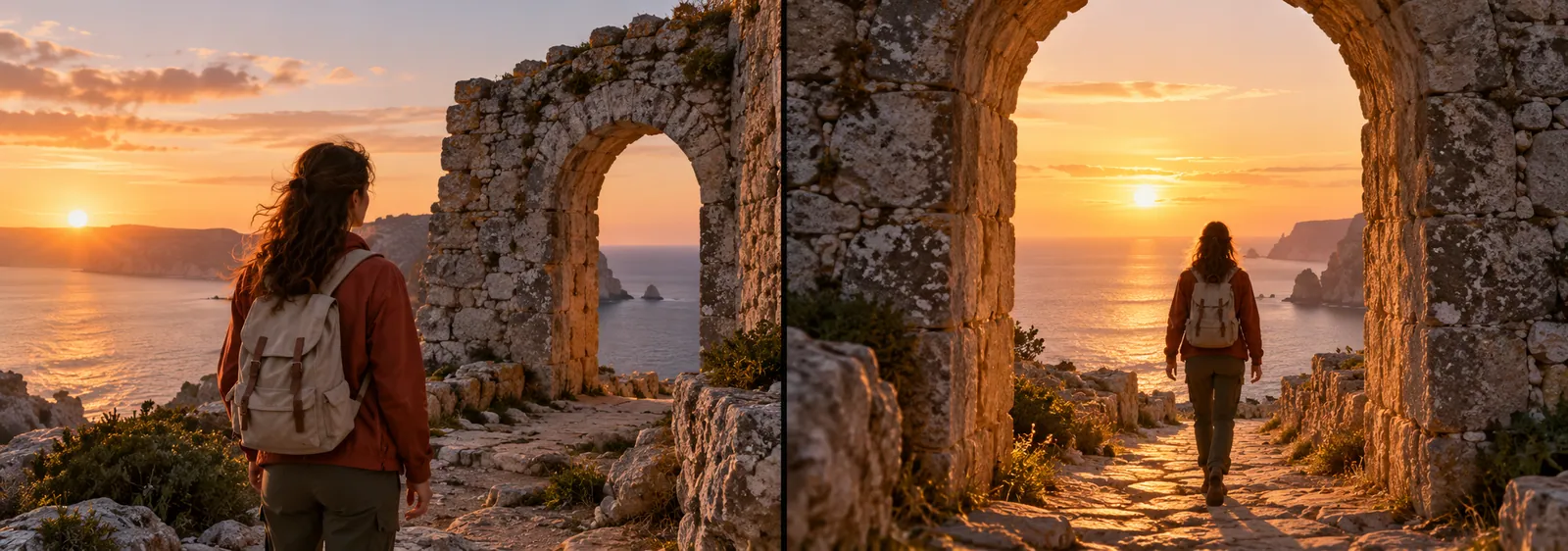
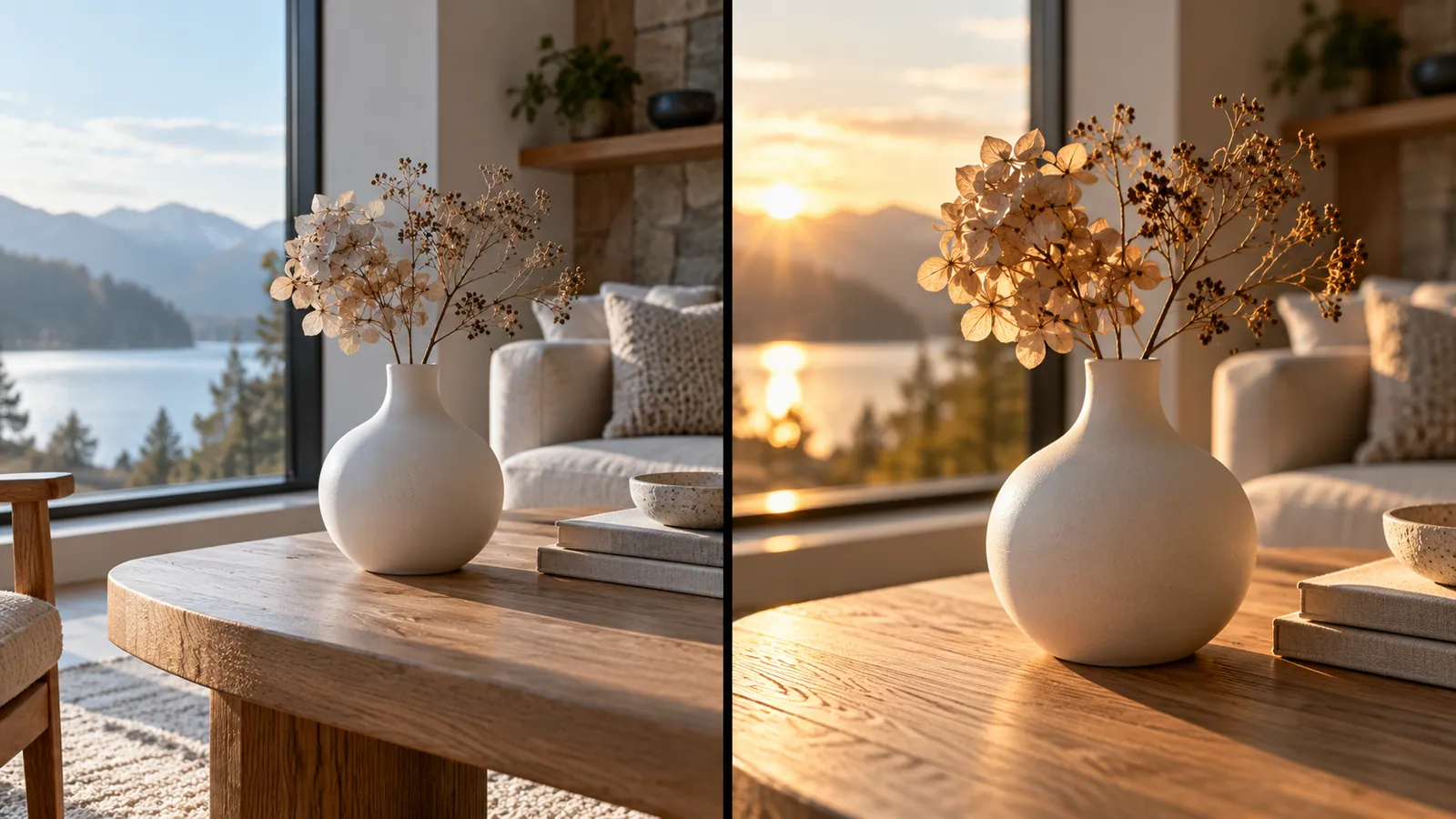
Upload a starting image and an ending image, then describe the transition between them. Veo 3.1 uses the ordered images as first and last frame references.
Start creatingAdd exactly two images in the Start frame and End frame slots.
Make it yours
Add exactly two images in the Start frame and End frame slots. Review the credit quote before you create.
Create your first masterpiece to see it appear here.
Creative direction
The two upload roles are sent as distinct first-frame and last-frame inputs, rather than an unordered inspiration collection.
Explain one movement or camera change that connects the images. Similar subjects and compatible framing reduce ambiguity.
A starting point
Create one smooth continuous video transition from the first supplied frame to the final supplied frame. Preserve the main subject and a coherent spatial relationship between both scenes. Use natural motion, stable geometry and a deliberate camera path. Avoid abrupt cuts, duplicate subjects, added lettering, logos and watermarks.
From idea to download
Add the starting image first and the ending image second. Check their aspect ratios and subject placement.
Write the desired movement, review the eight-second 720p quote, and create the video.
Compare both anchors and watch the middle for identity changes, geometry shifts, or abrupt motion.
Before you create
No. This page fixes Veo to its first/last-frame mode and sends the ordered images as separate starting and ending frame inputs.
The frames guide the video, but exact pixel reproduction and intermediate continuity are not guaranteed. Review the delivered clip.
You can, but large changes in subject, camera angle, or composition make a coherent transition harder. Start with a clear relationship between the frames.

Upload one MP4 source video of exactly 6 or 10 seconds, up to 10 MB. Optional images can guide the edit.
Open workspace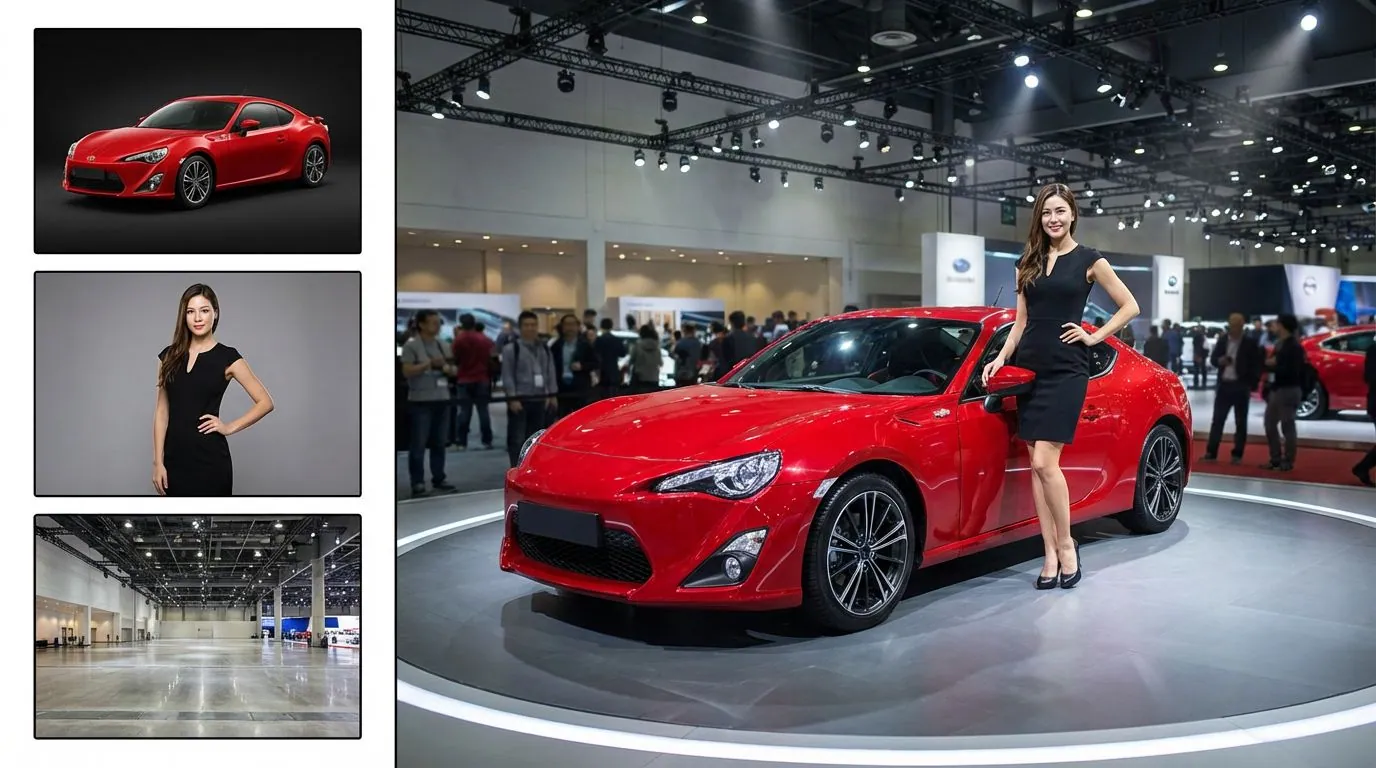
Upload Image A and Image B, then describe how they should fit together.
Open workspace